
To add subscript in PowerPoint, select the character inside the slide text and apply Subscript. On Windows, Ctrl + = is the shortcut. This lowers the selected character, useful for the 2 in CO2, while the surrounding letters stay unchanged.
The important selection is the character itself. Selecting the whole text box can apply formatting more broadly than intended; click inside the text and highlight only the number or letter that needs lowering.
Apply Subscript to selected Windows slide text
Type CO2 into a slide's text placeholder, then highlight just 2. Press Ctrl + = without Shift. Microsoft's PowerPoint formatting guide documents this shortcut.
For the mouse route, open Home, then the small dialog launcher in its Font group. On the Font tab, enable Subscript under Effects and confirm OK.
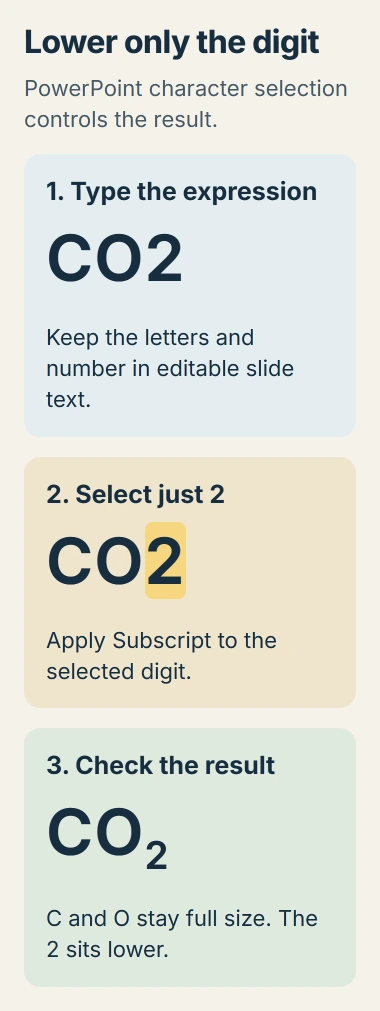
Status: PowerPoint's character-formatting commands checked against Microsoft guidance November 2, 2026. The example is typeset artwork; no slide was edited in PowerPoint.
The result should show C and O at their original height, with a smaller, lowered 2. If all three characters change, undo the action and select only the digit before applying the effect again.
For an exponent or citation marker that belongs higher, use Superscript instead. A PowerPoint footnote also needs its matching source note; formatting a number alone does not create one.
Use the Font buttons on Mac or in the browser
In PowerPoint for Mac, highlight the required character, open Home and select Subscript in the Font group. Microsoft documents this platform's dedicated button, so the Windows dialog launcher is unnecessary.
PowerPoint for the web also provides Subscript under Home > Font. Open the presentation for editing and select the character before using the control. Its symbol shows an x with a small lowered 2.
Use the named command when a keyboard layout does not match a shortcut. Microsoft states in its PowerPoint shortcut reference that the listed keys assume a US layout.
The browser may handle a key combination itself. If the page zooms or another browser action occurs, undo that browser change and use PowerPoint's Font control for the text instead.
Keep the next characters at ordinary height
Formatting already typed text avoids accidentally carrying the effect into later words. Enter the complete expression first, then change only its intended subscript characters.
If text has already acquired unwanted subscript, select that text and turn the Subscript effect off. On Windows, clear its checkbox in the Font dialog; on Mac or the web, use the active Subscript button again.
Microsoft says Ctrl + Spacebar removes manual character formatting in Windows PowerPoint. That is a broader reset, so use the Subscript control when other deliberate character styling should remain.
Inspect the whole expression after the edit. For a caption such as CO2 emissions, the 2 should sit lower while the word emissions uses ordinary text. Avoid selecting the entire caption just to repair one digit.
Check readability before presenting the slide
Subscript reduces character size as well as changing its position. View the slide at presentation size and confirm the small character remains legible. A very small main font becomes harder to read once subscript is applied.
The PowerPoint presentation basics cover using slide placeholders and checking the audience view. Keep the expression as editable text rather than replacing it with a blurry image to imitate formatting.
If Subscript stays unavailable, check whether the selected text can be edited. Try an ordinary text placeholder in a new slide; if the command also fails there, give Microsoft Support the PowerPoint edition and selected object.
The Short Version
Highlight the intended character, then apply Subscript with Ctrl + = on Windows or the Home tab's Font controls. Keep other characters at normal height, and check that the smaller text remains readable in the finished slide.

Isaac Smith is the founder and editor of PC Glance, a website that covers computers, laptops, and technology. He is a tech enthusiast and a computer geek who loves to share his insights and help his readers make smart choices when buying tech gadgets or laptops. He is always curious and updated about the latest tech trends.