PowerPoint 2010 can hide an empty superscript or subscript box when you fill the other one. The box can still accept text: move into it with the keyboard, or finish the expression in Linear view.
This is different from making ordinary slide text smaller and raising or lowering it. For a stacked expression such as a molecular hydrogen ion, keep working inside an equation rather than formatting two separate characters in a text box.
In this guide
1. Keep the combined script structure
Click inside the equation that's losing its placeholder. The Equation Tools > Design tab should appear. When you see it, you're editing an equation, rather than ordinary text on the slide.
In PowerPoint 2010, start at Insert > Equation > Insert New Equation. On Equation Tools > Design, open Script and choose Subscript-Superscript: one main box with two smaller boxes stacked at its right.
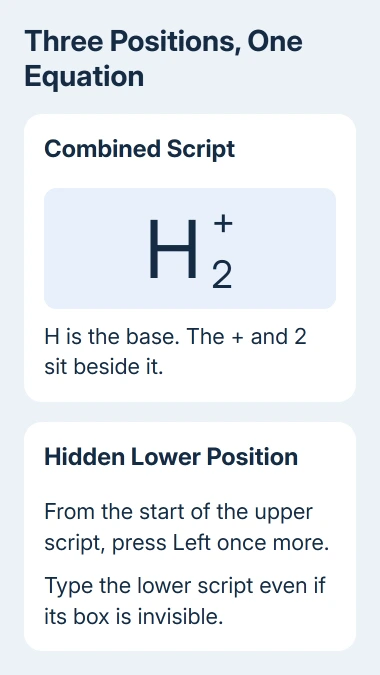
For the hydrogen example, the main character is H, the lower script is 2 and the upper script is +. In the old editor, filling one smaller box can make the other empty box disappear.
Don't replace the combined structure with a subscript inside a superscript. Those are different mathematical arrangements. The aim is to fill the three positions of the same structure, with the two scripts beside the base character.
The asker later confirmed that the keyboard method worked. I'd try that first if the expression is already on your slide; it avoids rebuilding an equation you've nearly finished.
2. Enter the hidden subscript with the keyboard
The working keyboard method starts from the upper script. Use a fresh combined script structure if it's hard to tell where the insertion point is in the existing expression.
- Enter H in the main placeholder.
- Click the upper script position and enter +.
- Press Left until the insertion point is at the beginning of that upper script.
- Press Left once more to move into the lower script position.
- Type 2, even if the placeholder and insertion point aren't visible.
That last position can still accept typing, even though you can't see it. In the finished expression, 2 should appear beneath +, with H at normal height to their left.
Count from the start of the upper script. A longer expression takes more movement before you leave that script; the extra Left press then enters the hidden lower position.
If the 2 lands beside + in the upper position, undo that entry. Return to the beginning of your upper script and make the additional Left press before trying again. This lets you check where you're typing before rebuilding the equation.
If keyboard navigation still puts characters in the wrong place, use Linear view next. It makes the equation's contents visible as a single expression so you can edit the missing part directly.
3. Finish the expression in Linear view
A second owner described a complete workaround using the equation's Linear and Professional buttons. It keeps the result in PowerPoint instead of moving the work to Word.
- Insert the combined Subscript-Superscript structure.
- Enter H in the main box and 2 in the lower box.
- Select the equation text after the upper placeholder disappears.
- On Equation Tools > Design, select Linear.
- Move to the end of the expression and add +, so it reads
H_2^+. - Select the whole expression, then choose Professional.
Professional view should rebuild the expression with the plus and 2 stacked at the right of H. The underscore and caret belong to its linear notation; they shouldn't remain visible in the finished stacked equation.
This example comes from PowerPoint 2010's equation editor. You don't need to enable LaTeX, the equation input format available in some newer Office apps, for these steps.
For a Mac equation that leaves Greek commands unchanged, check text replacement and the equation field.
If the expression stays as literal text, check that the equation itself is selected and that the Design tab belongs to Equation Tools. Typing H_2^+ into an ordinary slide text box doesn't create that structure.
For longer expressions, work on a copy and make one correction at a time. First get the base character and both scripts into the intended positions; then extend the contents without changing the surrounding structure.
4. Use Word when an existing equation won't cooperate
An owner also reported creating the equation in Word 2010 and copying it into PowerPoint. That's a practical fallback when the same expression builds correctly in Word but PowerPoint's placeholders keep getting in the way.
Create the expression in Word's equation editor, check both script positions, then copy it and paste it onto the slide. Click the pasted result and check whether it remains an editable equation before replacing your original.
If it pastes as a picture, the expression will display, but you won't be able to edit the individual script positions. Keep the editable Word source if the pasted version ends up as an image in your particular workflow.
For plain slide labels, ordinary PowerPoint subscript may be all you need. It lowers selected text; it doesn't supply the three-part equation structure used in this fault.
Likewise, a raised footnote marker is normal character formatting. Use that for references, rather than rebuilding every raised number as an equation.
When both methods fail
Try the short H expression in a blank presentation. If it works, rebuild just the troublesome slide's equation in a copy. If it fails too, record the Office version and which method misplaced the character.
The current equation keyboard reference covers supported Microsoft 365 apps. Those newer shortcuts don't tell you whether PowerPoint 2010's hidden-box problem was fixed.
Support for PowerPoint 2010 has ended. Ask your Office administrator to compare the equation in a supported version. Bring the small example so they can check the actual script positions.
The Short Version
Keep the combined Subscript-Superscript structure. From the start of the upper script, press Left again and type in the hidden lower position. Or finish H_2^+ in Linear view, then choose Professional.
Checked November 21, 2026.
 If you have any business, I can build it online