Greek commands like \alpha can stay unchanged in PowerPoint for Mac when Replace text as you type is turned off. Turn that option on in PowerPoint > Preferences > AutoCorrect, then try the command followed by Space inside an equation.
A normal slide text box is a different case: it doesn't convert equation commands the same way. Check whether you're entering the command inside an equation or in ordinary slide text; the two need different steps.
In this guide
1. Turn on Replace text as you type
Open PowerPoint's menu beside the Apple menu, choose Preferences, then open AutoCorrect. Select Replace text as you type. These are the menu names in PowerPoint 2016 for Mac, the version involved in the confirmed report.
Return to your slide, click inside the equation and type \alpha, then press Space. A successful conversion replaces the command with the Greek letter. It shouldn't leave the backslash and the word alpha on screen.
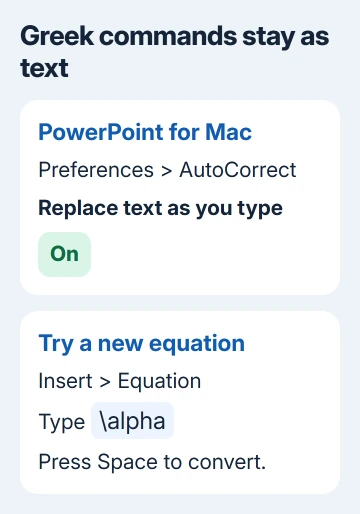
One owner fixed Greek command conversion with this checkbox. They could already type subscripts and superscripts, but that didn't mean symbol replacement was turned on.
I'd check this setting before changing fonts or reinstalling Office. It takes a few clicks, and it matches the specific symptom: equation structures work, but backslash commands don't change after Space.
Try the command in a newly inserted equation as well as the original one. If both now convert, the setting was the problem. If neither does, keep the option enabled and check where you're typing next.
2. Put the command inside an equation
Select Insert > Equation and click inside the equation field before typing. A title placeholder, a text box and an equation can all contain letters, but only the equation field is the right place for this test.
Type a single backslash followed immediately by the command name, such as \beta, then press Space. Keep the backslash and command name together, with no plus sign between them.
The keyboard equation instructions describe this Space conversion and confirm that Math AutoCorrect commands are case-sensitive.
Start with a simple lowercase command rather than pasting an entire formula. That checks whether symbol conversion works before you add fractions, scripts or several terms that could make an input mistake harder to notice.
If the same command works in a fresh equation but fails in an existing object, rebuild that small expression in the new field. An equation pasted as an image can't be edited by placing a text cursor inside its symbols.
For a separate problem where combined superscripts and subscripts vanish, use the hidden script-box fix. That's a layout issue after the equation exists.
3. Check the command's spelling and capitalization
Math AutoCorrect uses a list of commands; it doesn't understand every LaTeX expression. Even if a command works in LaTeX, your version of PowerPoint might not recognize it.
Use a command in the Math AutoCorrect symbol list. On the page, press Command+F and search for the symbol name.
Copy the spelling carefully. For example, \alpha and \Alpha are different commands in the current list. Changing the capital letter can change the symbol, so don't treat the two spellings as interchangeable.
Some listed commands aren't available in older Office versions. If common Greek commands convert but one newer command doesn't, inserting that symbol from the equation controls is more sensible than resetting every AutoCorrect setting.
The commands also aren't supported in the web apps. Opening the same presentation in a browser changes its typing behavior, even with the same account and file.
Check PowerPoint > About PowerPoint to identify the installed version before comparing its behavior with current instructions. Use PowerPoint 2016's Preferences path if that's your version; a newer release may show different menus.
4. Use Word for a symbol in ordinary slide text
For a Greek character in a sentence or slide label, try Word if the command won't convert in PowerPoint's ordinary text. This also worked for the owner before they corrected PowerPoint's setting.
Open Word for Mac, choose Word > Preferences > AutoCorrect, then select Math AutoCorrect. Enable Use Math AutoCorrect rules outside of math regions if you want commands to work in regular Word text.
Type the command and press Space in Word, then copy the resulting character into the PowerPoint text box. For a full expression, create and copy an equation instead of trying to assemble it from separate slide labels.
This is a workaround for getting the content onto the slide. It doesn't turn on command conversion in PowerPoint, so return to the first two checks if you want to keep entering equations directly there.
PowerPoint 2016 for Mac doesn't have the same Math AutoCorrect preferences tab described for Word. Don't spend time looking for Word's outside-math checkbox in PowerPoint's preferences.
If the copied character turns into a blank square, that changes the problem. Follow the missing-symbol font checks to separate a font problem from a command that never converted.
When conversion still doesn't work
Changing the equation font to Cambria Math was suggested during the original discussion, but the owner tried it without success. Their later successful change was enabling Replace text as you type.
Save a small presentation with one new equation showing the problem. Record the PowerPoint version, macOS version, exact command and whether pressing Space changes anything. The sample and version details help support reproduce the problem.
For a supported Office release, send that sample through PowerPoint's Help support options. Ask about Math AutoCorrect conversion inside an equation, and mention whether the same command converts in Word on the same Mac.
If an old release can't handle the command, use the equation symbol controls or the Word workaround for the presentation you need to finish. Don't delete Office's custom correction files just to solve one unrecognized symbol.
The Short Version
Enable Replace text as you type in PowerPoint > Preferences > AutoCorrect. Enter a case-sensitive backslash command inside Insert > Equation, then press Space. For ordinary slide text, convert the character in Word and copy it across.
Checked November 21, 2026.
 If you have any business, I can build it online