Speaker notes go in PowerPoint's Notes pane. Select a slide, open Notes, and type your talking points. Desktop Presenter View can show them to you while the audience sees the slide.
Windows, Mac, and the browser edition can all store speaker notes, but the browser edition doesn't show them during a slide show. Use desktop PowerPoint when you need that private presenter display.
In this guide
Put the first note in its own pane
Open the presentation and select the slide's thumbnail. In desktop PowerPoint for Windows, use Normal view, then select Notes near the bottom of the window if the note area isn't visible.
Click the area labeled Click to add notes and type a short reminder. For example, a slide listing three options might have a note reminding you to explain why you recommend the second one.
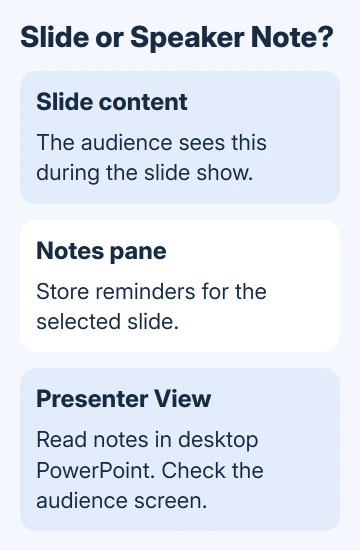
Each slide has its own notes. Select another thumbnail and the note area changes too. This is useful when several slides look similar: check the thumbnail selection before adding a long explanation.
Save the presentation, return to the first slide, and confirm the reminder is still there. The reminder should appear in the Notes pane, without appearing on the slide itself.
Microsoft says speaker notes stay off the audience's slide. Adding a slide text box would put your reminder into the presentation itself.
I'd write a few speaking prompts before drafting a full script. A quick reminder is easier to scan while you're explaining a chart or answering a question, and it leaves you room to speak naturally.
Make room for longer notes without moving slide objects
When the note area is nearly hidden, enlarge the pane by dragging its upper edge upward. You're resizing the editing area, rather than changing the size of the slide or the objects on it.
Type a heading or a short paragraph, then separate the next thought with a new line. Notes can include context you don't want to crowd onto the slide, such as the reason a date changed or the example you'll mention aloud.
For a simple practice slide, try three reminders: the point to make, one supporting detail, and the transition to the next slide. Adapt those prompts to the way you actually present.
Keep your notes easy to scan while you're speaking. A note can be long enough to scroll, but scrolling through a script during a question is harder than spotting a short cue.
If the slide itself needs a reference visible to the audience, add a PowerPoint footnote instead. Speaker notes and a visible source citation serve different purposes.
Need notes in Mac or browser PowerPoint?
On a Mac, choose View > Normal, select the slide, and click Click to add notes in the pane under it. The Notes control at the bottom hides or shows that pane when you need more editing space.
Select a different slide and repeat. Keep the file open long enough to save your changes before switching devices, especially if you're relying on a cloud copy to reach the presentation computer.
In your browser presentation, choose View > Notes. The editing pane opens across the bottom of the window. Enter the note for the selected slide and move through the thumbnails as needed.
You can create and edit notes in the browser, but you can't see them in a private presenter display during its slide show. A missing private notes panel during the web slide show isn't fixed by retyping the notes.
For private notes during a slide show, open this file in desktop PowerPoint and use Presenter View. Check that the file you've downloaded or opened contains your latest notes before the meeting begins.
Rehearse with Presenter View on Windows
Connect the display you plan to use for the audience. In desktop PowerPoint, open Slide Show and select Use Presenter View. Start from From Beginning when you want to check the whole sequence.
Presenter View combines your current slide, the next slide, and the notes for the selected slide. Move forward once and confirm both the slide and its note change together.
For a rehearsal on one monitor, start the slide show, open its control menu, and choose Show Presenter View. This lets you practice reading the prompts without needing a projector attached.
Use the note-text size controls if the reminders are too small when you sit where you normally present. Making the notes bigger helps you read them; it doesn't enlarge anything on the audience's slide.
Check the audience screen before discussing anything private. Sharing your entire desktop can expose Presenter View, even when PowerPoint has correctly separated the notes from the slide show.
Check the Mac presenter display and the audience screen
On a Mac, start through Slide Show > Presenter View. The presentation should appear on the audience display while your own screen shows the presenter controls and notes.
If those are reversed, use Swap Displays in Presenter View. Check the physical audience screen after the change instead of assuming that a projector or meeting app chose the intended display.
In a video meeting, share the slide-show window or intended presentation display using the meeting app's controls. Ask someone to confirm what they see before the real presentation starts.
Keep the slide preview and notes at sizes you can use. A large preview with a cramped note area isn't helpful when your main purpose is reading the reminders. Resize the presenter panes so you can read your notes comfortably.
When notes appear for the wrong slide, exit the show and select that slide in Normal view. Check whether the text was entered under a neighboring thumbnail before changing display settings.
Save a presenter copy and choose what to distribute
Save the editable presentation after finishing the notes. Reopen a slide near the end as well as the first one, so a quick check doesn't miss a section you hadn't completed.
The notes remain part of the editable file. Keeping them off the audience's screen during a talk doesn't remove them from the presentation you email afterward.
For paper speaking prompts, the PowerPoint notes printing guide covers Notes Pages. Choose a layout that actually includes the notes rather than assuming every handout layout does.
If desktop PowerPoint still won't let you use Notes, note the app version, operating system, and whether the file is editable. Use Help in the app to reach support, or give those details to your workplace's Office administrator.
The Short Version
Type reminders into the selected slide's Notes pane. Desktop Presenter View can display them while you speak; browser PowerPoint can edit notes but can't show them during its slide show. Check the audience screen first.
Checked November 16, 2026.
 If you have any business, I can build it online