

Add an Excel footnote by typing a marker in a label and its matching explanation in another cell. For notes repeated at the bottom of printed pages, use Insert > Header & Footer in desktop Excel.
The right choice depends on where you need the note to appear. A cell note stays with the worksheet's content; a page footer belongs to its printed layout. Excel doesn't provide Word's automatic footnote numbering and note placement.
Choose where the explanation needs to appear
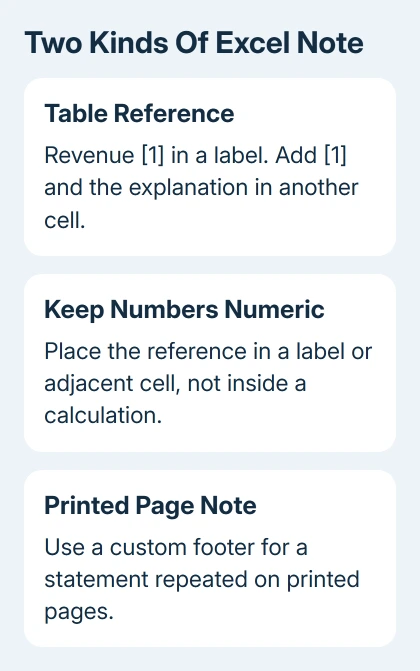
For a table viewed on screen, leave a row after the data for your explanations. Use a consistent marker, such as [1], in the label and the note. A reader should be able to match them without opening another panel.
Use a footer for a note that belongs on every printed page, such as an explanation about the whole report or the source of its data. It won't find a cell's marker automatically and put its matching explanation on that printed page.
A comment or cell Note is a third choice when the explanation is for workbook users rather than the printed report. Don't rely on a hover panel as the only explanation for someone receiving a plain printout.
Decide where the note belongs before formatting its marker. A raised number won't help your reader if the explanation is outside the printed area or on a page they don't receive.
If the report really needs automatically managed page footnotes, use the Word footnote procedure for the document containing the table. That gives the note a page-layout system designed for it.
Add a readable marker without changing the calculation
Click a text label, edit it and add [1] at the end. In a separate cell after the table, type [1] followed by the explanation. For example, a sales heading might refer to an explanation about which period it covers.
Keep calculation cells numeric. Adding a typed marker can turn a number into text and affect calculations. Put the reference in the row label or an adjacent cell when the amount must remain numeric.
Use one marker for the same explanation wherever it applies. For a different explanation, use another marker and give it its own matching note. Keeping the references short makes a dense table easier to scan.
The same bracketed text works in Mac Excel and its web app. Type the markers as ordinary text; they don't depend on a footnote command or a superscript feature being available.
After editing, click away from the cell and check that the marker is visible. If the explanation is cut off, select its cell and use Home > Wrap Text, then give the row enough space to show the complete note.
I'd put the reference in the label rather than inside a formula result. The reader still sees the reference, and the value stays usable for sums, sorting and later analysis.
Format a raised reference in the Windows app
If a raised marker suits your report better, edit a text cell and select only the marker characters. Leave the rest of the label unselected. That way, only the reference becomes smaller and raised.
Press Ctrl+1 to open the formatting dialog. On the Font tab, select Superscript under Effects, then choose OK. Click outside the cell to review the final label.
Microsoft's superscript formatting instructions describe this method for text characters. It changes how those characters look; it doesn't create a numbered footnote or link to the explanation.
If the whole label rises, undo the change and select only the reference while editing the cell. Selecting a whole cell before formatting isn't the same as highlighting one character inside its text.
For Mac or the web, plain [1] markers are the simplest option if you can't find the same formatting control. Matching the marker and explanation matters more than having a raised numeral.
Don't replace a working numeric formula with a typed value just to add a superscript reference. Move the reference to an adjacent label instead so the workbook can keep recalculating.
Put a general note in the printed page footer
On Windows, click the intended Excel worksheet tab and choose Insert > Header & Footer. Excel changes to Page Layout view. Scroll to the page's footer and click its left, center or right text area.
Type the note in the section where you want it to print. Click back into the worksheet to leave footer editing. The normal cell grid won't show the footer when you return to Normal view.
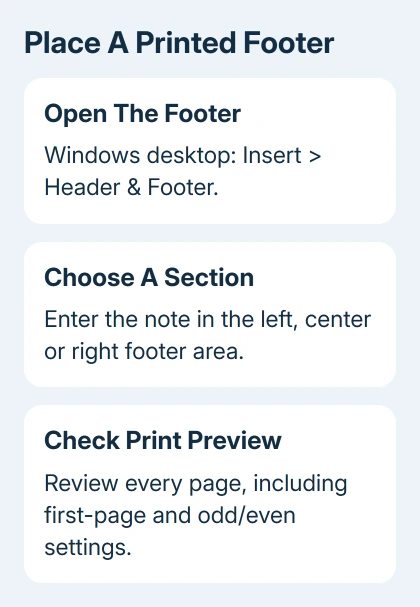
Another Windows route is Page Layout > Page Setup using the group's dialog launcher, then Header/Footer > Custom Footer. This opens separate left, center and right sections without requiring you to scroll to the page bottom.
On Mac, use Page Layout > Page Setup > Header/Footer in desktop Excel. Choose the custom footer and enter your note in the appropriate section.
If your browser version doesn't offer these page-footer controls, use Open in Desktop App for the print layout. Ordinary worksheet notes can still be entered as cell text in the web version.
Before editing, check that only the worksheet you want to change is selected. Grouped sheet tabs can apply layout changes to several sheets. A note intended for one table can otherwise turn up on unrelated printed pages.
Preview every page that will carry the note
Open File > Print and move through the preview pages. Confirm the footer text appears and the table's cell explanations are included. A note visible somewhere in the workbook isn't necessarily inside the print selection.
If a footer is missing only on page one, check Different First Page in its options. Check Different Odd & Even Pages when alternate pages differ. Those settings let you use different footer text on those pages.
If the footer shrinks when you fit a large sheet onto fewer pages, review Scale with Document in the header/footer options. Clear it to keep the footer's font size from changing when the worksheet is scaled.
For a literal ampersand in a footer, type &&. Footer text treats ampersands as part of special codes, so a pair is needed to print one character. This rule doesn't apply to ordinary note text in a worksheet cell.
Review each marker beside its explanation after moving rows or changing a note. For a presentation, the PowerPoint footnote steps cover that app's reference and footer controls.
If desktop Excel won't retain a footer, save a copy and note the Excel version, file format and whether one sheet or every workbook is affected. Ask Microsoft 365 support about the failed footer setting with those details.
The Short Version
Use matched markers and explanation cells for table footnotes. Keep references out of values that must remain numeric. Use a custom page footer for repeated print notes, then check every page in Print Preview.
Checked November 9, 2026.

Isaac Smith is the founder and editor of PC Glance, a website that covers computers, laptops, and technology. He is a tech enthusiast and a computer geek who loves to share his insights and help his readers make smart choices when buying tech gadgets or laptops. He is always curious and updated about the latest tech trends.