
Select the text on your slide, then choose Home > Bullets to turn its paragraphs into a list. Press Enter for each new point, and use Increase List Level when a point needs a sub-bullet.
Where you put the text matters. A normal text box or content placeholder handles separate list items; a title placeholder can treat several lines as one heading and leave you with only one bullet.
Put the list in a text box or content placeholder
Open the presentation in PowerPoint and choose View > Normal. Select the slide thumbnail you want to edit, then click inside its content placeholder. A placeholder is a text area built into the slide's layout.
If the slide has no suitable area, choose Insert > Text Box, draw a box on the slide and type the first point. Use this for a separate list rather than forcing body text into the title.
Click in the paragraph and choose Home > Bullets in the Paragraph group. For existing text, select all the paragraphs that should become list items before choosing the command.
Microsoft describes the PowerPoint list controls for Windows, Mac and browser editing. The basic choice stays the same: Bullets for points, Numbering for an ordered sequence.
Check the first two items before formatting the entire slide. Each point should begin with its own marker, and a long point should wrap neatly under its text rather than looking like a separate item.
Start a new point with Enter
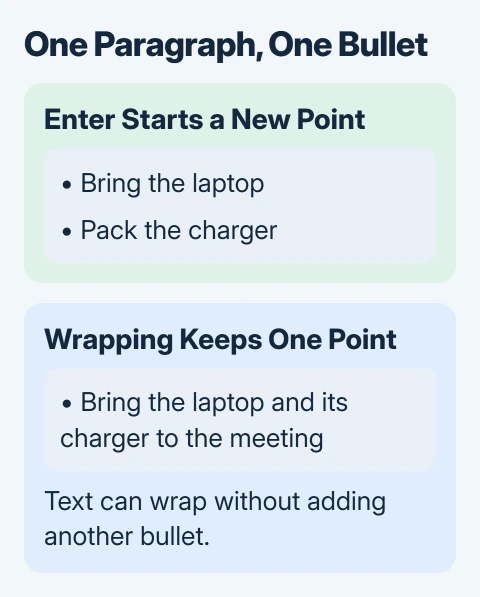
Type the first point, then press Enter. PowerPoint creates the next paragraph with its own bullet. Repeat that for the remaining points, keeping each item together as one paragraph.
A long sentence can wrap onto another visible line without starting another bullet. That's normal. The width of the box controls the wrap, while Enter creates the next list item.
For example, Bring the laptop and charger to the meeting can occupy two displayed lines in a narrow box. It still describes one task, so it needs only one bullet.
If several pasted points share one marker, check whether they are separate paragraphs and whether the box is a title placeholder. Move body text into a text box or content placeholder before trying new bullet styles.
For a list that already works, avoid adding empty paragraphs between items just to create space. Those paragraphs can pick up their own bullets and make later editing awkward.
Add sub-bullets without typing spaces
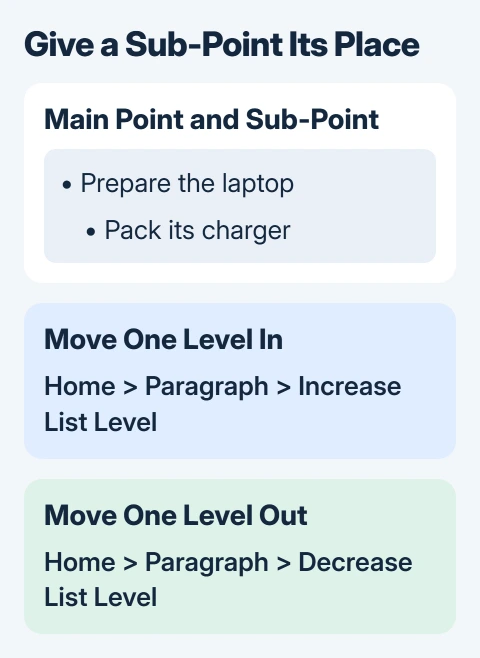
Click inside the paragraph that should sit under a main point. Choose Home > Paragraph > Increase List Level. This moves the paragraph under its main point in the list.
Choose Decrease List Level to bring it back. These commands set the paragraph's level in the list, so they work more consistently than spaces before the words.
To use the keyboard, put the cursor at the beginning of the paragraph. Tab increases its list level and Shift+Tab decreases it. Cursor position matters for this shortcut.
The text and sub-bullet reference shows that cursor position. If Tab doesn't change the list level, use the ribbon command instead of pressing it repeatedly between words.
I'd keep a short slide to two list levels when possible. A third or fourth level needs more width and makes the main points harder to follow from the back of a room.
PowerPoint can indent list items, but it doesn't automatically create Word-style decimal numbering such as 1.1 and 1.2. Use a format PowerPoint supports; its lists don't work like a Word outline.
Change the bullet style for the selected paragraphs
Select the items to change and open the menu beside Bullets. Choose one of the offered styles. On desktop PowerPoint, Bullets and Numbering gives you more size, color and symbol choices.
Select only the paragraphs you want to change. Formatting one paragraph doesn't always change its neighbors, which can leave a slide with mixed bullets after several edits.
In the desktop dialog, bullet size depends on the text size. If the marker looks too big, adjust that setting rather than shrinking the whole list until the text becomes hard to read.
Changing the bullet shape won't change its indentation or move a sub-point back to the main level. Use the list-level controls for that.
If characters look different on another computer, check the presentation's installed fonts. Inspect the words and symbols in Slide Show view using the machine you'll present from.
Keep a presentation's lists consistent
For a single slide, format its selected paragraphs directly. If you want the same list style across many slides, set it in the slide master and its layouts. New slides will then use that style.
On desktop PowerPoint, open View > Slide Master and select the master or layout you want to change. Adjust its text levels, then close Master View and check the slides using that layout.
Save a copy before changing a shared presentation's master. A master change can affect many slides, so check the result across the deck before replacing the original.
If one slide ignores the style, check that its text is in the right layout placeholder. A separately inserted text box may need its own formatting rather than inheriting the placeholder's list settings.
When a slide also needs a source reference, add the PowerPoint footnote separately. A reference line and the main list have different jobs and don't need matching bullet levels.
Finish the list and check the slide
To return a paragraph to plain text, place the cursor in it and choose Bullets again. For several paragraphs, select them first, then switch the list formatting off.
This removes the automatic bullets while keeping the words. If a dot stays, check whether it was typed or pasted into the text before removing anything else.
Run Slide Show and read the finished list at presentation size. Check that the last line fits, the sub-points belong to the correct main item and the text doesn't crowd a picture or footer.
If the problem keeps happening, create the same two-item list in a blank presentation. If it works there, ask the template owner to inspect the affected layout. If both fail, send Microsoft Support the app version and a sample slide.
The Short Version
Use Home > Bullets on selected paragraphs in a text box or content placeholder. Enter starts another point; Increase List Level creates a sub-point. Keep title text separate, and check the finished slide before presenting it.
Checked November 5, 2026.

Isaac Smith is the founder and editor of PC Glance, a website that covers computers, laptops, and technology. He is a tech enthusiast and a computer geek who loves to share his insights and help his readers make smart choices when buying tech gadgets or laptops. He is always curious and updated about the latest tech trends.