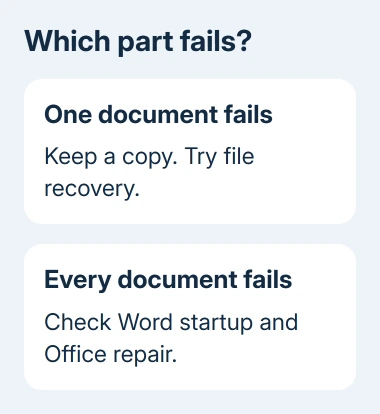
A Word document that won't open needs a different fix from Word itself refusing to start. When other documents open normally, make a copy of the failing file and try Open and Repair; when every file fails, check Word in Safe Mode instead.
A password prompt, an editing restriction and a damaged file aren't the same problem. Read the exact message before changing anything, especially for a document someone sent you.
In this guide
1. Open the saved file from inside Word
Start Word without double-clicking the problem document. Open a different document you know works, or create a blank one and type a few words. This checks whether Word can open a normal document.
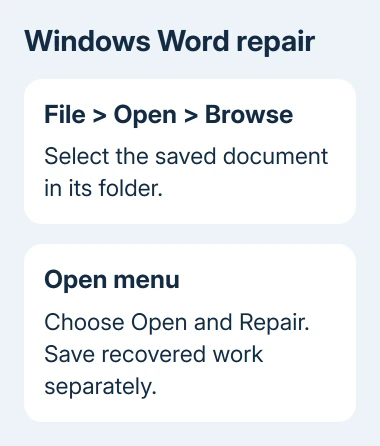
If Word opens normally, choose File > Open > Browse on Windows and select the saved document. On Mac, choose File > Open and locate it. A broken Recent entry can point to a file that was moved or renamed.
Check the file's actual location in File Explorer or Finder. For an email attachment, save a fresh copy from the original message. A download that never finished needs downloading again, rather than repairing Office.
Keep the original and work on a duplicate. I'd make that copy before trying recovery tools, because a partly recovered document can lose formatting even when its text becomes readable.
A document that opens but refuses edits belongs in the Word editing-restriction guide. For a password requested before any content appears, ask the owner for the opening password.
2. Repair one damaged file on Windows
In desktop Word for Windows, select File > Open > Browse. Find the problem file and click it once. Open the small menu beside Open, then choose Open and Repair.
Don't select the document from Recent for this step. That shortcut skips the file dialog containing the repair command. Microsoft says to use Browse in its file-corruption instructions.
Wait for Word to finish. If the document opens, save the recovered version with a new name. Check its last page, tables, pictures and any sections that were being edited when the problem started.
Even if the file opens, check its contents. A file can open while missing a picture or part of its layout. Compare it with a known copy or printed version before replacing the original or sending it to someone else.
If repair fails, keep the damaged copy and move to a previous saved version or text recovery. Running the same repair again won't give Word another copy to recover from.
3. Recover the text on a Mac when layout can be sacrificed
Word for Mac has a separate damaged-file recovery route. Open Word > Preferences, select General under Authoring and Proofing Tools, and turn on Confirm file format conversion at Open. Close that settings dialog.
Choose File > Open. In the Open dialog, select Recover Text from the opening-format menu, then open the damaged document. This recovers the words, so a document with complex formatting won't look the same.
Save any recovered writing as another file. Read through the result for missing passages and stray characters. Keep your original in case you find a backup or another way to recover it.
This route is useful when the words matter more than the page design. Check a contract, form or financial table carefully. Lost layout can change the meaning of the text you recover.
If Word on the Mac can't open ordinary documents either, stop working on the damaged file. Update Word through Help > Check for Updates, then give Microsoft Support the application version and the message shown during opening.
4. Look for an intact version before rebuilding the document
A previous saved copy can preserve more than a text-recovery attempt. Check the folder where the document normally lives, any backup drive and the copy held by its sender or collaborator.
For a OneDrive or SharePoint document, check its Version history if available. Inspect an earlier version before restoring it, and keep any newer writing in a separate file so it isn't accidentally replaced.
An unsaved session after a crash is a different recovery job. The unsaved Word recovery page explains the Document Recovery pane and the copies Word may have kept.
Ask a collaborator to send a new attachment when their copy still opens. That can avoid rebuilding a file that was damaged during transfer, especially when the saved attachment is unusually small or empty.
If no intact version exists and the recovery tools return only fragments, treat those fragments as a starting point. Check them against emails, notes or earlier drafts before using the document for anything important.
5. Start Word in Safe Mode when every document fails
On Windows, close Word, press Windows+R, type winword /safe, then press Enter. Include the space before the slash. Try opening the same ordinary document that failed in normal mode.
Safe Mode starts Word with fewer extras and limits which add-ins can run. If it opens the document, check File > Options > Add-ins. Beside Manage, select COM Add-ins, then choose Go.
Note the selected add-ins, clear their checkboxes and restart Word normally. Enable each add-in separately, reopening the document after each change. Keep the troublesome add-in disabled. Ask its developer for a fixed version.
If Word still can't start in Safe Mode, or documents fail there too, move to Office repair. This Windows startup command doesn't apply to Word for Mac.
6. Repair Office and send support a useful failure report
Save work in other Office apps. On Windows 11, open Settings > Apps > Installed apps, find Microsoft 365 or your Office edition, open its three-dot menu and choose Modify.
On Windows 10, use Settings > Apps > Apps & features, select Office and choose Modify. A work-managed installation may require your IT desk to make this change.
For a Click-to-Run installation, try Quick Repair first. If that doesn't help, use Online Repair with an internet connection. An older MSI installation instead offers Repair in its change-installation window.
Office repair fixes the app itself. It can't bring back content missing from a damaged document. If other files open after repair but this one doesn't, return to that file's backups or ask its sender for a working copy.
Give Microsoft Support or your Office administrator the error message, your Word version and your system version. Explain whether another document opens, then ask about damaged-file recovery or repairing the app.
The Short Version
Open Word on its own and compare another document. Repair one damaged Windows file through Browse, or recover text on Mac. Use an intact earlier copy when possible; check Safe Mode and repair Office when every document fails.
Checked November 12, 2026.