
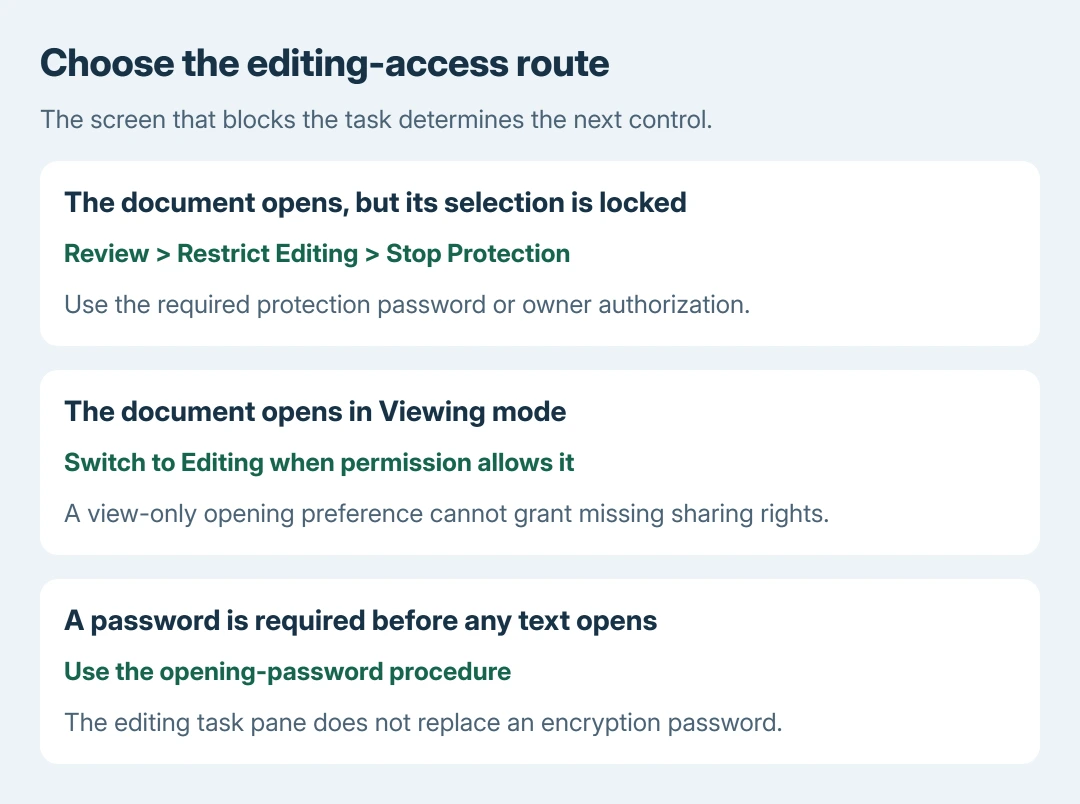
A Word document that opens but will not accept edits can have document protection, a view-only setting or sharing restrictions. Check Review > Restrict Editing for a locked selection, then Stop Protection with the required authorization.
A password requested before the document opens is a separate form of protection. Identify the prompt before changing settings or making another copy.
Remove the document's editing protection
In desktop Word for Windows, open Review > Restrict Editing. In its task pane, select Stop Protection. Enter the protection password if requested.
Microsoft documents this protected-document unlocking procedure. It requires the appropriate owner authorization or the password applied to that protection.
Status: Word restriction and view-only controls checked against Microsoft instructions on October 28, 2026. No protected document was opened or changed.
Try a small edit after protection is removed, undo that edit and save only the changes intended for the document. If Word still refuses, check the opening mode in the next section.
Without the required password or permission, ask the document's author for editable access. Renaming the file does not grant authorization to change protected content.
Clear a view-only preference or select Editing
In Word for Windows, go to File > Info > Protect Document. If Always Open Read-Only is selected, select it again to clear that preference.
Microsoft says this opening preference differs from actual editing permissions. Clearing it cannot override restrictions imposed by a document owner or organization.
Use the mode menu near the upper-right corner to change Viewing or Reviewing to Editing, when offered. In Word for the web, use that same mode choice; request edit access if Editing is unavailable.
For a reusable original, save a separate Word file before making permitted changes. That preserves the starting document; it does not remove a protection password.
A Protected View warning is another case. Follow the warning for a file whose source and contents are trusted. Do not disable Word's protection globally to make an unfamiliar attachment editable.
Work within the areas the author has permitted
Some forms intentionally protect their wording while allowing entries in specific places. Unlocking the entire form may be unnecessary.
Return to Review > Restrict Editing and use Find Next Region I Can Edit or Show All Regions I Can Edit. These controls identify the areas where the current user can make changes.
Microsoft states that Word restricts changes according to the permission the author granted. If none of the intended fields is editable, ask that author to correct the document's permissions.
Does Word ask for a password before opening?
An opening-password prompt uses encryption rather than the editing task pane. Use the known-password removal procedure once the file has been opened with its current password.
If that password is forgotten, contact its creator or the organization's administrator about an existing recovery arrangement. The editing controls cannot substitute for the opening password.
For a persistent failure on an authorized file, give Microsoft Support or the IT desk the Word version, displayed warning and whether the file is local or shared. Keep the password and private document contents out of the report.
The Short Version
Use Stop Protection for document editing restrictions, with the required authorization. View-only preferences and sharing permissions have separate controls. An opening password must be handled through its own procedure.

Isaac Smith is the founder and editor of PC Glance, a website that covers computers, laptops, and technology. He is a tech enthusiast and a computer geek who loves to share his insights and help his readers make smart choices when buying tech gadgets or laptops. He is always curious and updated about the latest tech trends.