Word can hide the end of a sentence inside a table row that can't grow, replace existing letters as you type, or block editing altogether.
Change a table row from Exactly to At least if writing disappears at its edge. Turn off overtype if typing erases the next letters.
A locked-selection message, an activation warning and a frozen Word window need different fixes. Match the visible behavior first so you don't repair the whole program for a document layout setting.
In this guide
1. Let a table row grow with your writing
Click where the sentence stops and check whether you're typing inside a table. Forms, worksheets and resume templates often use table cells even when their dividing lines aren't obvious.
A row with an exact height can't grow as you add text.
If earlier lines remain visible but the next line disappears at the bottom of the same box, check the row height before assuming the words were deleted. Keep an untouched copy of the template before adjusting its layout.
In desktop Word for Windows, select the table using its move handle. Right-click the table and choose Table Properties, then select the Row tab.
Select Specify height and change Row height is to At least, then select OK.
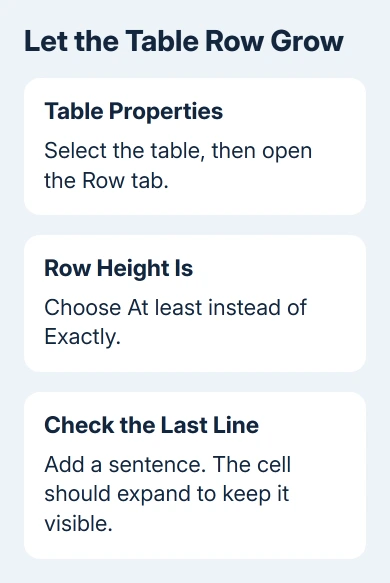
If text is still hidden, right-click the selected table and choose Distribute Rows Evenly, as Microsoft's table expansion instructions describe.
Check the last line and the next page after the layout changes.
Type a short extra sentence in the same cell. The row should expand instead of cutting off the line. If the text stays visible now, the keyboard and Word's typing function were working; the row's fixed height was hiding what you typed.
These steps apply to desktop Word with Table Properties. When browser Word lacks row-height controls, switch to desktop Word and adjust a duplicate of your document. Don't spend time searching the browser ribbon for a Windows dialog.
2. Stop new letters from replacing existing words
When typing removes the letters immediately after the cursor, Word is using overtype. This means new characters replace existing ones instead of pushing them along the line.
You can keep typing and still lose the end of your sentence.
In Word for Windows, open File > Options > Advanced. Under Editing options, clear Use overtype mode and Use the Insert key to control overtype mode.
Select OK and type between two existing words.
The words after the cursor should now move right as you add letters. Clearing both options also stops an accidental press of Insert from putting you back into the same mode later.
Check whether a passage is selected before typing. Ordinary typing replaces selected text too, even with overtype disabled. Click once to place the cursor without highlighting words, then type a few letters.
Use Undo promptly if you replaced something by mistake. The Word Undo guide explains how to reverse an edit while the document is still open, including the Mac and browser controls.
3. Follow a visible editing restriction
A Protected View banner or a selection is locked message is a different problem from text disappearing at a table edge. Word is blocking your changes rather than hiding the text you've typed.
For a document you trust, use Enable Editing when Protected View offers that button. If the author protected a form, only its permitted fields may accept typing. Click a field meant for your answers and try typing a short word.
Don't disable security controls for an unexpected attachment. Ask the sender for an editable copy if the file's origin or purpose isn't clear.
When a document needs a protection password or permission from its owner, follow the Word document unlocking steps. A layout change won't grant permission to edit a protected section.
In Word for the web, use the editing-mode menu in the upper-right area and select Editing if it's available. If it isn't, request edit access from the owner.
Changing how your local copy looks won't unlock editing in the shared document.
4. Check activation when every document refuses edits
Open a new blank document and try typing one line. If the new file works, return to the original document's table, selection or restrictions. If it also refuses edits, look at Word's title bar and account information.
If only fresh blank pages reject typing while saved files remain editable, bypass Word's start screen before treating it as a licensing failure.
An Unlicensed Product warning means activation failed and most Office features are disabled.
On Windows, check File > Account and sign in using the licensed email address, using your work account for a business subscription.
For a business or education license, have IT verify that desktop Office is assigned to your account. For a personal subscription, check its status under the email address you purchased it with.
A different email address can show no license.
On a Mac, use Word's sign-in controls with the licensed account rather than looking for the Windows File > Account page. An activation problem across documents won't be solved by removing protection from one file.
5. Deal with a frozen app after protecting the draft
If Word stops responding, wait briefly for it to finish what it's doing and try saving. Don't keep clicking the document. Word may still be processing those clicks when it starts responding again.
On Windows, after saving what you can, close Word and press Windows + R. Enter winword /safe and press Enter. The space before /safe matters. The title bar should indicate Safe Mode.
Open a copy of the document and try the same edit. If Safe Mode restores typing, open File > Options > Add-ins and disable add-ins one at a time through the relevant Manage > Go control.
After each change, reopen Word without Safe Mode.
When the problem includes flashing menus or corrupted drawing, check Word's display symptoms separately from settings that control typing.
I'd keep a troublesome add-in disabled while checking for its publisher's update. If Word still freezes in Safe Mode, use Office repair on Windows or ask Microsoft support to review the file and app version.
Give support the exact symptom, whether a blank file works, and whether the text sits inside a table. That gives support a specific typing problem to check.
If typing works but Word 2013 shows a ruler without indent controls, try the reported Dell theme workaround for indent markers.
The Short Version
Let fixed-height table rows expand when text disappears at their edge. Disable overtype when new letters erase old ones.
Follow protection or activation warnings when editing is blocked, and check a frozen Word window through Safe Mode.
Checked November 13, 2026.