

Word has an older Windows fault where new documents beep instead of accepting text, but saved files still work. Turn off the start screen in File > Options > General, then restart Word to open a blank page directly.
An activation warning or a locked document needs a different fix. If every file refuses edits, check for those messages first. The start-screen workaround was reported for new documents when saved files still accepted typing.
In this guide
1. Bypass the start screen for a fresh blank page
This workaround comes from a Word 2013-era Office 365 report. The asker couldn't type into new documents but could edit an existing file, or a new file after saving, closing and reopening it.
The asker restored typing by disabling the start screen, and one owner confirmed the same result in Word 2013 on Windows 7. That second owner said Office was fully activated, so an expired trial didn't explain their symptom.
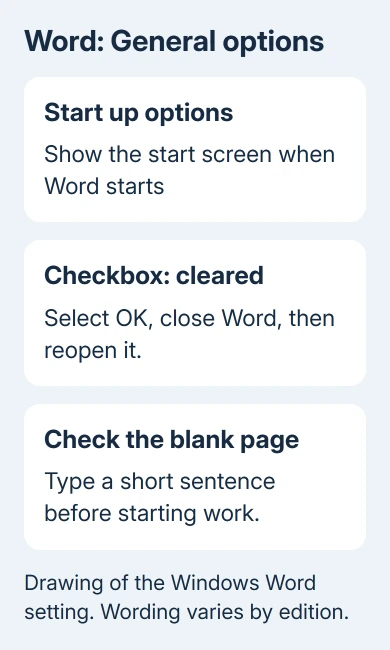
In desktop Word for Windows:
- Open File > Options.
- Choose General.
- Find Start up options at the bottom of General.
- Clear Show the start screen when Word starts. Word 2013 labels this option for the application rather than naming Word.
- Select OK, close Word and open it again.
Word should go straight to a blank document. Enter a brief sentence in the blank page. If it appears, save the document and try another new document to check that the workaround survives restarting the app.
Microsoft's current Word General options still describe this switch. It controls how Word opens; the reports of it restoring typing came from the older thread, not a new Microsoft 365 fix.
I'd try this before replacing templates. It's a small, reversible change, and it matches the unusually specific combination of beeping new files and working saved files. If typing still fails, continue with the next checks.
2. Save and reopen one new file to keep working
Use File > Save As, choose a folder and name the document. Close that document, then reopen the saved copy from Word. Try typing a sentence before you begin a longer piece of work.
This got the original asker typing again before they found the start-screen setting. It can help you meet a deadline, but if you need the same detour for each new document, the original problem is still there.
Keep track of which file you're editing. A blank document saved earlier and a fresh unsaved document can look identical, especially when several Word windows are open. Read the title bar to confirm the filename before writing.
If you can type in the reopened file, Word is receiving your keystrokes and lets you edit that document. The difference is how the new document starts. If reopening doesn't help, check for editing restrictions or a problem across Word.
When work disappears during a crash, the Word recovery guide explains which recovered copies to keep. Recovery and the start-screen workaround solve separate problems, so save anything important before restarting Word.
3. Follow any licensing or editing message
Look at the title bar, the area near the ribbon and Word's status messages. Unlicensed Product, Protected View and a locked-selection message point to different restrictions from the historical new-document fault.
For Unlicensed Product on Windows, open File > Account and check the signed-in address and product information. Sign in with the address used to license Office. A school or business license must include the desktop app.
Ask your administrator to check which license is assigned to you if your paid account still can't use desktop Word. Changing the start-screen checkbox won't activate Office or add a subscription to your account.
For Protected View, select Enable Editing only for a trusted document. Author-protected files may need permission or a password. A fresh blank local document shouldn't inherit someone else's sharing permissions.
The Word document unlocking guide covers that restricted-file case. Use it when the problem follows one particular document, including when old files work but a protected template doesn't.
Compare a plain blank document with the template you've been using. A business form may allow typing only in certain fields. Being able to edit those fields doesn't mean you can type anywhere on the page.
4. Start Word without add-ins if blank files still fail
After saving your work, close Word. Press Windows + R, enter winword /safe, and press Enter. Keep the space before /safe. If Windows asks which Office app to open, check the command was entered exactly.
Word should show Safe Mode in its title bar. Create a blank document and try typing. This temporarily starts Word without several things it normally loads; it doesn't repair a document or renew a license.
If typing works there, open Word normally and go to File > Options > Add-ins. Note the enabled add-ins, then use Manage > COM Add-ins > Go to disable one suspect add-in at a time.
Restart Word normally after each change and create another blank document. This lets you see which change restored typing. Leave that add-in switched off and ask its publisher or IT about an updated version.
Don't remove all your templates as a first step. The original asker had already deleted the Normal template without fixing this particular fault. A broad reset can remove customizations while leaving the start-screen behavior unchanged.
5. Repair the installation when the narrow fix doesn't fit
If typing fails in Safe Mode without a licensing message, repair Office. Exit your Office apps first. In Windows 11, go to Settings > Apps > Installed apps. Use the Office or Microsoft 365 entry's menu to select Modify.
In Windows 10, open Settings > Apps > Apps & features and select Modify for your Office product. Click-to-Run installations offer Quick Repair and Online Repair; other installation types can offer just Repair.
Try Quick Repair first when offered. Online Repair is more thorough and needs an internet connection. Have your licensed account details ready before starting it, because another sign-in may be required afterward.
If repair fails, send your help desk the version shown under File > Account > About Word. Tell them whether saved files accept typing, what happened in Safe Mode, whether new files beep and whether turning off the start screen helped.
The Short Version
For new documents that beep while saved files work, disable Word's start screen. When saved files also reject edits, follow any licensing or protection message, compare Safe Mode, then repair Office if needed.
Checked November 16, 2026.






