

To create a bookmark in Word, select the passage you'll revisit, choose Insert > Bookmark, enter a name, and select Add. That saves a destination inside the document, which you can jump to later or link from another paragraph.
A bookmark can mark a passage or just a cursor position. Choose the passage when you want Word to track a specific block of text, rather than only the point where that text begins.
In this guide
Mark the passage or position you want to return to
In Windows desktop Word, open your document and find the target passage. Drag across the words to select a passage. To mark a position without selecting text, click where you want the bookmark to sit.
Use Insert > Bookmark. With a simplified ribbon, the command can be inside the ellipsis (…) menu on Insert. Expand that menu if Bookmark isn't immediately visible.
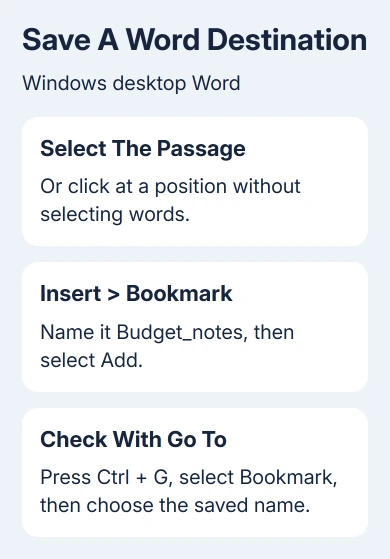
Type a meaningful name under Bookmark name, then select Add. Start the name with a letter and leave out spaces. An underscore lets you separate words, so Budget_notes is a suitable example.
Numbers can follow the opening letter. A name such as Section2 works better than starting with the number alone. If Add is unavailable, check the name before assuming the Word installation needs repair.
Microsoft documents the bookmark command. Give each destination a name you'll recognize.
I'd name the bookmark after its content, such as Delivery_terms, rather than the page number. Editing earlier paragraphs can move the passage to another page while its subject stays the same.
Save the document after adding the bookmark. Keep it as a Word document while you continue editing; a plain-text copy can't keep Word's internal bookmark structure.
Jump back and confirm that the bookmark is correct
Move to another part of the document, then press Ctrl + G. In the Go To tab, select Bookmark under Go to what. Choose or enter the saved name and select Go To.
Word should take you to the intended destination. Check the surrounding sentence, especially if the document contains several similar headings or repeated template sections. If it takes you to the wrong place, you'll need to correct it.
You can also reopen Insert > Bookmark, choose the name, and use Go To there. That lets you browse the saved names if you can't remember which one you used.
If the name isn't listed, check that you're editing the copy where you added it. A bookmark added to yesterday's file won't appear just because today's file has the same title text on its first page.
For a document that won't accept the new bookmark or other edits, check its Word editing restrictions. A read-only copy won't save your edits until you have permission to change it.
Link ordinary text to the saved destination
A bookmark is useful on its own, but a link lets someone reading the document jump there without opening the Bookmark dialog. First, type the words you want readers to click, such as Review the delivery terms.
Select those words, right-click, and choose Link. In Insert Hyperlink, choose Place in This Document. Select the bookmark you created and confirm with OK.
Put the link on the words readers will click, and the bookmark at the passage you want them to reach. If the list shows headings as well as bookmarks, choose the saved bookmark name rather than a nearby heading with similar wording.
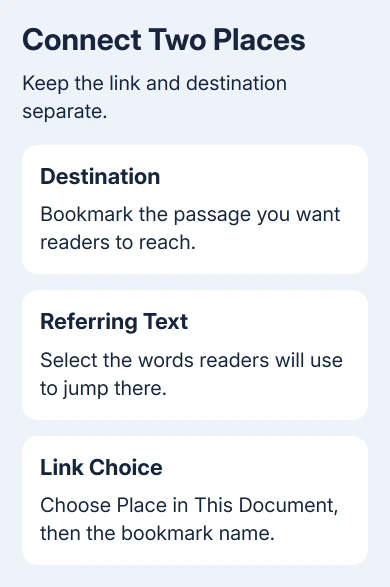
Follow the link using the action Word offers and check where it lands. In an editing window, Word may ask for Ctrl + click. If the link takes you to the right passage, it's connected to the bookmark correctly.
For a chapter list, build Word's table of contents from heading styles. Use bookmarks for individual destinations that don't need a chapter entry.
Create the Mac bookmark and connect browser links
In Word for Mac, select the destination text, then choose Insert > Bookmark. Enter a valid name and select Add. The letter-first, no-spaces naming rules also apply on Mac.
To link to it on Mac, select the link text and choose Insert > Link > This Document. Expand Bookmarks, choose the saved name, and confirm with OK. This Document is the Mac label for places within the file.
In Word for the web, select the link text and choose Insert > Link > Insert Link. Open Headings and Bookmarks, select the saved bookmark, and choose Insert. Activate the link and confirm it reaches that passage.
The Windows File > Options path for visible bookmark markers isn't a Mac menu. Use that path for Windows editing checks, and use the Mac or browser steps when adding links there. The dialogs aren't identical across versions.
Make bookmark positions visible while editing
Word normally hides bookmark markers, which can make it difficult to see what you selected when creating one. In Windows Word, open File > Options > Advanced.
Under Show document content, select Show bookmarks, then choose OK. A bookmark around selected content appears with brackets. A bookmark placed at a cursor position appears as an I-beam marker.
Those markers help you see exactly which text the bookmark covers before editing. They aren't additional letters to type into your document. Keep the setting on while adjusting a passage if you need to see its boundaries.
Text typed inside a bookmarked passage becomes part of it. Text added immediately outside its opening or closing boundary doesn't join the bookmark. Check where your cursor sits when adding to a section that another paragraph links to.
If you delete all the bookmarked text, the bookmark goes too. For a passage you need to rewrite, check the saved destination again afterward rather than assuming the old link still has somewhere to go.
Remove a bookmark without deleting the passage
Choose Insert > Bookmark, select the saved name, and choose Delete. This removes the bookmark marker while leaving the passage itself in the document. Deleting the selected passage directly would remove the text too.
If you also added a link to that bookmark, right-click the linked text and choose Remove Hyperlink when the jump is no longer needed. Removing the destination alone leaves the link pointing to a bookmark that's no longer there.
Error! Bookmark Not Defined. or Error! Reference source not found. means a reference is broken. If it appeared immediately after a field update, Ctrl + Z can bring back the earlier text while you repair it.
Check the bookmark name in the Bookmark dialog against the intended passage. For a shared template, give its owner the error and destination name so they can repair it, rather than repeatedly updating every field.
Try Add in a new document that you can edit, too. Send Word Support your app version and attempted bookmark name if neither file accepts it. Mention whether other changes save normally.
The Short Version
Select the destination, choose Insert > Bookmark, give it a name starting with a letter, and select Add. Test it with Go To. Use Place in This Document when linking another passage to that bookmark, and check it again after major edits.
Checked November 12, 2026.






