

Word's Grant File Access prompt can mean it needs permission to reach a folder. Select the requested file or folder and approve access, then check macOS folder permissions if the document still won't open.
On older Office 2016 for Mac installations, the same access-privileges error also affected people using font managers.
Check whether one folder is blocked or documents fail in several locations. A font-related failure won't necessarily improve when you change the document's permissions.
In this guide
1. Grant access to the item Word requests
When Word displays Grant File Access, read the file or folder named in the dialog. Use Select to locate that item if prompted, then confirm with Grant Access. Retry opening the document from Word's File > Open command.
If the document opens, close and reopen it once to check whether Word keeps access. If the prompt returns immediately or changes to an access-privileges error, note the folder and exact message before continuing.
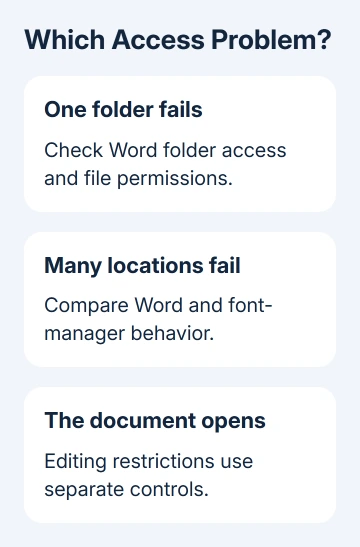
Try another document in that folder, then one in a different location you normally use. If only one folder fails, check its access or sharing settings. When unrelated files fail, continue to the font checks too.
Keep the original file in place during this comparison. If you can't move or copy the document in Finder either, the problem goes beyond Word's file picker. Check the account's permission to read that item next.
If the file is shared by a colleague, ask them to check your access to the document itself, rather than an old shortcut. Ask them to check the sharing permission if your access was recently changed.
2. Allow the affected folder in macOS privacy settings
For a Mac using System Settings, choose Apple menu > System Settings > Privacy & Security > Files & Folders. Find Microsoft Word and turn on access for the location that contains the document, if it is listed.
When macOS uses System Preferences, open Security & Privacy > Privacy > Files and Folders. Unlock the controls if macOS asks for an administrator's approval, then review Word's listed locations.
These app-access controls differ from each file's permissions. They decide whether an app can reach protected locations such as Documents, Desktop or Downloads. Quit Word and reopen it after making the relevant change.
The macOS folder-access controls let you allow particular locations. Start with the folder involved rather than giving an app broader disk access as a first response.
If Word or the location isn't listed, don't assume a switch is missing. Open the file through Word and respond if Word asks for access. Continue with Finder's permissions if the same document remains blocked.
These modern privacy controls aren't the explanation for every old Office 2016 report. Yosemite and El Capitan, mentioned in the historical font-cache reply, don't have the current System Settings layout.
3. Check the document's own permissions in Finder
Select the file in Finder and choose File > Get Info. Expand Sharing & Permissions. Check the entry for your account: Read only permits reading, while Read & Write also permits saving changes.
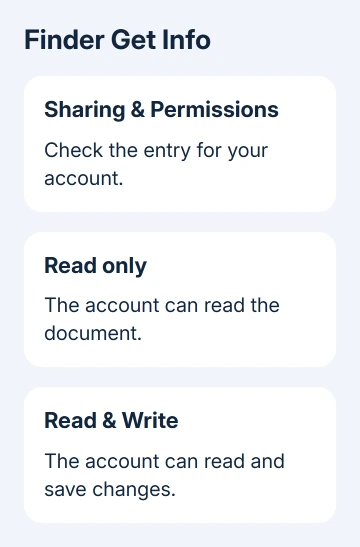
If your account has No Access, ask the file's owner or your administrator to grant the access you need. When you're authorized to change it yourself, unlock the panel if asked and choose the correct privilege for your account.
The file-permission procedure also applies to folders. Check the containing folder when several documents there fail, rather than changing a large collection of unrelated files.
Don't grant write access to all accounts just to dismiss the error. A shared work folder may intentionally restrict who can change documents. Repair the permission for the correct account instead.
Open that document again after adjusting its permission. If Finder already shows appropriate access and other apps can read the file, changing permissions again probably won't help when only Word fails across many locations.
If Word opens the file but editing is locked, use the Word editing restrictions guide. A document's editing protection isn't the same control as Finder's file access.
4. Check fonts when permissions already look right
The old discussion includes people using FontExplorer X and Suitcase font managers. One owner restored document opening by clearing Office font caches with Cocktail, then immediately restarting their older Mac.
They also said the error could return after an Office update. That is a historical recovery report, not a permanent fix or a reason to install an old cleanup tool on a current Mac.
A safer first check for fonts managed by Font Book is to open Font Book, select suspect fonts, and choose File > Validate Selection. For a font file you haven't installed, choose File > Validate File and select it.
Read the validation result. Green means the font passed, yellow means a warning, and red means failure. Follow up on a failed font rather than deleting every Office font or removing Word's application folders.
For optional user fonts, Edit > Deactivate lets you switch selected fonts off without deleting them. Quit and reopen Word, then try the affected document. Use Edit > Activate to restore them when the comparison is finished.
System fonts can't be deactivated this way. If a third-party manager controls your fonts, use that manager's supported controls and ask its support team about Word compatibility and cache rebuilding for your exact versions.
I'd take the font route when ordinary permissions are correct and the errors start when you activate fonts or update Office. For a single inaccessible shared folder, the earlier access checks are more relevant.
5. Get help with the result that remains
For a current Office installation, record the Word version through Word > About Microsoft Word and the macOS version through Apple menu > About This Mac. Include the font manager's name if you use one.
Ask your workplace's IT team to compare Word's folder access, the file's account permissions and the font configuration. For your own copy of Office, use Help > Contact Support in Word when available, or the Microsoft Support contact route.
Office 2016 for Mac ended support on October 13, 2020. A system still running that edition needs an upgrade plan compatible with its Mac and macOS version, rather than repeated attempts to get a new Office 2016 patch.
If opening works and only saving produces error 0x0, use the separate Mac Office saving-error page. Give support the error you actually see, since it changes the next step.
The Short Version
Grant Word the requested access, check the affected macOS folder permission, then inspect the file's Sharing & Permissions. When those are correct, compare fonts and font-manager behavior, especially on older Office 2016 setups.
Checked November 16, 2026.






