

Orange icons on Word documents usually mean Windows is sending them to a different program. Choose Word as the default for .docx and .doc files.
On an older PC with Office Starter 2010, the working choice can instead be Microsoft Office Client Virtualization Handler.
First, check whether Word can open the document from inside the app. An orange icon alone doesn't tell you the document is damaged, and changing its name won't repair the program that opens it.
In this guide
1. Open the document from Word first
Open Word from Start, rather than double-clicking the document. Choose File > Open > Browse, browse to your document, and select it. In Word Starter, use its File > Open command.
If the text appears normally, the file is readable. Windows is choosing the wrong app when you double-click. Leave the document's contents alone and change that setting in the next section.
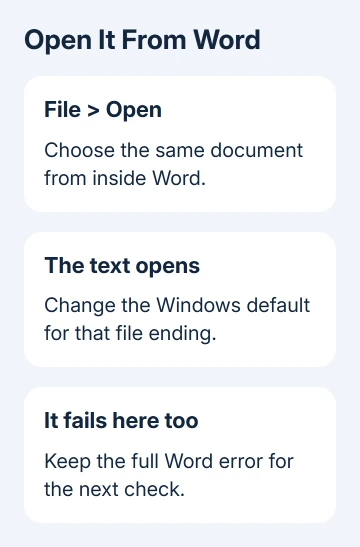
Try a second document too. A single file that fails inside Word needs different attention from every .docx file suddenly launching the wrong app. Write down any message shown by Word itself before closing it.
If Word isn't in Start, check which Office product is installed before removing anything. An entry named Microsoft Office might refer to full Word, a trial, or Office Starter. Check which of those products you actually have.
I'd check this before touching the installation. A working Word window gives you a way to read your documents while you repair double-clicking, and avoids turning a small default-app problem into a reinstall.
2. Make Word the default for each document type
Windows saves your default app separately for each file ending. Fixing .docx doesn't necessarily fix older .doc documents. The file-extension setting helps you see which type you're changing.
On Windows 11, open Settings > Apps > Default apps. Search for .docx, select its current app, and choose Word. Confirm the choice with the button shown, then repeat for .doc if you use older documents.
On Windows 10, open Settings > Apps > Default apps, then Choose default apps by file type. Find .docx, select the app beside it, and choose Word. Do the same for .doc when needed.
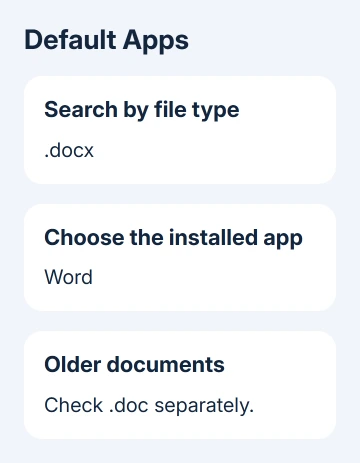
These are Windows default-app settings. They change what opens the file, without converting it or rewriting its text.
Close Settings and double-click a document in File Explorer. The document should open in Word, even if Explorer takes a moment to refresh its icon. Then check another file with the same ending.
If Word isn't offered, launch it from Start and confirm that it can open the file. When the installed app works but is missing from the chooser, move to the Office repair step rather than selecting an unrelated app with an orange icon.
Don't rename .docx to .doc to change the icon. Those are different document formats. Changing the letters after the dot doesn't turn one format into the other and can make the file harder to recognize.
3. Use the Starter handler on an Office Starter PC
The older orange-icon fault affected PCs running Microsoft Office Starter 2010. That edition uses a different launcher, so the normal Word choice may not be the one your system offers.
On that older Windows installation, right-click a Word document and choose Open with > Choose default program. Select Microsoft Office Client Virtualization Handler and check Always use the selected program to open this kind of file.
Confirm the choice and reopen the document. One owner in Microsoft's discussion restored their files by choosing this handler. They confirmed the documents were back afterward, and a second owner also reported success.
Repeat the choice for another affected file type if necessary. Choosing an app for .docx doesn't tell Windows what to do with .doc, just as it doesn't set the default for an Excel spreadsheet.
This is a Starter-specific fix from an old Windows setup. Don't search for or download a virtualization handler on a modern Microsoft 365 PC. Use the installed Word app there and the current Settings path instead.
If that handler isn't listed on a PC that previously ran Starter, check the installed product name next. The old discussion also suggests uninstalling an Office entry, but you need to tell two similarly named entries apart first.
4. Repair the installed Office product if Word is missing
For a current Windows installation, save open work and close Office apps. For Windows 11, the route is Settings > Apps > Installed apps. Locate your Office edition or Microsoft 365, then use its three-dot menu to select Modify.
On Windows 10, use Settings > Apps > Apps & features. Click your Office entry, then Modify. For a standalone Word installation, look for Word's own entry.
Choose Quick Repair first when offered. If it doesn't restore the app, use Online Repair with an internet connection. An older MSI installation, which uses the traditional installer, may show Repair followed by Continue instead.
The Office repair procedure affects the suite, even when Word is the only app giving trouble. After it finishes, open Word and set the document default again.
For Office Starter, the old uninstall suggestion depends on two different entries: Microsoft Office 2010 and Microsoft Office 2010 Starter. Don't remove one just because its name contains 2010; you could remove the app you need.
When the documents still won't open
If Word opens them internally but double-clicking still fails, record the file ending, chosen default and exact Office product name. For a work PC, have IT check whether a default-app policy restores the old choice after sign-in.
If you have a supported home Office edition, open Get Help from Start and request help with Word file associations. Include whether the default saves and whether repair changed anything.
If the document also fails inside Word, give support that error instead. A file that opens but blocks changes belongs with the Word editing restrictions guide, rather than another round of icon changes.
The Short Version
Open the document through Word, then set Word as the default for .docx or .doc. On Office Starter 2010, check the installed Client Virtualization Handler. Repair Office if Word won't work or Windows can't offer it as a default.
Checked November 16, 2026.






