

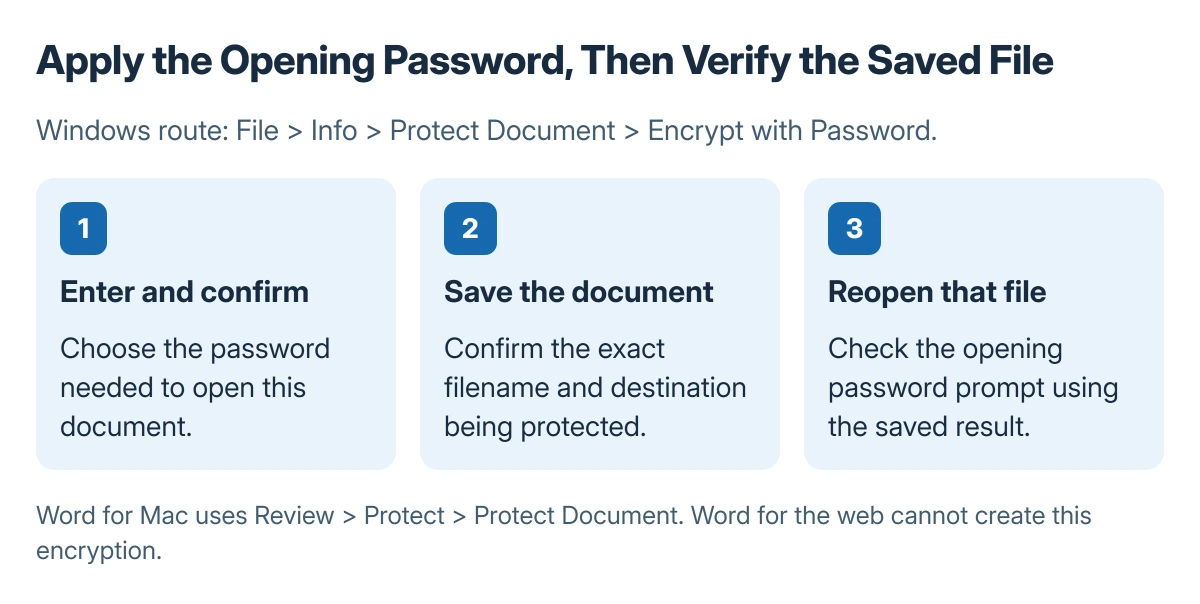
Password-protect a Word document in desktop Word with File > Info > Protect Document > Encrypt with Password on Windows. Enter the password twice, save the document, and reopen it to confirm that opening the file now requires it.
A password to open a document differs from a restriction on editing. Word for the web cannot create this password encryption or edit the encrypted document.
Apply an opening password in desktop Word
Open the intended document in Word for Windows. Choose File > Info > Protect Document > Encrypt with Password. Enter a strong, distinct password and confirm it when Word asks again.
Microsoft says the file must be saved for the password to take effect in its document password instructions. Store the password securely before closing the file.
Status: document password features documented by Microsoft, checked 23 October 2026. No file was encrypted and no password was created for this guide.
Close the saved document, then reopen that exact file and confirm the password prompt. Check its name and location, especially when several copies exist.
Use the Mac controls for the same protection goal
In Word for Mac, choose Review > Protect > Protect Document. Under Security, set the password required to open the document. A password to modify it is a separate option.
Confirm the chosen password and finish saving the document. Microsoft's Mac instructions allow opening protection, modification protection, or both, so select the protection the file actually needs.
Microsoft states that Word Online cannot password-encrypt or edit a password-encrypted document. Use desktop Word for the encrypted file rather than repeatedly looking for a missing web command.
Keep opening protection separate from editing restrictions
The Restrict Editing feature can limit permitted changes to all or part of a document. That task is different from preventing a person without the opening password from opening the file.
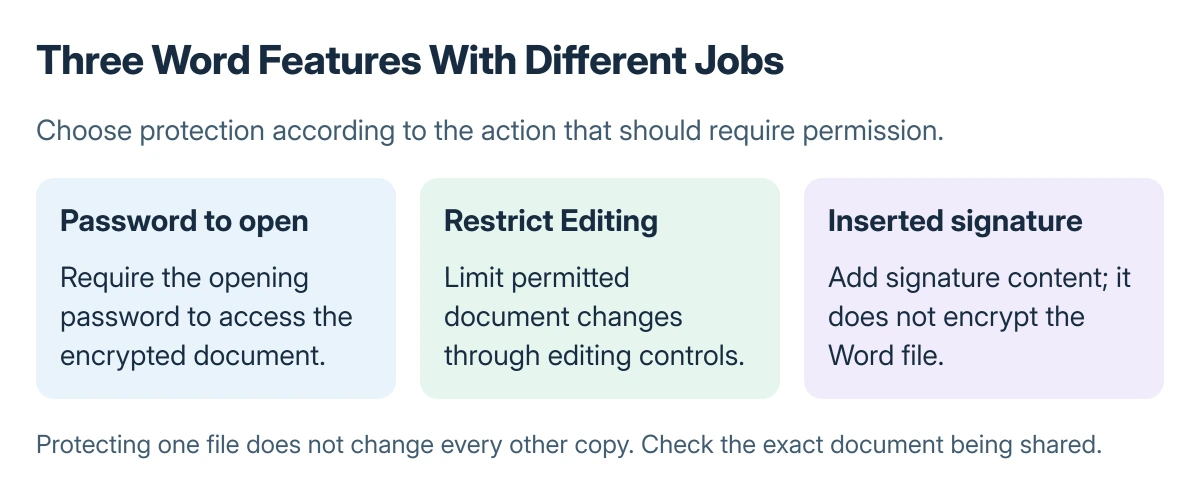
An inserted signature does not replace encryption. Likewise, creating a separate Word copy does not apply a new password to every other copy. Confirm which protected file will be shared.
Remove a password only when it is known
Open the document with its current password. On Windows, return to File > Info > Protect Document > Encrypt with Password, clear the password box, confirm, and save the change.
Microsoft's password removal procedure requires the original password. Verify the saved result by reopening the intended file again.
Microsoft cannot simply recover a forgotten document password. Its organizational DocRecrypt option can help only when the administrator implemented it before that file was encrypted.
Ask the administrator whether a prior recovery arrangement exists. Setting it up after losing the password does not retroactively unlock that file.
The Short Version
Use desktop Word to set an opening password, save the file and verify it by reopening. Editing restrictions and signatures serve different purposes. Remove a password only through the known-password route and save again.
Where to Next
Keep the protected filename and its password record together in the sharing process without sending both through the same unprotected message. For a forgotten password, check existing backups and the organization's prior recovery setup.

Isaac Smith is the founder and editor of PC Glance, a website that covers computers, laptops, and technology. He is a tech enthusiast and a computer geek who loves to share his insights and help his readers make smart choices when buying tech gadgets or laptops. He is always curious and updated about the latest tech trends.