

Word subscript and superscript format selected characters as smaller text positioned lower or higher than normal text. Select only the character that needs changing, then use Home > Font > Subscript or Superscript.
For example, the 2 in H2O needs subscript, while an exponent in x2 needs superscript. Formatting the whole word would also move letters that should stay normal.
Select the character before choosing its format
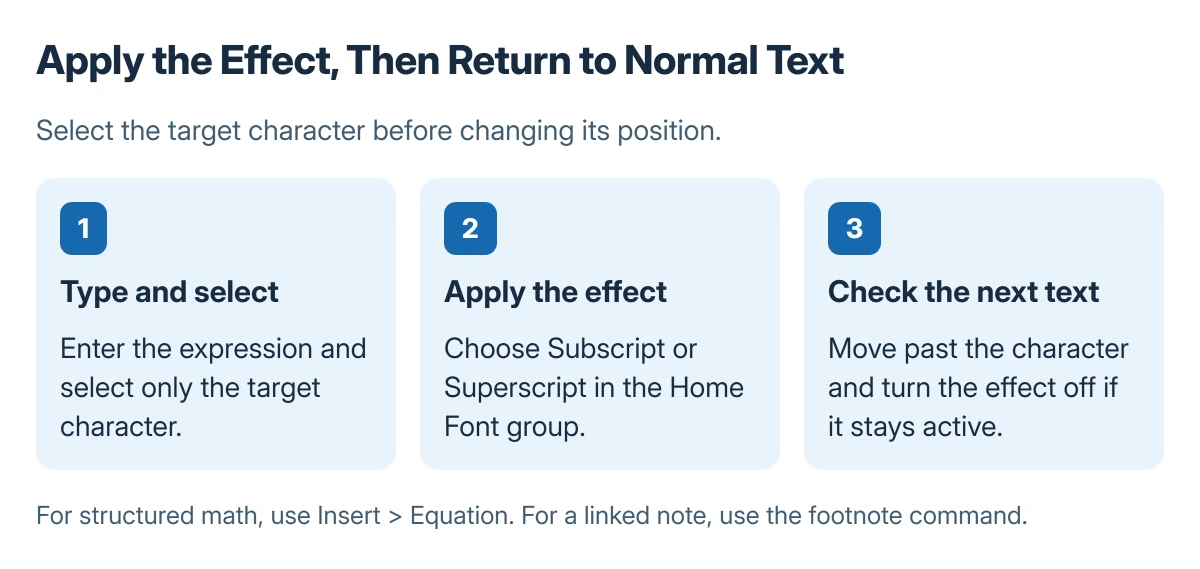
Type the expression as ordinary text first. Highlight just the number or symbol to change. On Home, find the Font group and choose the required control.
Microsoft documents both buttons in its Word subscript and superscript guide. Subscript lowers the selection; superscript raises it. Inspect the resulting expression before continuing.
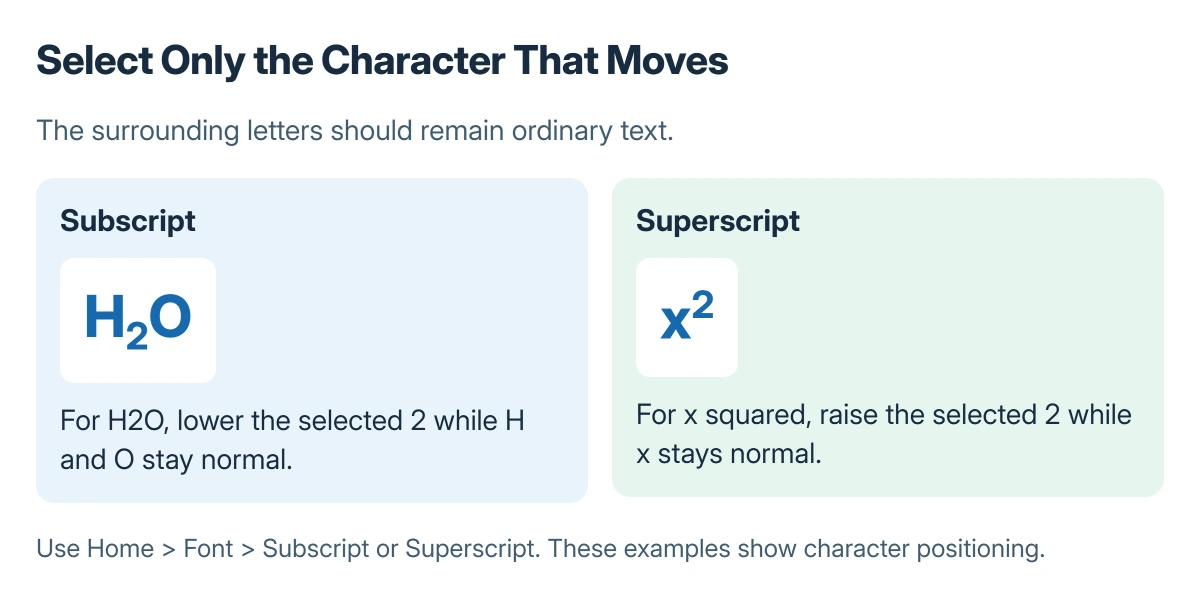
Status: character positioning and equation tools documented by Microsoft, checked 23 October 2026. Examples are typeset diagrams rather than captures of a Word window.
In an example such as H2O, H and O should remain at their original position and size. If the full expression changes, undo the action and narrow the selection.
Return to ordinary typing after the formatted character
Move the cursor past the formatted character and check the active Font control. Toggle the corresponding Subscript or Superscript button off before entering normal text if that formatting remains active.
Microsoft says existing text can also be changed through the Font dialog's Effects settings. Clear the relevant effect there when a character should return to normal positioning.
To remove several unwanted text effects together, use Clear All Formatting on a carefully selected range instead of toggling each effect individually.
Avoid manually shrinking a number and trying to position it with spaces. That changes its appearance without using the character-positioning control and can leave uneven results after editing.
Choose an equation or footnote when the task needs one
A fraction with several parts or a longer mathematical expression belongs in Word's equation tools. Microsoft states that Insert > Equation creates an equation, with structures for more complex notation.
A reference number linked to a note needs the footnote command, which creates the connection and numbering. Superscript formatting alone only changes how a character looks.
If a shortcut fails but Font buttons work, check Word's key assignments before changing the characters repeatedly.
If the Font controls cannot be used, check whether the document is editable and report the Word edition and file type to its owner or Microsoft support.
The Short Version
Select only the intended character and choose Subscript or Superscript in Home's Font group. Return to normal formatting afterward. Use an equation for structured math and a footnote for a linked reference.
Where to Next
Review the expression in context and at normal reading size. The goal is a readable formula or notation, with only the required characters repositioned.

Isaac Smith is the founder and editor of PC Glance, a website that covers computers, laptops, and technology. He is a tech enthusiast and a computer geek who loves to share his insights and help his readers make smart choices when buying tech gadgets or laptops. He is always curious and updated about the latest tech trends.