
Press Alt, release it, then press N to open the Insert tab in English desktop Office 2013. The next command depends on the app: follow the small letter labels on the ribbon rather than treating every Insert command as one shared shortcut.
These labels are called KeyTips. They provide keyboard access to Word, Excel, or PowerPoint commands, even when their letters differ between apps. Pressing Tab inside a document does a different job; it doesn't open the Insert tab.
In this guide
Open Insert and follow its KeyTips
Click inside the document, worksheet, or presentation first. Press and release Alt. Letters should appear over the ribbon tabs. In an English interface, press N to select Insert and show its command labels.
If a command has two letters, enter them in the order shown. If another set of choices appears, continue with that set. You don't need to keep Alt held while typing the whole sequence.
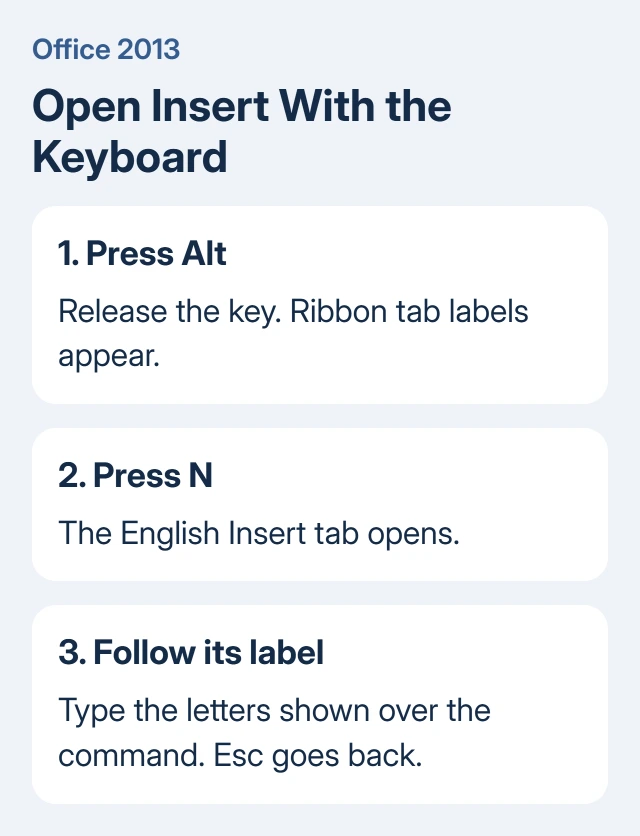
Microsoft's ribbon keyboard instructions explain this sequence and the difference between selecting a tab and activating a command. Read your app's labels to choose the final command.
A table command can open a gallery before adding anything. Continue through the gallery with the direction keys and press Enter to choose. If a command opens a dialog, fill in its fields before you can insert the item.
Press Esc to go back one level. At the first level, Esc removes the labels and returns focus to the document. Pressing Alt also cancels KeyTip navigation. This makes it easy to leave a menu you opened accidentally.
Word 2013: choose the insertion point first
Put the text cursor where the new item belongs before opening Insert. For a link, select the text that should become a link. For a picture or table, click in your document where the picture or table belongs.
Use Alt, N for the ribbon commands. Then read the labels over Table, Pictures, Shapes, Header, or the other item you need. Following the displayed labels avoids memorizing a long sequence you rarely use.
Several useful Word commands also have direct shortcuts. Ctrl+K opens the hyperlink dialog. Ctrl+Enter inserts a page break. Alt+= inserts an equation. These are separate shortcuts, so don't type Alt, N in front of them.
Use the equation command for a fraction or an expression with several parts. Simple raised characters use a different control; the subscript and superscript steps explain that distinction.
After a page break, watch where the cursor lands. Text after the break begins on a new page. Repeatedly pressing Enter can look similar at first but moves unpredictably as you edit earlier paragraphs.
In the hyperlink dialog, enter the address and confirm. Check that the selected text remains the link text. If the dialog opens on the wrong words, cancel it, select the intended words, and use the shortcut again.
Excel 2013: a worksheet tab isn't the Insert tab
Select the cell or range you want the new object to use, then press Alt, N. The Insert ribbon contains options such as tables, PivotTables, and charts. Its labels belong to Excel, so a Word command sequence isn't a reliable guide.
For a chart, select the relevant data before choosing the chart command. Include the headings you want to use as labels. After insertion, check that the chart shows the range you selected, rather than an unrelated cell you clicked earlier.
The tabs carrying worksheet names at the bottom of Excel are separate controls. Opening Insert on the ribbon doesn't automatically add a worksheet. Adding cells or rows is also a different command from inserting a chart.
If a chart opens with the wrong values, correct its data selection before adjusting its appearance. The shortcut can work perfectly even when you've selected the wrong cells.
To link from a worksheet, Ctrl+K provides a direct route. Select the cell that will contain your link first. Its displayed text and the address it opens can differ, so check both before closing the dialog.
PowerPoint 2013: select the slide before adding content
In Normal view, select the slide that needs the new content, then use Alt, N. Follow PowerPoint's labels for the object you need. Insert works on the selected slide; it doesn't choose the appropriate slide for you.
A selected placeholder can affect where content goes. If you want a separate object, check what's selected before using the command. After inserting, inspect the slide itself rather than assuming the thumbnail shows every detail.
Use Ctrl+K when the selected text or object needs a hyperlink. Adding a new slide is a different command: Ctrl+M creates a slide in PowerPoint, while the same shortcut has a different effect in Word.
When you can't remember a command's label, start again with Alt and read the ribbon. I'd use that method for occasional picture and media commands instead of learning a sequence from a different Office release.
When the keys type letters or open the wrong command
If N appears in your document, the app wasn't in ribbon keyboard navigation. Undo the unwanted letter, press Esc, then press and release Alt on its own. Wait until the tab labels are visible before pressing the next key.
Letters vanishing during ordinary typing need Word's missing-letter checks, including stuck modifier keys and input utilities.
Another interface language can change the KeyTips. Read the letter over Insert in your app instead of changing the Windows keyboard to match an English list. Ribbon labels and text-entry keyboard layouts aren't the same setting.
For a missing or collapsed ribbon, Ctrl+F1 changes its display. Then try Alt again. If an app dialog is open, finish or cancel that dialog first; your keystrokes go to that dialog instead of the document ribbon.
If direct editing shortcuts have also changed, use the Word shortcut repair steps. That page covers language-related assignments and custom shortcuts, which are different from forgetting one ribbon label.
Keep Office 2013 instructions separate from newer apps
These steps apply to Office 2013 installed on Windows. Office in a browser and Office on a Mac use different keyboard behavior. A shortcut containing Command, or a browser ribbon's key sequence, isn't an Office 2013 Windows instruction.
Support for Office 2013 ended on April 11, 2023. Its apps can still run, but they no longer receive security fixes. Keep that in mind when deciding whether to continue opening new documents in that installation.
If a command stays disabled in an editable local file, tell IT the Office app and edition, its interface language, and the command. A screenshot of the KeyTips can show where the letters differ from your instructions.
The Short Version
In English Office 2013 for Windows, press Alt, then N, then the Insert command's displayed letters. Word, Excel, and PowerPoint don't share every final command. Select the destination first, and use Esc to leave an unwanted menu.
Checked November 16, 2026.






