
A stuck modifier key or input utility can stop C, H, T, and V appearing in Word. Press and release both Windows keys, then type again. An owner restored missing letters across several apps that way.
If the letters work in Notepad but fail in every Word document, follow the Word-only checks instead. Check whether holding Shift lets you type capitals; it doesn't automatically mean the physical keys need replacing.
In this guide
1. Release stuck keys and check another app
Press and release the left and right Windows keys a few times. Do the same with Ctrl, Alt, and Shift, then click back into Word and type the affected letters without holding another key.
If letters trigger actions instead of appearing, note what happens. Windows+M, for example, minimizes windows.
An owner using a switch to share a keyboard between computers noticed that behavior, tapped both Windows keys, and restored normal typing.
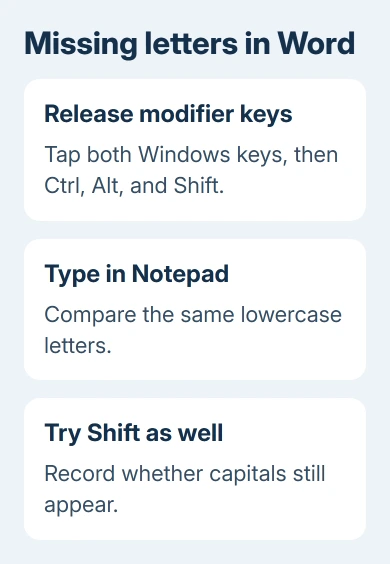
Open Notepad and type the same letters, first normally and then with Shift. Use a new blank Word document for the same comparison. You don't need to risk editing your working document just to check the keys.
If the same keys fail in every app, check your input software and keyboard connection next. If only Word fails, try its Safe Mode check. If just one document won't let you edit, that's different from letters failing in every Word file.
Restart the PC if those keys still fail, after saving your documents. One reported restart fixed it temporarily. If it returns, note which app or keyboard action came just before it, so you know what to check next.
2. Check utilities that intercept letters or mouse buttons
Quit text-expansion tools, keyboard remappers, and mouse customization utilities one at a time, using their normal Exit command. Retype the missing letters each time you quit a tool. Stop when quitting one of them brings the letters back.
One forum owner could type lowercase B again by resetting their text-expansion program's hotkeys. Another owner reported improvement after changing mouse Precision Booster button assignments and disabling an ink input component.
That second owner changed two things and couldn't say which one fixed it. Don't blame Precision Booster on unrelated setups, and don't look for its old Control Panel setting if your mouse software doesn't have it.
If your mouse has this feature, open its button settings. Note what the side buttons do, replace Precision Booster with another supported button action, and test again. Restore the old mapping if nothing changes.
In a text-expansion tool, inspect shortcuts using the missing letters. Disable that shortcut before resetting every hotkey. If quitting the tool restores typing, check its shortcuts before reinstalling Word.
I'd try the utility's Exit command before changing its configuration. You can quickly check whether the utility is involved and keep your custom shortcuts when you reopen it.
3. Remove the old ink component only on affected systems
The older C/H/V reports include a Windows 7-era input component called Ink Correction (64Bit only). One owner said removing it from the keyboard list wasn't enough; they also had to clear it in the Add Input Language dialog.
On that older setup, open Control Panel > Region and Language > Keyboards and Languages > Change keyboards. Look for Ink Correction in the installed services before changing anything.
The confirmed extra step was Add > Japanese > Other, clearing Ink Correction (64Bit only), and applying the change. This workaround applies to that older component. Leave Japanese input and any keyboard language you use in place.
Windows 11 and Windows 10 don't use that old language-settings layout. Skip this workaround if the component isn't installed. Check your keyboard or handwriting utility instead of recreating an old Control Panel screen.
Once typing returns, reopen the affected apps and check again. Keep a record of the changed component so your IT team or keyboard-software vendor can address it if the problem comes back.
4. Start Word without its normal add-ins
Save your documents, then exit Word. Right-click Start, choose Run, type winword /safe, and select OK. This starts Office Safe Mode, which is different from restarting Windows in its own Safe Mode.
Try the missing letters in a blank document. Microsoft's Office Safe Mode steps help check add-ins and startup customizations.
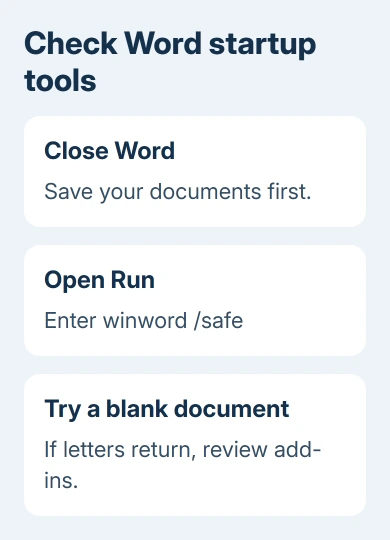
If typing works there, close Word and start it normally. Open File > Options > Add-ins. Select COM Add-ins in Manage, choose Go, and clear one nonessential add-in at a time before restarting Word to compare.
Record the original selections so you can turn working add-ins back on. If you need that add-in for work, give IT its name and explain that turning it off restored typing. Let them handle its permanent removal.
If Safe Mode doesn't change the result, don't disable every extension anyway. Return to the cross-app comparison. If Notepad still works and Word alone fails, try an Office repair next.
5. Repair Word or check the keyboard hardware
If the letters fail only in Word on Windows 11, open Settings > Apps > Installed apps. Find the suite entry, open its three-dot menu, and choose Modify. On Windows 10, use Settings > Apps > Apps & features.
For a Click-to-Run installation, try Quick Repair first. If it doesn't help, Online Repair repairs the installation more thoroughly over an internet connection. Close the other Office programs, since the suite is repaired together.
If those same keys fail in other apps, reconnect the external keyboard or try a spare keyboard. For a laptop, compare its built-in keys with an external keyboard. That lets you check another input device without dismantling the machine.
When another keyboard works in every app, arrange keyboard service through the laptop or keyboard maker. If both keyboards fail only while one utility is running, tell the utility's support team what you found.
When typing still fails
Give Office support the exact letters, whether Shift produces capitals, and the results in Notepad, a blank Word document, and Word Safe Mode. Include Windows and Word versions plus any mouse or text-expansion software involved.
For a shortcut problem rather than missing ordinary letters, use the Office keyboard shortcut checks.
For mouse trouble with Format Painter, the double-click timing fix addresses that separately.
The Short Version
Release the modifier keys, then compare Word with Notepad. Check hotkey utilities for cross-app failure, the old ink component only when present, and Word Safe Mode when the fault stays inside Word.
Checked November 17, 2026.






