
Clear text formatting in Word by selecting the affected words and choosing Home > Font > Clear All Formatting. The command removes added text effects and returns the selection to its default formatting styles without deleting the words.
Choose the selection carefully. Cleaning one pasted paragraph is different from applying the command to an entire document with deliberate headings and emphasis.
Select the text that needs cleaning
Select a short sample of the affected text first. Open the Home tab, locate the Font group, and choose Clear All Formatting. The command's icon uses an eraser with a letter.
Microsoft documents the same Word route for Windows and Mac in its text formatting removal instructions. Review the selected sample before applying the operation to more text.
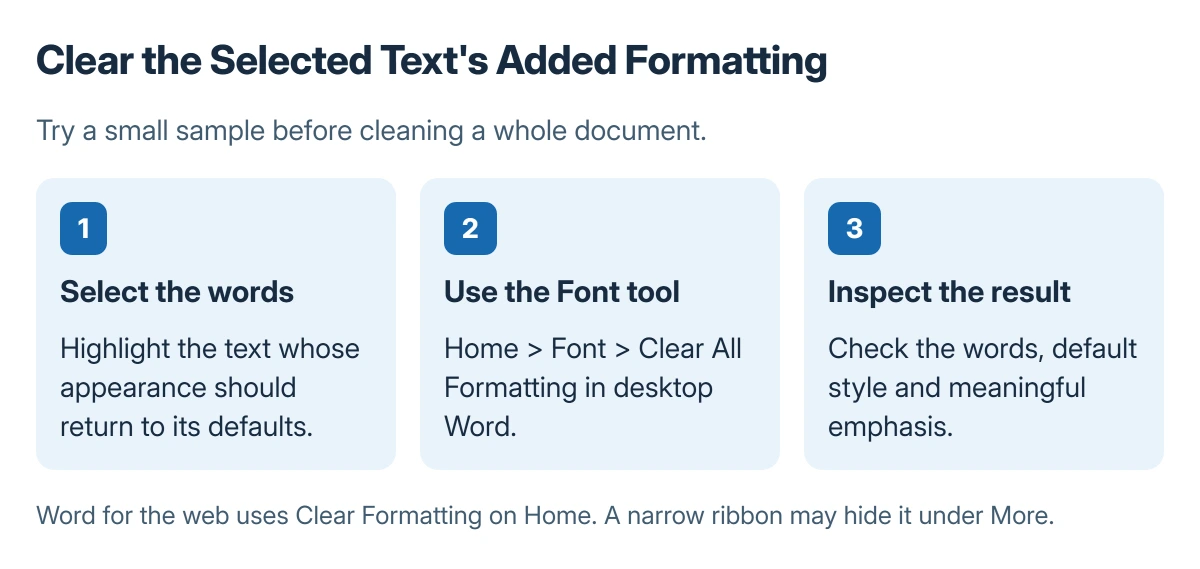
Status: Word formatting removal documented by Microsoft, checked 23 October 2026. The diagrams use sample text; no document was opened or changed.
Make a separate document copy before cleaning a large file when the existing appearance may be needed later. That gives a clear comparison between the original and the intended result.
Understand what the command changes
Microsoft says the command removes effects such as added bold, italics, color, superscript and subscript. It returns selected text to default formatting; it does not erase the selected text itself.
Default styles can still affect the result. A default heading or paragraph style is a different source of appearance from an added font effect on a few characters.
Inspect punctuation, emphasized words and special character positioning afterward. A subscript used in a chemical formula can be meaningful, so it should not be cleared merely because it differs from the surrounding line.
Use the browser control or the specific layout setting
In Word for the web, select the text and choose Clear Formatting on Home. Microsoft states that the button may require the More menu when the ribbon's space is limited.
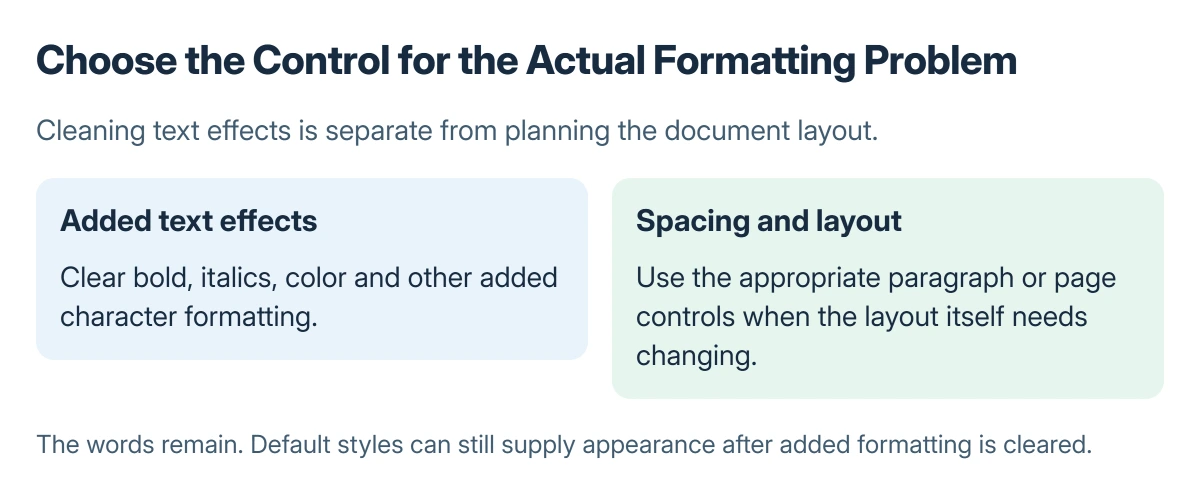
For a document whose problem is line or paragraph spacing, use the Word spacing controls. A text-format cleanup is not a replacement for choosing the required paragraph spacing or page layout.
If the wrong selection changes, use Undo before making further edits. Then narrow the selection and repeat the intended formatting operation on that smaller sample.
The Short Version
Select the affected words, clear their formatting through Home, and inspect the default-style result. Preserve deliberate emphasis and special character positioning. Change spacing or page layout through the controls for those tasks.
Where to Next
When unwanted appearance remains, identify whether it comes from font effects, a style, paragraph settings or page layout. That distinction prevents repeatedly clearing text that is already using its default style.

Isaac Smith is the founder and editor of PC Glance, a website that covers computers, laptops, and technology. He is a tech enthusiast and a computer geek who loves to share his insights and help his readers make smart choices when buying tech gadgets or laptops. He is always curious and updated about the latest tech trends.