
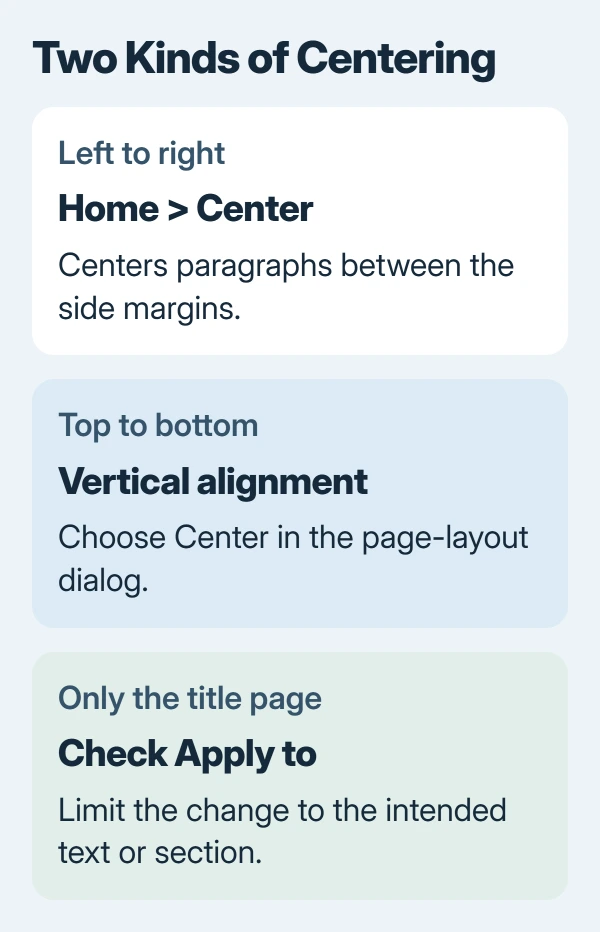
Centering text vertically in Word uses Page Setup > Layout > Vertical alignment > Center on Windows. Select the text first, then choose Selected text under Apply to. The Home tab's Center command only centers paragraphs horizontally.
For a title page inside a longer document, check the selection and section boundaries before applying the change. The goal is to move that page's text between its top and bottom margins without changing the layout of later pages.
Apply vertical centering to selected text
In desktop Word for Windows, select the title or paragraphs to be centered. Open Layout, then use the small dialog launcher in Page Setup. In the resulting dialog, select the Layout tab.
Set Vertical alignment to Center. Set Apply to to Selected text, then confirm with OK. Microsoft documents vertical centering in its page alignment instructions.
Status: Word page-alignment and section controls reviewed November 1, 2026. Windows and Mac use different dialogs. The vertical page setting requires desktop Word.
Inspect the page in Print Layout or print preview. Vertical centering is relative to the page margins, so unequal margins can make text appear displaced relative to the physical sheet.
For left-to-right centering as well, apply Home > Center to the selected paragraphs. These two settings control different directions; using one does not automatically apply the other.
Keep a title page separate from the rest
For an existing document, keep a copy before changing section structure. Put the insertion point where the following section should begin and choose Layout > Breaks > Next Page under the section-break choices.
Microsoft says a Next Page section break begins the new section on the following page in its section-break guide. A simple page break moves text but does not establish a separate formatting section.
Apply the centering to the intended title section, checking Apply to rather than choosing the whole document. Review the first page of the following section to ensure its text still begins where intended.
If formatting changes the preceding section, undo it and move the insertion point past the break into the intended section. Microsoft recommends this correction in its section formatting instructions.
Unexpected extra pages need the Word blank-page checks. Avoid deleting section breaks blindly, since they control more than the visible space between pages.
Find the equivalent control on Mac
In Word for Mac, open Format > Document, then choose the Layout tab. Find Vertical alignment, select Center, and check the scope before confirming the dialog.
Microsoft documents this Mac dialog in its accessible alignment guide. Windows instructions that begin at the ribbon's Page Setup launcher do not describe the Mac menu route.
Can Word in a browser center the page vertically?
Microsoft states that browser and mobile users need desktop Word for vertical page alignment. Open the file there to apply it. Adding blank paragraphs instead changes the document's content merely to push its title downward.
Check paragraph spacing if the text still looks uneven
Vertical alignment positions the text area; it does not replace the paragraphs' spacing settings. A title followed by a large paragraph gap can still look unbalanced when that area is centered.
Use the Word line and paragraph spacing controls to inspect those gaps. Change only the spacing that conflicts with the required layout, then inspect the page again.
Review the title page beside its following page before saving the final copy. If the result stays wrong, tell Microsoft Support which Word edition is installed and whether the text occupies the page, a table or a text box.
Table-cell and text-box alignment have their own controls. Page alignment does not position text within every object placed on that page.
The Short Version
Use Vertical alignment for top-to-bottom centering and Home Center for horizontal centering. Limit the change to the selected text or intended section, then inspect adjacent pages and paragraph gaps.

Isaac Smith is the founder and editor of PC Glance, a website that covers computers, laptops, and technology. He is a tech enthusiast and a computer geek who loves to share his insights and help his readers make smart choices when buying tech gadgets or laptops. He is always curious and updated about the latest tech trends.