
Word can change lowercase text to uppercase after it has been typed. Select the words, open Home > Change Case, and choose UPPERCASE. This converts the selected letters without requiring the paragraph to be entered again.
The desktop apps for Windows and Mac include this control. Microsoft says the browser version of Word lacks it, so editing through a website needs a different approach.
Convert the selected words with Change Case
Drag across the words that need capitals. Open Home, find the Aa button in the Font group, and choose UPPERCASE. Check the highlighted text before clicking elsewhere.
Microsoft documents this case-selection menu for Windows and Mac; lowercase converts capitals in the opposite direction.
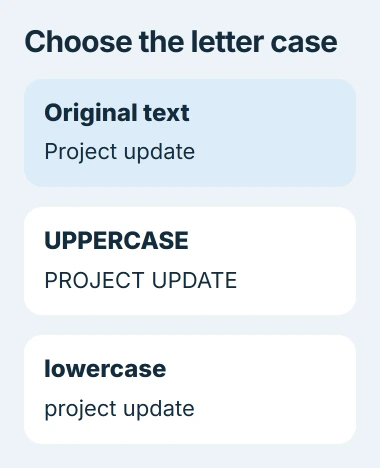
Status: Word's case menu, Windows and Mac shortcuts, and web limitation checked November 3, 2026. Examples are typed illustrations; no Word file was opened or edited.
For a heading, select only that heading. For a deliberate whole-document conversion, select all the intended text first. A small selection helps avoid changing names and abbreviations elsewhere.
Use Ctrl+Z on Windows or Command+Z on Mac immediately if the wrong passage changes. Narrow the selection before trying again.
Use the keyboard when the menu is inconvenient
With text selected in Windows Word, press Shift+F3. Repeat until the required case appears. Microsoft's shortcut reference lists its cycling behavior.
The documented Mac combination is Fn+Shift+F3. If a function key changes a system control instead, use the Aa menu to finish the edit without changing keyboard settings.
If other Word shortcuts also fail, check the Word key-assignment problem. A shortcut failure does not mean the selected text needs to be retyped.
Choose sentence case or word capitals deliberately
Sentence case makes the sentence's opening letter a capital and changes the other letters to lowercase. Capitalize Each Word gives every word an initial capital. These produce different results from making every letter uppercase.
For example, an uppercase label such as PROJECT UPDATE suits a short heading. Applying the same treatment to a long paragraph changes its appearance much more substantially, so preview a small selection first.
Review names, initials and product spellings after a broad conversion. A mechanical case change cannot decide that an acronym should retain its capitals or that a brand uses mixed capitalization.
Small Caps is a separate Font effect. Microsoft states that it is available through the Font dialog. Choose it for that visual style, rather than treating it as another name for the UPPERCASE command.
Work around the missing control in browser Word
Use an installed desktop copy of Word to open the file, convert the selected letters, and save. For only a few letters, editing them manually in the browser may be quicker.
Microsoft's page also describes a Change Case control for browser PowerPoint. That section applies to PowerPoint; it does not establish that Word for the web has the same button.
Read the edited passage in context before sharing it. If desktop Word lacks the menu even in an editable document, report the edition, version and text selection to Microsoft Support.
The Short Version
Select the passage and use Home's Aa menu for the exact conversion wanted. Shift+F3 cycles through cases on Windows; Mac uses Fn+Shift+F3. In browser Word, edit individual letters or move to the installed application.

Isaac Smith is the founder and editor of PC Glance, a website that covers computers, laptops, and technology. He is a tech enthusiast and a computer geek who loves to share his insights and help his readers make smart choices when buying tech gadgets or laptops. He is always curious and updated about the latest tech trends.