

A code block in Microsoft Word can be ordinary editable text with a fixed-width font and paragraph shading. Paste the code as text, format one sample block, then save that formatting as a style so later blocks match it.
That approach works well for reports and assignments where readers need to copy the code. A screenshot keeps its visual appearance, but its contents can't be selected and edited like text.
In this guide
Paste the code without the editor's formatting
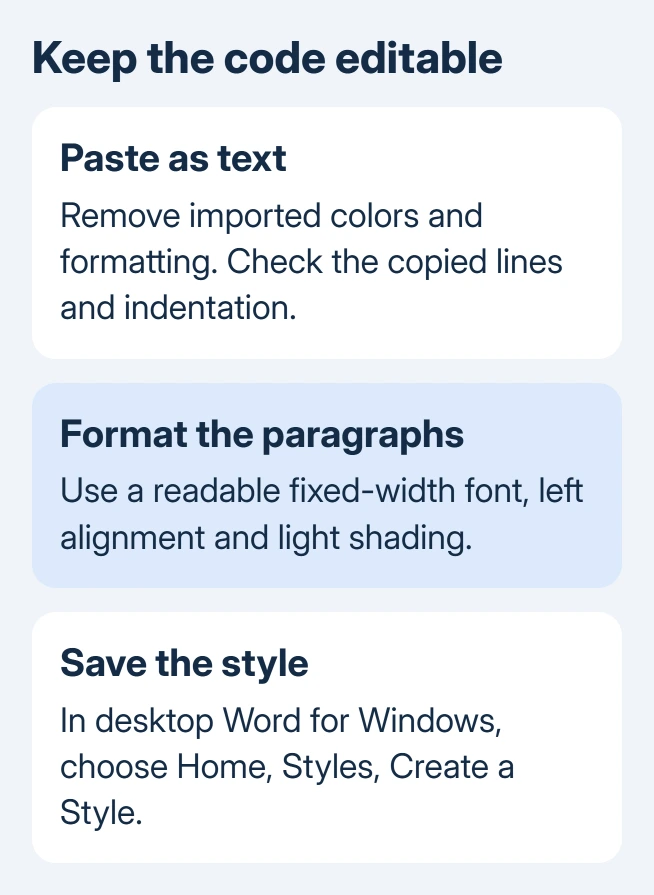
Start on a blank paragraph in the document. Copy the code from its original file, paste it into Word, and use Paste Options > Keep Text Only. This removes imported colors and other formatting while leaving the text available to edit.
On Word for Windows, the Paste Options button appears after pasting formatted content. If it doesn't appear, open File > Options > Advanced and check Show Paste Options button when content is pasted under Cut, copy, and paste.
For Word for the web, use Ctrl + Shift + V on Windows or Command + Shift + V on a Mac in a supported browser to paste text only. The browser and document must allow editing; a read-only document won't accept the code.
Microsoft says the paste-formatting options separate keeping the source formatting from keeping only its text. For a consistent document style, removing the original formatting gives you a plain sample to format yourself.
Check the pasted lines before formatting them. Check indentation, blank lines and punctuation against the source. Text-only paste removes styling; make sure you also copied the whole example.
Give the block readable, consistent formatting
Select the pasted code. On Home, choose a fixed-width font available on your computer, such as Consolas or Courier New. Fixed-width means characters take equal horizontal space, which helps indentation line up.
Choose a size readable at normal document zoom. I'd shorten a long example before shrinking its punctuation into tiny marks. Readers need to distinguish commas, periods and quotation marks.
Keep the code left-aligned. Adjust paragraph spacing to remove unwanted gaps inside the block, while keeping space around its explanation. Avoid empty paragraphs added just to push the next section away.
Select the code paragraphs, open Home > Paragraph > Shading and choose a light fill. Paragraph shading gives a background to the block rather than highlighting individual words. Keep the text dark enough to read easily.
When those examples belong in a newsletter, set up the Word issue sections before fitting code blocks into its story columns.
In Word for the web, Home also has shading for selected text or paragraphs. If the window is narrow, expand the ribbon controls to find shading. Select the code first so the shading applies to it rather than the next paragraph.
Save the sample as a reusable style
In desktop Word for Windows, keep the formatted code selected. Open the Home > Styles gallery's More control, then choose Create a Style. Give the style a recognizable name, such as Code Block, and select OK.
A style is a saved collection of formatting choices. It lets you apply the same font and paragraph appearance to each new example without setting each option again.
Paste the next example as text, select its paragraphs and apply the new style from the gallery. Compare it with the first block. If the appearance differs, check whether the paste brought extra formatting or you added some afterward.
For a change across all matching blocks, right-click the style in the gallery and choose Modify. Review the sample before saving the change. Editing the shared style is more reliable than manually adjusting each block and missing one.
Word for the web can apply an existing style, but you'll need desktop Word to create or edit one. Use Open in Desktop if available. With only the browser app, format each block consistently through Home's controls.
On a Mac, the font and paragraph controls can format the selected code, but the Windows File > Options paths don't apply. Use the Mac app's menus for its preferences rather than searching for a Windows-only dialog.
Keep punctuation and letter case intact
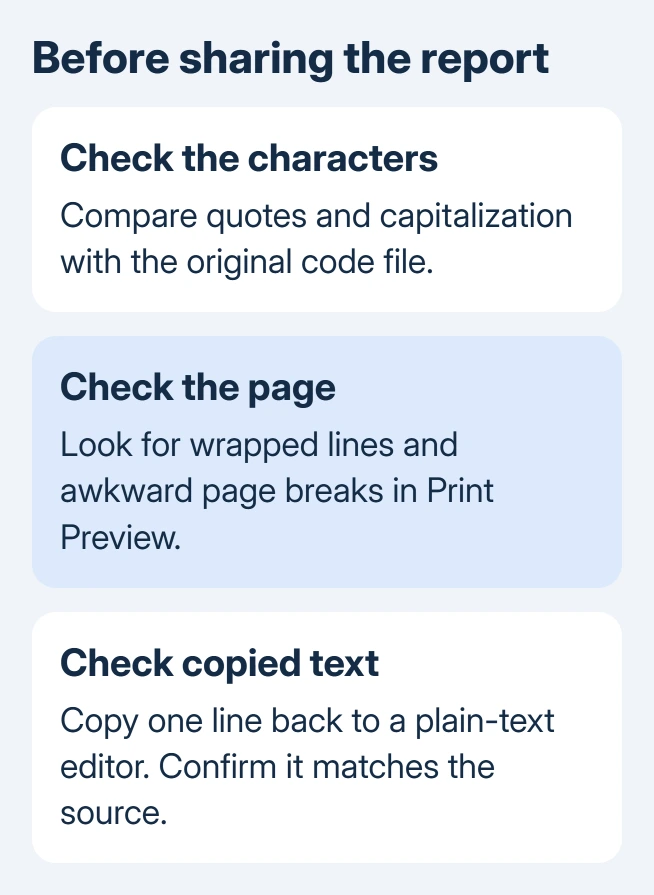
Word's automatic smart quotes can change code punctuation. In Windows, open File > Options > Proofing > AutoCorrect Options > AutoFormat As You Type. Clear the option for replacing straight quotes with smart quotes.
That setting affects new typing. It doesn't repair punctuation already changed in an existing block. Compare any lines that look wrong with the original code and replace changed characters from that source.
Watch for automatic changes to capital letters, too. The Word letter-case controls are useful for prose, but don't apply them across code that contains case-sensitive names.
Treat spelling suggestions the same way: an unfamiliar function or variable isn't automatically a typo. Keep a separate code file as the working copy and update the report from it when the example changes.
Check long lines and page breaks
A long line can wrap onto a second line in the report, even though it's still one line in the code file. Compare it with the code file before adding a real line break. Changing code to fit the page can change what it means.
For an assignment with fixed margins, keep those requirements intact. The MLA document setup guide covers that formatting separately. A code example should fit the required page rather than quietly changing the entire report's layout.
Open Print Preview and check where each page ends. Look for headings separated from their examples and awkward splits in short blocks. Adjust paragraph spacing through the block's formatting, then preview again.
Verify the copy a reader will receive
Save and reopen the document, then select a code line to confirm it's editable text. Paste that line into a plain-text editor and check it against the source. That lets you check both what readers see and what they can copy.
If another computer changes the formatting, check its fonts and Word app. If the style still looks wrong, send support a small document with one sample and its style name. Leave out private code and project credentials.
The Short Version
Paste as text, apply a readable fixed-width font and light paragraph shading, then save the format as a desktop Word style. Check punctuation, line wrapping and the copy-and-paste result before sharing the document.
Checked November 15, 2026.
 If you have any business, I can build it online






