
Word's Remove Hyperlink command keeps the words and removes the link. Right-click the linked text to find it. Word for Windows can remove links in bulk with Ctrl + A, then Ctrl + Shift + F9, but this also unlinks other fields.
Choose individual removal for a document with a table of contents or cross-references you still need to update. Stopping new addresses from becoming links uses an AutoCorrect setting; removing existing links needs a different command.
Keep the text and remove one destination
Open an editable copy of the document and find the linked words. Open the right-click menu rather than following the link. That keeps you in the document while you change it.
In Word for Windows, right-click the linked text and select Remove Hyperlink. The label or address stays in place. Microsoft explains this text-preserving choice in its hyperlink removal guide.
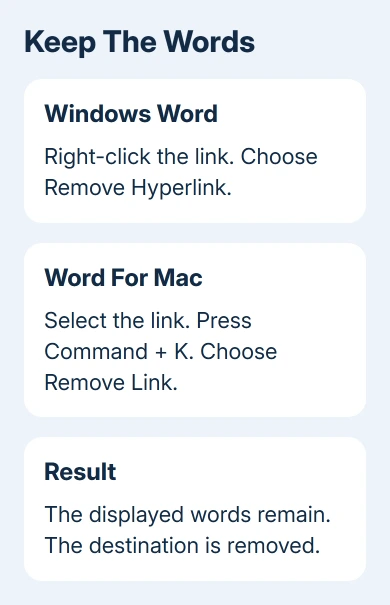
For example, a linked Project notes label remains Project notes after removal. Its hidden web address isn't added to the paragraph. If you'll need that address later, record it from the link-editing dialog before removing it.
On Mac, select the link and press Command + K to open its hyperlink dialog. Choose Remove Link. The link goes away, and the sentence stays in place.
A Windows keyboard route is to select the linked text, press Ctrl + K, then Alt + R. That activates the removal command in the Insert Hyperlink dialog. It can help when a trackpad click keeps opening the address.
Check the result by right-clicking the text again or reopening its link dialog. Blue text alone won't reveal whether a destination remains. The words can keep their font color or other formatting after you remove the link.
Decide whether the whole-document shortcut fits
Save a separate copy before removing links in bulk from an important file. I'd remove a few links individually in a report with references, even when the all-at-once shortcut looks faster.
In desktop Word for Windows, click in the main document, press Ctrl + A to select its text, then press Ctrl + Shift + F9. Some laptop keyboards need Fn with F9 to send the function key.
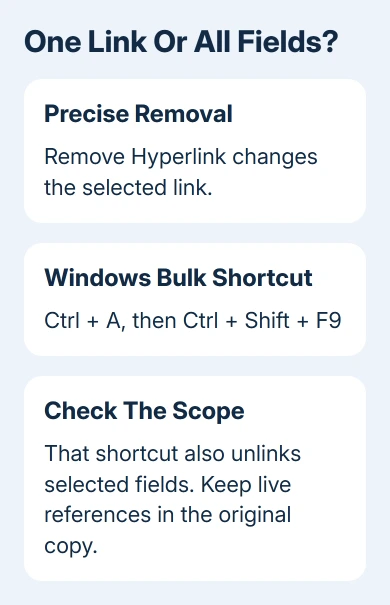
The shortcut means Unlink a field. A field is text Word generates from instructions, such as a page reference or a contents entry. Unlinking turns a selected field's displayed result into ordinary text.
That's why the shortcut can change more than your links. A report may look correct afterward while a field no longer updates when you edit the document. Keep the original with its working fields if you'll need to revise the file.
Selecting the main document text might leave links in headers, footers or text boxes. Check those areas separately and remove individual links as needed. This lets you remove those links while keeping the document's structure intact.
If the shortcut does nothing, check the keyboard's function-key behavior before repeating it. The Word shortcut checks cover conflicts and keys that send a different command.
Stop automatic links on Windows or Mac
For an address that just turned into a link, press Ctrl + Z on Windows or Command + Z on Mac immediately after Word converts it. That undoes the automatic formatting while keeping the typed address.
For a lasting Windows change, open File > Options > Proofing > AutoCorrect Options. Select AutoFormat As You Type, clear Internet and network paths with hyperlinks, then confirm the dialogs.
On Mac, open Word > Preferences > AutoCorrect. Select AutoFormat As You Type and clear Internet and network paths with hyperlinks. Close the settings and return to your document.
This affects automatic conversion of new addresses as you type. It won't strip existing destinations from earlier paragraphs. Use the removal method for links already present.
Type a temporary web address and press Space or Enter to check the new setting. The address should remain text rather than become a link. Remove your temporary sample when you're done checking.
The setting also isn't the same as Use CTRL + Click to follow hyperlink. That option changes how an existing link opens; it doesn't remove the destination or prevent Word from creating another link.
Handle browser Word without changing unrelated formatting
In Word for the web, switch the document to editing mode before trying to change a link. Click the linked words to inspect the link controls. The web app's Insert > Link command opens the existing link for editing.
Choose the removal option if it's available. If the link's destination can't be edited, open the same file in desktop Word and remove it there. Some imported links have browser editing limits even when ordinary links work.
The browser doesn't use the Windows File > Options dialog. Make the automatic-conversion change in the desktop app where that setting exists, rather than searching the web ribbon for it.
An online document needs sign-in and editing permission. If it opens as read-only, request editing permission or a changeable copy from its owner. Missing editing controls in a read-only document aren't a reason to reinstall Office.
If only the appearance needs cleaning, clear the selected text's formatting separately. Removing a link and changing how the words look are separate jobs. Choose the change that gives you the result you want.
Check the saved document before sharing it
Save your changes and reopen the file. Inspect a few places where links were removed, plus any headings or references that should remain interactive. Confirm that the visible wording still makes sense without its old destination.
For a stuck imported link, send a sample stripped of private information to Microsoft Support. Include your Word version, the failed removal command and whether removal works in desktop Word or fails only in the browser.
The Short Version
Choose Remove Hyperlink to remove just the link you select. The Windows bulk shortcut also unlinks fields, so protect a document with live references. Turn off automatic link creation separately in AutoCorrect, then verify the saved file.
Checked November 9, 2026.

Isaac Smith is the founder and editor of PC Glance, a website that covers computers, laptops, and technology. He is a tech enthusiast and a computer geek who loves to share his insights and help his readers make smart choices when buying tech gadgets or laptops. He is always curious and updated about the latest tech trends.