
To strike through text in Word, select the words and choose Home > Strikethrough. The words stay in place. Choose the command again to remove the line, or use Double strikethrough in the desktop Font dialog for two lines.
A colored line that appeared while someone edited the document can be a tracked deletion instead. You'll need to accept or reject that edit, so check which kind of crossing out you're dealing with before trying to remove it.
In this guide
Apply a single line to the words you select
Drag across the passage you want to cross out. Selecting the words first applies the line to that passage. Without a selection, you can turn it on for whatever you type next instead.
In Word for Windows, choose Home, then find Strikethrough in the Font group. Its symbol shows letters crossed through their middle. Click it once and inspect the selected passage for the line.
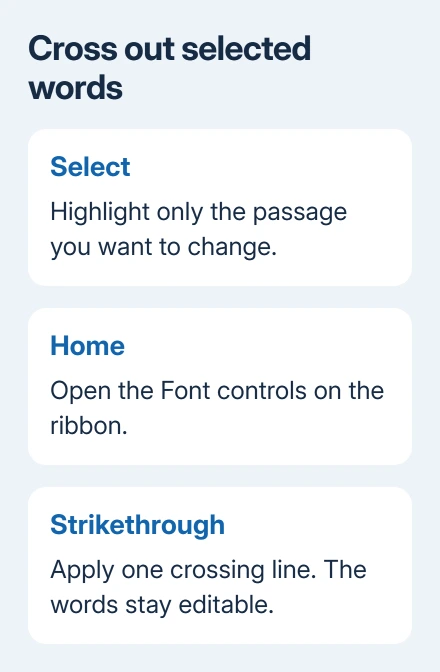
The text stays in the document and remains editable. This is useful for a task list, a price comparison or a draft where you want the old wording to remain visible. It doesn't record who changed the text or when they changed it.
Click somewhere else to see the result without selection shading. The line should run through the letters you selected, while neighboring words keep their previous appearance.
For another passage, select those words and repeat the command. Select the whole document only if every passage needs crossing out. Word applies the change to everything you've selected, even when that stretches across several paragraphs.
Microsoft explains the single and double effects in its strikethrough instructions.
Use the Font dialog for two lines
In desktop Word for Windows, highlight the passage, open Home, then click the small Font Dialog Box Launcher in the Font group. Select the Font tab and choose Double strikethrough, then OK.
The selected letters should now have two crossing lines. This changes the appearance of the text; it doesn't delete an extra copy of it or create a second tracked revision.
The keyboard route to the Windows Font dialog is Ctrl + D. Make sure your document has focus first. The same keys can perform a different action when a browser or another application has focus.
To remove the double effect, return to the dialog and clear Double strikethrough. You can see exactly which effect you're removing instead of clicking toolbar buttons and hoping the line disappears.
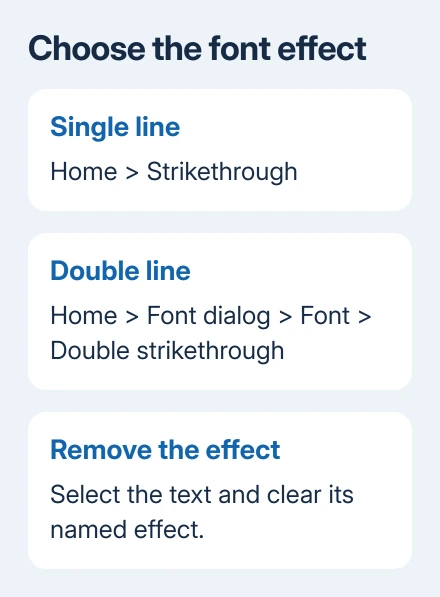
I'd use the dialog when a document contains both kinds of crossing out. Seeing the named effect helps you remove just that formatting while keeping the font, bold text and other choices.
If you also want to remove other font and formatting choices, Clear All Formatting is a broader operation. Save that for text whose other formatting you also want to remove.
Find strikethrough on a Mac, tablet or browser
In Word for Mac, select the words and press Command + Shift + X. Check the passage after pressing the keys. Pressing the same combination again on crossed-out text removes that effect.
The Home tab also provides text formatting controls. For additional font effects in desktop Word on Mac, open Format > Font and choose the effect there. The Windows Ctrl + D route isn't the Mac instruction.
Word in a browser uses the ribbon in its editing view. Select the text, open Home, and find Strikethrough among the font controls. Expand the ribbon or its additional controls if a narrow window hides the button.
A document open only for viewing won't let you change its formatting. Switch to editing if you have access. When someone shared the file as read-only, ask for editing access or work on an allowed copy.
Use desktop Word for the full Font dialog and its double-line control. The browser ribbon doesn't provide all the controls from the Windows Font dialog.
For phone and tablet Word, select the passage and open the Home formatting controls. Their position changes with the screen layout, so expand the editing toolbar before looking for the strikethrough symbol.
Stop the next words from being crossed out too
When the cursor is sitting in formatted text, newly typed words can continue with that formatting. The next line can therefore look crossed out even after you've finished marking the previous item.
Place the cursor where you want normal text to begin and turn Strikethrough off. Type a short word to check the result. If it still has a line, undo that word and check the Font dialog for a double effect.
To fix words already typed, highlight those words before turning off the effect. Turning it off at the cursor changes what you type there; it doesn't remove lines from words elsewhere in the document.
Keep a sample of the surrounding text in view while making the change. The goal is to remove the crossing line without accidentally changing the font size or removing bold or italic text you want to keep.
When many repeated passages need changing, Find and Replace in Word can help locate them. Inspect the selection before applying formatting so nearby words don't get included.
Treat tracked deletions as a separate editing decision
Open Review when the line is part of another person's edits, especially if the document also shows reviewer names or revision marks. Ordinary strikethrough changes how words look; Track Changes records edits for review.
A tracked deletion marks text for removal. Accepting that deletion removes the words; rejecting it keeps them. Turning off a font effect isn't a substitute for deciding whether the revision should stay.
Use the Review controls to inspect the change before accepting or rejecting it. Don't accept every change just to clean up one crossed-out sentence in a shared document.
If strikethrough works in a new document but stays unavailable in this one, check its editing permissions with the owner. For an ongoing app problem, send Microsoft Support your Word version, device and file type.
The Short Version
Highlight a passage, then choose Home > Strikethrough. Use the desktop Font dialog for Double strikethrough, or Command + Shift + X for the single effect in Word on Mac. Review tracked deletions separately.
Checked November 10, 2026.





