

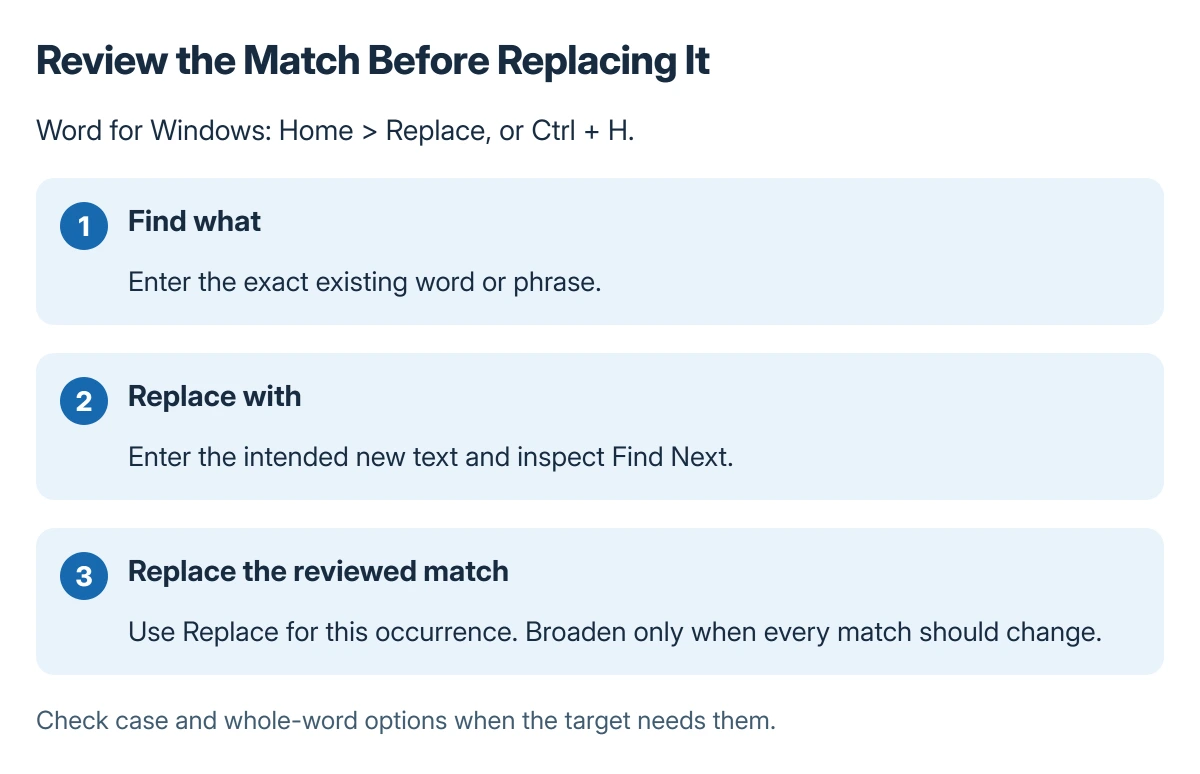
Find and replace in Word from Home > Replace, or press Ctrl + H in Word for Windows. Enter the old text and its replacement, then inspect matches before changing the entire document.
Replace changes one occurrence. Replace All changes every match covered by the search, which can include wording that only happens to resemble the intended target.
Enter both pieces of text and inspect the first match
Save the document before a large edit. Open Home > Replace, put the existing word or phrase in Find what, and enter the intended new wording in Replace with.
The replacement fields are documented by Microsoft in its Word replacement instructions. Use Find Next to inspect the surrounding sentence, then Replace when that occurrence should change.
Status: Microsoft's Word find-and-replace instructions checked 22 October 2026. Windows, Mac and web controls differ; no document content was replaced.
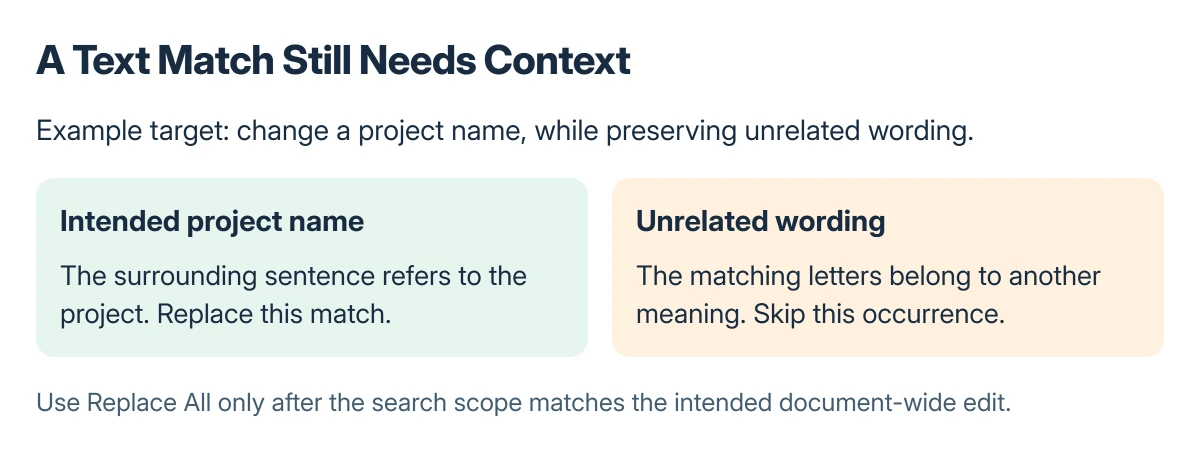
For example, changing a project name should not automatically change the same letters inside an unrelated word. Read the whole sentence rather than checking only the highlighted match.
Narrow the search before using Replace All
In desktop Word for Windows, expand More to inspect search options. Microsoft says Match case restricts the search by uppercase and lowercase characters.
Use the whole-word option when the intended target is a complete word. Microsoft also documents whole-word and case matching for Word for the web, which offers fewer advanced replacement features.
Check a few different matches first. Once the search describes the intended edit, use Replace All only when every matching occurrence should receive the same replacement.
Review the result before saving over the working file. A replacement count shows how many changes Word made, but it does not establish that each changed sentence still makes sense.
Mac and browser versions have their own controls
On Mac, use the document search menu's Find and Replace option. Microsoft describes an Advanced Find & Replace route through the Navigation Pane settings for formatting and special-character searches.
In Word for the web, use its basic Find and Replace controls for ordinary text. Open the document in desktop Word when the required search involves options the browser edition does not provide.
If keyboard commands fail while menu commands work, follow the Word shortcut checks. Repeatedly changing the search term will not fix a keyboard assignment.
Keep bulk edits recoverable
Microsoft states that checking replacements individually allows each change to be confirmed. Use that approach for names, dates or wording that depends on the sentence's meaning.
If Word closes during the work, the document recovery guide explains the recovery pane and why dismissing a recovered copy can matter.
When the wrong text changes, stop making further replacements. Undo the unintended edit or return to the saved copy, then narrow the search before repeating it.
Before another bulk edit, save a separate Word file so AutoSave does not change the starting version.
The Short Version
Open Replace, enter the existing and new text, and inspect matches with Find Next. Use case or whole-word options when needed. Replace individually until the search scope is reliable, then consider Replace All.
Where to Next
Read changed sentences and headings once more before sharing the file. Mechanical text matching cannot decide whether a replacement preserves the intended meaning.

Isaac Smith is the founder and editor of PC Glance, a website that covers computers, laptops, and technology. He is a tech enthusiast and a computer geek who loves to share his insights and help his readers make smart choices when buying tech gadgets or laptops. He is always curious and updated about the latest tech trends.