
Word's ruler appears when you open View and select Ruler. If the scale across the top appears but the one down the side is missing, use Print Layout and check the separate vertical-ruler setting in the desktop app.
The ruler shows page measurements and lets you set paragraph indents and tab stops, the positions text jumps to when you press Tab. Turning it on doesn't add a ruler to the printed document or move your text.
Show the horizontal ruler from the View tab
Open your document in Word, then choose the View tab on the ribbon and select Ruler. A scale should appear across the document area. Its markers show the settings for the paragraph your cursor is in.
On Windows, choose View > Print Layout to see the page as it will look when printed. You'll also need this view to check the vertical ruler.
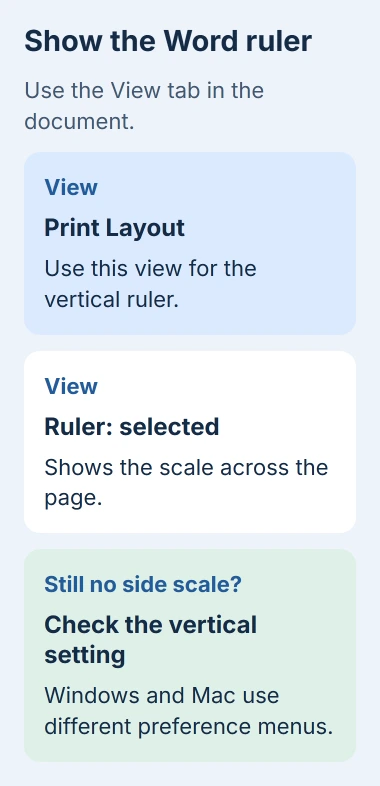
Microsoft says to select View > Ruler in its ruler visibility instructions. This shows the measuring scale without adding an object to your document.
Click inside a paragraph after turning it on. The markers show that paragraph's settings, or those of your selection, so they can move when you click elsewhere in the file.
If the ribbon is collapsed, expand the View controls to find the checkbox. A narrow window can rearrange the commands too, so widen it before assuming the feature has disappeared.
To hide the scale again, clear Ruler on View. Your text keeps its formatting, including any indents or tab stops you've already set for a paragraph.
Restore the vertical ruler in Word for Windows
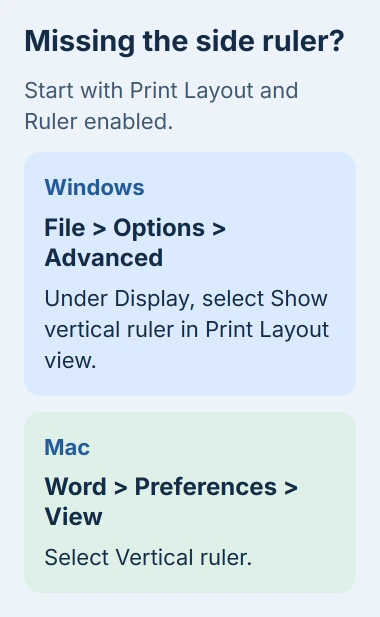
When the top scale is visible but the left-side scale isn't, open File > Options > Advanced. Scroll to Display and select Show vertical ruler in Print Layout view, then choose OK.
Return to View > Print Layout and leave Ruler selected. The vertical ruler needs both Print Layout and that option turned on. If you're in another view, turning on the option can seem to do nothing.
The side ruler measures up and down the page. Paragraph indent controls won't appear there; they're on the horizontal ruler across the top of your document.
Check your page after closing Options. If the side scale appears, a display setting was hiding it and your file doesn't need repairing.
If it still doesn't appear in desktop Word, check both settings in a blank document too. Tell support whether it happens in one file or every file, and which view you're using.
Find the Mac ruler preferences
In Word for Mac, select View > Ruler. If the side scale is still missing, check that you're in Print Layout rather than another reading or editing view.
Next open Word > Preferences > View, under Authoring and Proofing Tools. Select Vertical ruler. The Mac-specific instructions use this route instead of Windows' File > Options.
Mac also has a separate measurement setting under Word > Preferences > General. Use Show measurement in units of to choose the units you want displayed, such as inches or centimeters.
Changing units changes the numbers on the scale. It won't change your paper size or fix an indent that's pushed text too far across the page.
I'd check the app's settings before changing the document. A missing scale and a misplaced paragraph can look related, but showing the ruler solves only the first problem.
Use the markers without moving the wrong text
Click inside one paragraph to adjust it, or select several paragraphs to give them the same setting. Check your selection before dragging a marker, since you can change more than the line beside it.
The top triangle at the left controls the first-line indent. It moves just the opening line, such as the indented first line of an essay paragraph.
The lower triangle controls a hanging indent, where lines after the first start farther inward. The small square underneath moves the left indent, carrying those left-side markers together.
At the right end, the right indent sets where your paragraph stops before the right margin. These markers change paragraph layout; they don't stretch letters or turn the page between portrait and landscape.
The ruler usage guide explains each marker. If you move one by accident, use Undo right away and check the paragraph before adjusting it again.
To change the space between lines, use Word's line-spacing controls. Indents move text across the page, so they won't change the gap between lines.
Set a tab stop only when you need alignment
A tab stop saves a position for text to jump to when you press Tab. Choose its type with the selector at the left end of the ruler, then click where you want that position on the scale.
A left tab aligns the start of text, a right tab aligns its end, and a decimal tab lines up numbers around their decimal points. Choose the type that matches the information rather than adding repeated spaces.
To remove a tab stop, drag its symbol off the ruler. That clears the saved position from your selected paragraph without deleting the words aligned to it.
If pressing Tab inside a list changes the wrong thing, use the bullet-indent checks. Changing a list's level can behave differently from moving to a tab stop in an ordinary paragraph.
Keep page margins separate from paragraph indents. If every paragraph has the wrong amount of space for text, check the document's page layout before dragging individual paragraph markers one by one.
When the command still doesn't match your screen
Word for the web also offers View > Ruler, but its ribbon and available controls differ from desktop Word. The Windows File > Options > Advanced route belongs to the installed Windows app.
If browser Word lacks the control you need, open the document in your installed Word app. Don't search a browser's own Settings menu for Word's ruler controls.
If it still won't work, give Microsoft Support your Word version, platform and document view, and say which ruler is missing. A screenshot of the View ribbon helps show which command you can't use.
The Short Version
Choose View > Ruler. A missing side scale needs Print Layout and the vertical-ruler preference. The horizontal markers control paragraph indents and tabs, separately from page margins and line spacing.
Checked November 5, 2026.

Isaac Smith is the founder and editor of PC Glance, a website that covers computers, laptops, and technology. He is a tech enthusiast and a computer geek who loves to share his insights and help his readers make smart choices when buying tech gadgets or laptops. He is always curious and updated about the latest tech trends.