

Turning on the vertical ruler fixed frozen horizontal tabs for several Word 2010 owners. If tabs move once, then freeze until you minimize Word, select Show vertical ruler in Print Layout view in Advanced options.
Use this workaround for repeated freezing. A completely missing ruler, a hidden top margin and a tab stop applied to the wrong paragraph need different checks.
In this guide
1. Enable the side ruler and try two changes
In Word 2010 for Windows, open File > Options > Advanced. Scroll to Display, select Show vertical ruler in Print Layout view, then choose OK.
Choose View > Print Layout, and leave Ruler selected on the View tab. The vertical scale should appear beside the page, with the horizontal scale still visible across the document area.
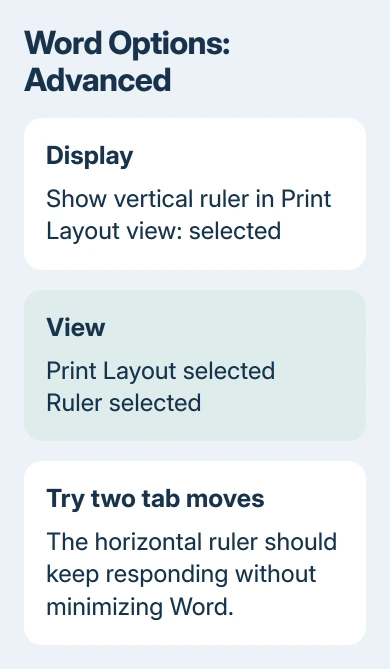
Click inside a paragraph with a tab stop. Move that stop on the horizontal ruler, then try moving it again without minimizing Word. Check the tab selector at the left end too if that was also freezing.
Success means repeated changes work normally, rather than only the first drag after a window refresh. Save the document once the intended formatting is correct, then reopen it normally and check that the ruler remains usable.
An owner in the original Word ruler discussion confirmed this fix, with further confirmations in later replies. Another Word 2010 participant had only partial improvement, so check repeated dragging afterward.
The current Windows ruler settings retain that Advanced option. The confirmed freezing reports are from Word 2010. Check that your copy behaves the same way before trying this older workaround.
For Word 2007, options start at the Microsoft Office Button > Word Options, rather than File. Use its Advanced display controls if you're checking that older interface. Owners confirmed the fix in Word 2010, rather than Word 2007.
2. Separate a missing scale from a frozen control
If neither ruler appears, select View > Ruler first. For a missing side scale, also use Print Layout and the vertical-ruler option. The ruler needs to be visible before you can drag its markers.
The Word ruler visibility guide covers Windows and Mac setup. On a Mac, the side-scale preference is Word > Preferences > View > Vertical ruler, rather than the Windows options dialog.
For a visible side scale with its top margin area cut off, use the hidden page-space repair. The setting for page white space is separate from the one used for horizontal-ruler freezing.
Look at the symptom before moving margins to compensate. A page that only looks shorter because its white space is hidden doesn't need a new margin measurement. Changing the layout can disturb otherwise correct page breaks.
If the ruler appears only when the pointer approaches the page edge, keep Ruler selected on View. A temporarily displayed scale is harder to use reliably than a ruler left visible while you edit.
Once the controls stay visible, check the paragraph selection next. A working ruler can appear to make the wrong change when it is showing a different paragraph's formatting.
3. Select the paragraphs before moving their markers
Click inside the paragraph you want to change. To adjust several paragraphs together, select those paragraphs first. The ruler shows the tab stops for your selected paragraphs, rather than one set for the whole document.
A tab stop is the saved position text moves to when you press Tab. Drag its symbol along the horizontal ruler to change the position, or drag it off the ruler to remove it from the selected paragraph.
Indent controls do another job. The upper left triangle controls the first line; the lower triangle controls the hanging indent for the other lines. Moving the small square beneath them changes the paragraph's left indent together.
The ruler marker instructions explain these controls. Pick the marker that matches your goal instead of moving several nearby symbols and trying to undo the unexpected changes afterward.
For page margins, use Page Layout > Margins in Word 2010. Current Word calls the tab Layout. An indent changes a paragraph's position within the page; a margin changes the available page area.
If another paragraph still has its old tab stops, click inside it to inspect its own settings. That can happen because each paragraph has its own settings, rather than because the ruler has frozen again.
4. Enter tab positions without dragging
For awkward ruler controls, select your paragraphs. On Home, use the Paragraph group's dialog launcher. Choose Tabs in the resulting window.
Type the required measurement under Tab stop position, choose its Alignment, and select Set, then OK. This way to enter tab positions avoids repeatedly trying to catch a small ruler marker.
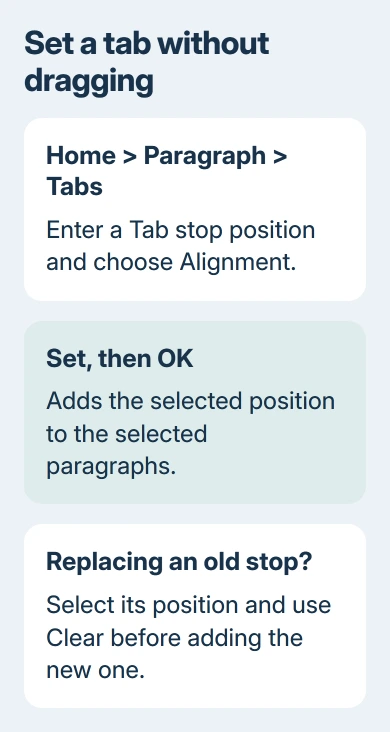
To replace an existing stop, select its old position and choose Clear, then add the new position with Set. Adding a new stop alone doesn't necessarily remove the earlier one.
Leave Clear All alone unless you mean to remove every custom stop in the selected paragraphs. For a long contract or form, changing only the needed stop protects the other alignments that already work.
On Word for Mac, use Format > Tabs for numeric positions. Word for the web recognizes saved tabs but doesn't provide the same setting and removal controls; make those changes in your installed copy of Word.
I'd use numeric positions for a document that needs exact, repeated alignment. Dragging is convenient, but entering one measurement is easier to repeat consistently across the paragraphs you're repairing.
5. Compare Safe Mode if the horizontal ruler still locks
Save the open documents and exit Word. Hold Ctrl as you launch it again, keep it held until the Safe Mode prompt appears, then accept it. Check that the title bar indicates Safe Mode before comparing the ruler.
Open the file and try moving two tab stops. Owners could edit tabs in Safe Mode but lost that ability after reopening Word normally. Use it to compare behavior, rather than treating the test session as a permanent fix.
If paragraph and tab marks aren't visible during the test, use Home > Show/Hide to show formatting marks. Those marks help you see where tabs are inserted, while the ruler shows where they are positioned.
Close the Safe Mode session and reopen Word normally afterward. If the sessions behave differently, support can check add-ins, templates and startup settings. The difference alone won't tell you which component is causing the problem.
When the fault survives the display change
Try a blank document as well as your original file. The original asker reproduced the problem in a new Word 2010 document, so an older .doc file wasn't the only explanation in that case.
If only the original fails, send your administrator a harmless copy to check its formatting. If every document fails, tell Microsoft Support your Word build and which rulers are visible. Describe whether Safe Mode allowed repeated dragging.
Ask for help with repeated horizontal-ruler dragging, and mention whether minimizing Word briefly restores it. Those details distinguish this fault from an ordinary request to show the ruler or change margins.
The Short Version
Enable the vertical ruler and keep Print Layout and View > Ruler on. Check repeated horizontal drags. If it still freezes, select the right paragraphs, enter numeric tab positions and compare Safe Mode before deeper repairs.
Checked November 17, 2026.
 If you have any business, I can build it online






