
After a restart or a game launch, the pointer crawls or races across your screen even though you set the mouse speed yourself.
Having to correct it again gets old.
I'll help you work out how to fix mouse sensitivity by checking what changes: Windows' slider, your mouse's DPI, or an app's profile.
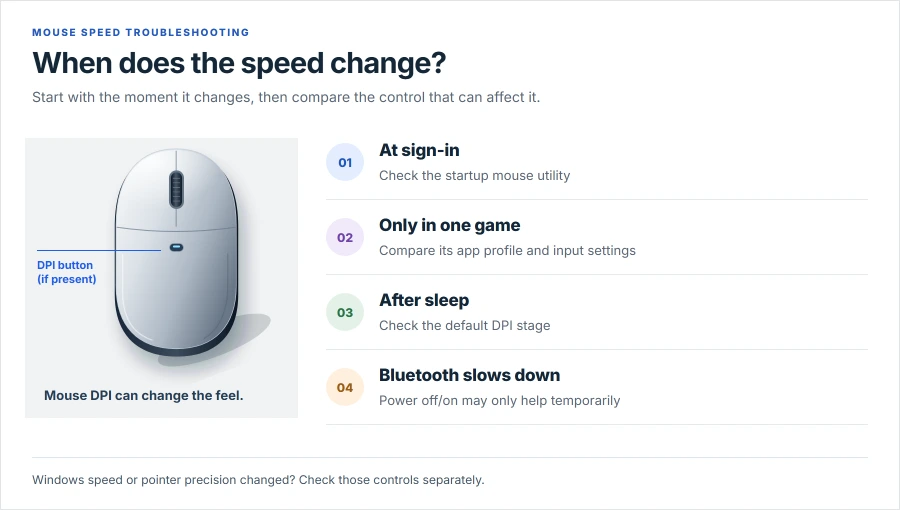
1. It resets at sign-in? Check your mouse utility
A Windows 11 owner identified Corsair iCUE as the cause of their sensitivity reset. Their speed reverted after each restart, even with drivers up to date.
A clean boot stopped it temporarily. Restoring startup brought the reset back, and they later identified iCUE as the cause.
That was one owner's mouse app, so check yours the same way before you blame Windows.
If yours resets at sign-in, start with the mouse utility. I would compare its active profile with Windows before reinstalling a driver, then see whether quitting the utility changes the behavior.
Ours: none. These checks come from saved manufacturer documentation and owner follow-ups; I did not reproduce the faults on this laptop.
Status: checked 17 October 2026 against current Windows 11 help and owner follow-ups, including a limited Bluetooth replacement result.
Does the utility restore a different DPI or profile when you open it? If it does, you've found the culprit. If you can't tell which app is doing it, the clean boot in fix 7 will show you.
2. A mouse button changes the speed? Keep one DPI stage
Logitech documents several DPI stages on the G102. A button assigned to cycle DPI switches between those levels without requiring you to move Windows' slider.
Open your model's official mouse app. Note your current values first, so you can put them back later, and do the same before any other fix here. Then keep one stage, or change the DPI-cycle assignment if your software allows it.
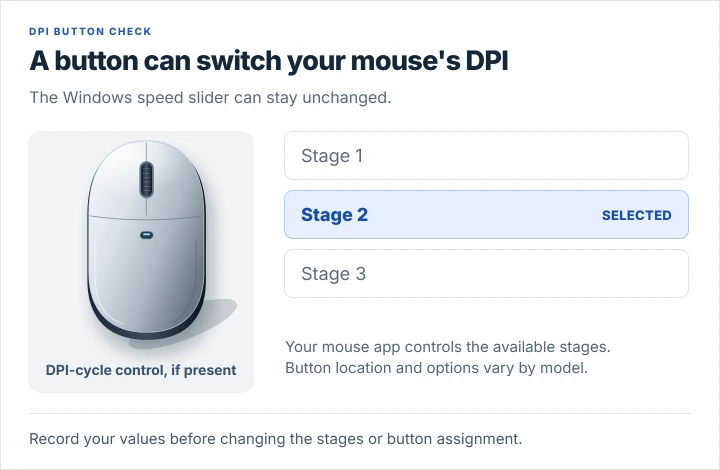
The default matters after wake, too. Logitech says its default DPI returns when you switch profiles, start the PC, or wake it from sleep.
The Logitech pointer guide explains these controls for the G102. On another model, follow its own app's instructions.
3. Only one game feels different? Compare its profile
Does it happen in one game? Start with that game's settings and the profile your mouse utility loads for it.
Logitech documents per-profile pointer settings. On a supported mouse, compare the game's DPI with your desktop profile, adjusting just one profile per test.
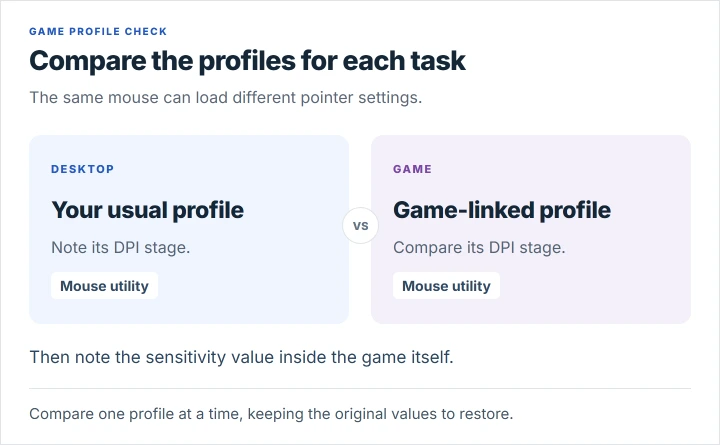
Note the game's sensitivity number, too. I would compare two games before resetting Windows, because a change shared by both needs a wider check.
If your desktop stays consistent, don't change several Windows controls just to make up for one game's setting.
For Siege, read the hipfire and ADS values alongside mouse DPI before comparing another player's setup.
4. The Windows slider moves? Set pointer speed there
Microsoft documents this Windows 11 route: Settings, Bluetooth & devices, Mouse. Adjust Mouse pointer speed, then check the same slider after a restart or app launch, using the same mouse and desktop task.
Did the number change, or does the slider look the same while the mouse feels different? Those are two different problems, so note which one you see.
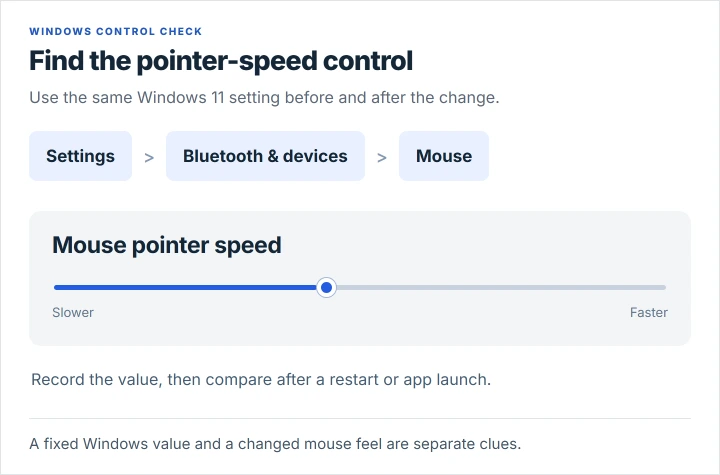
Microsoft's mouse settings instructions cover that slider and the other pointer controls on the Mouse page.
Is the pointer's size or color changing? Our page on cursor appearance reverting covers that separate problem.
For a different design once those settings stay saved, assign custom cursor files in Windows 11 to the appropriate pointer roles.
5. Fast hand movements change the feel? Test pointer precision
Microsoft's current Windows 11 help puts Enhance pointer precision on the same Mouse page. You reach it through Settings, Bluetooth & devices, Mouse.
Microsoft says it improves accuracy during slow movement. Logitech describes the setting as Windows acceleration and recommends leaving it unchecked for gaming accuracy on the G102.
Switch it once and compare slow and fast movements over the same distance, then keep whichever feels right to you.
This only changes acceleration, so if an app or a DPI button keeps changing your speed, fixes 1 and 2 are the ones that help.
6. A Bluetooth mouse slows down? Restart the mouse
Owners report a distinct Bluetooth slowdown. One Microsoft Bluetooth Ergonomic Mouse owner restored their usual speed by turning the mouse off, then on.
It doesn't last, though. A second owner on Windows 11 Pro 22H2 got the same short-lived relief, despite multiple Bluetooth driver and BIOS updates.
One owner tried their mouse on Windows 10, Ubuntu, and a MacBook, with the slowdown following it. They later reported a warranty replacement and said the replacement stayed normal after a day.
A day is not a long test, but if the slowdown follows your mouse to other computers, check its warranty before you reinstall Windows again and again.
Does Windows play a disconnect sound, too? The USB mouse connection guide separates actual dropouts from a change in pointer speed.
A Razer using its wireless dongle also needs dock and power-saving checks, especially when speed stays steady between brief dropouts.
7. A background app is involved? Use a clean boot
Microsoft documents a clean boot to isolate software conflicts. An owner with random speed jumps on Windows 10 confirmed the test stopped the symptom, then planned to identify the offending app.
Save your work before restarting. On a work-managed PC, ask its administrator before disabling startup services because policies can restrict this process.
Follow Microsoft's complete clean boot instructions. Keep a list of the enabled services and startup apps before changing them.
In System Configuration's Services tab, select Hide all Microsoft services before choosing Disable all. Leave Microsoft's services alone.
Open Task Manager and disable the startup apps that were enabled. Restart and check whether your pointer speed stays steady during the same task.
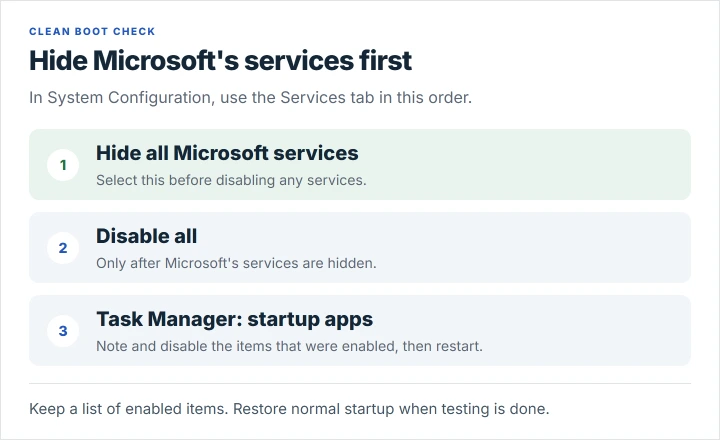
If it improves, isolate the app. Microsoft's guide explains how to re-enable the disabled services and startup items in halves, restarting between tests.
Restore normal startup when you finish. Use the restore section in Microsoft's guide, including re-enabling the startup apps you disabled during this test.
8. It began after an update? Roll back the affected driver
Use this only when the timing fits. Microsoft recommends considering a rollback when a problem began after a driver update, rather than trying unrelated versions at random.
Open Device Manager and locate the affected mouse or Bluetooth adapter. Open its Properties, select Driver, then choose Roll Back Driver if available.
You need administrator access for this. Microsoft's driver instructions explain rollback and the Windows Update alternative.
A rollback is not a guaranteed repair. The original Bluetooth mouse owner said theirs added stuttering, so they restored the driver they had been using.
What did not fix it in the reports?
Failed attempts matter here. In the iCUE case, Windows repair commands, a mouse-driver reinstall, and a Registry change did not stop the reset.
A gamer with a SteelSeries Sensei 310 had already pinned DPI and disabled pointer precision. They tried another mouse, yet the speed still felt wrong in VALORANT and CS:GO.
That thread never found a fix, so I won't promise that a driver change or a Windows reset will solve yours.
Why does mouse sensitivity keep changing on Windows 11?
There is no single confirmed cause across these reports. Check whether an app reapplies a profile, a mouse button changes DPI, Windows' slider resets, or the same Bluetooth mouse slows down across computers.
Is DPI the same as Windows pointer speed?
No. Your mouse's DPI and Windows' pointer-speed control are separate, so a DPI change can alter the feel while the Windows slider stays put.
Should I turn off Enhance pointer precision?
Try it if the feel changes with hand speed. Compare the same movement both ways. Liking or disliking acceleration is a matter of taste, separate from a setting that resets at sign-in.
The Short Version
- Resets at sign-in: compare the mouse utility's active profile with Windows.
- Changes after a button press: check DPI stages and the default level.
- Changes in one game: compare that game's settings and mouse profile.
- Watch Windows' pointer-speed value, and test pointer precision separately.
- Bluetooth slowdown: power-cycle the mouse; recurring cross-computer faults warrant a warranty check.
- Use a clean boot for app conflicts, or rollback for a fault that followed a driver update.
Where to Next
Which event changes the speed on your mouse: signing in, opening a game, or waking it? Tell me its model and when the jump happens in a comment; that will help me choose your next check.

Isaac Smith is the founder and editor of PC Glance, a website that covers computers, laptops, and technology. He is a tech enthusiast and a computer geek who loves to share his insights and help his readers make smart choices when buying tech gadgets or laptops. He is always curious and updated about the latest tech trends.