

For a Razer mouse that keeps dropping momentarily, check the connection first. Bypass the charging dock or USB hub, try it with Synapse closed, then check Wireless Power Saving if your model offers it.
Start by identifying whether you're using its USB cable, 2.4 GHz receiver or Bluetooth. A mouse that supports several modes can behave normally on one connection while another keeps failing.
1. Check the connection and charge before changing software
Check the mouse's connection switch to see which mode you're using. For 2.4 GHz, use the receiver supplied or paired for your model; a Bluetooth entry in Windows is a separate connection.
Recharge your mouse or fit a fresh battery of the correct type, depending on the model. Use the power indicator and manual to check charge; the lighting effect may not show how much is left.
Connect a wired mouse to a PC USB port. For a detachable cable, check that it is fully seated at the mouse as well as at the PC.
For a receiver that stopped responding, the Windows mouse connection checks include unplugging it, waiting about 10 seconds and reconnecting it.
Try moving and clicking on the desktop as well as in the affected game. If clicks fail only in the game, note that before treating the problem as a lost connection.
2. Connect the receiver without the charging dock
Several Viper Ultimate owners fixed their disconnections by taking the charging dock out of the connection. Plug the receiver into the computer for that comparison.
Disconnect the dock's USB connection while testing. Leaving it connected elsewhere on the same PC doesn't test the arrangement those owners changed.
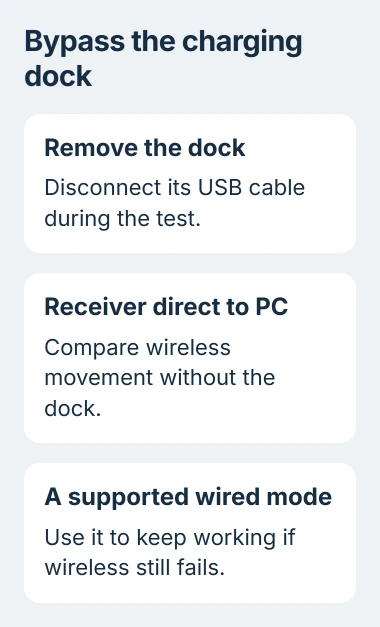
Keep the receiver connected directly to the PC during this test. Using a monitor's USB port or an unpowered hub adds another device between the receiver and computer.
Try another suitable USB port if the fault continues. The owner behind the thread had tried ports, extensions and receiver positions without success, so changing ports won't fix every case.
Change only that connection first, then repeat the same movement or game task. If the receiver stays connected without the dock, you've learned something useful without reinstalling software.
If your model can send mouse input through a USB cable, try that alongside wireless mode. Check the manual first, because a cable that charges a wireless mouse doesn't always carry its movement and clicks.
3. Compare with Synapse completely closed
Save any profile changes you need, then open the Windows system tray. Right-click the Razer icon and choose Exit All Apps when that command is available.
Repeat the task that usually triggers the dropout. Check the desktop too: does only the game stop responding, or does the receiver lose all mouse movement?
If the connection stays stable with Synapse closed, reopen it and try again. If the problem returns each time, you can give software support a clear description of what triggers it.
Razer recommends closing its apps and testing another PC in a support reply about repeated mouse disconnections. Try those checks before removing the software.
If movement remains smooth but the speed changes, use the DPI and profile checks. A different sensitivity setting can feel abrupt without the mouse losing its connection.
4. Check Wireless Power Saving on supported models
Reopen Synapse and select your mouse. If it has a Power tab, look for Wireless Power Saving and read its current delay before changing it.
One Viper Ultimate owner stopped a repeating disconnect by changing the delay from 1 to 5 minutes. Another owner confirmed it worked.
If you have that model and setting, try a longer delay and test wireless mode again. If the mouse drops too quickly to reach the setting, a wired connection that supports mouse input can give you time to change it.
The change didn't help every owner. One owner in September 2026 increased the delay and removed Synapse, but the disconnects continued. Their mouse did work on their laptop, giving them a reason to compare the two computers.
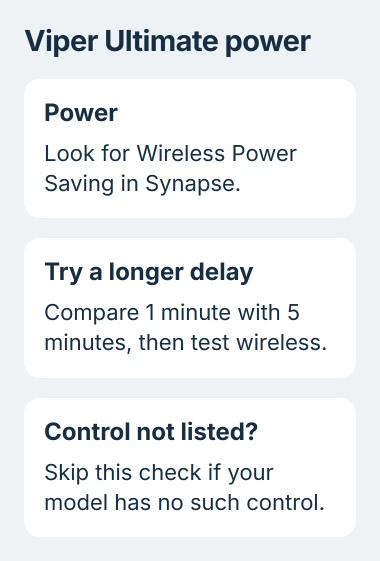
If the mouse or this control isn't listed in your Synapse version, skip the setting. Don't substitute another device's power menu or assume every wired Razer has the same wireless controls.
5. Compare another computer before reinstalling drivers
Try the mouse and receiver on another computer if you have one available. Start without installing Synapse there, check ordinary movement, then try the task that usually triggers the dropout.
If the mouse and receiver disconnect there too, tell hardware support. That makes the mouse, cable or receiver the next things to check, rather than more Windows settings on your first PC.
If it works there, return to checking the first computer's USB connections and software. Tell support whether it worked over a cable and whether closing Synapse made a difference.
For a wired USB mouse that triggers Windows unplug sounds, use the USB disconnection checks to check the PC's device and power settings.
Keep Bluetooth failures separate from 2.4 GHz receiver failures. If only Bluetooth fails, check its adapter and pairing; replacing the 2.4 GHz receiver won't help a connection that doesn't use it.
6. Repair the software or arrange hardware support
If the fault returns only when Synapse runs, follow the repair or clean-reinstall steps for the version that supports your device. Save the profiles you need before removing the software.
Check that your mouse is supported before choosing a Synapse version. A mouse missing from its device list can still move and click, but installing a version that doesn't support it won't add those controls.
Give support your model, current firmware, connection mode and results without the dock, without Synapse and on another PC. Some owners in the thread still had disconnects after firmware updates, so report that too if it happened to you.
The Short Version
Bypass the charging dock, try the mouse without Synapse and check its wireless power-saving delay if supported. Test on another computer before deciding whether to repair the software or replace the hardware.
Checked November 5, 2026.

Isaac Smith is the founder and editor of PC Glance, a website that covers computers, laptops, and technology. He is a tech enthusiast and a computer geek who loves to share his insights and help his readers make smart choices when buying tech gadgets or laptops. He is always curious and updated about the latest tech trends.