
Rainbow Six Siege keeps your sensitivity in Options > Controls, with separate values for ordinary mouse movement and aiming down sights. Write those down with your mouse's DPI before copying a setup or adjusting your aim.
The in-game number is only part of your setup. A different mouse DPI, zoom setting or custom setting can make that same number feel different on another PC.
Read the mouse settings in Controls
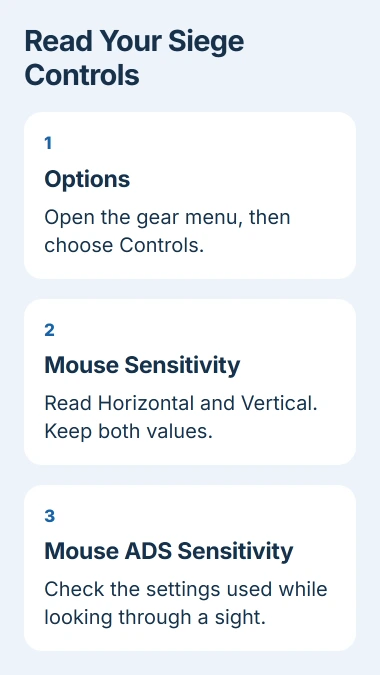
From Siege's main menu, select the gear icon, open Options, then choose Controls. Look for Mouse Sensitivity Horizontal and Mouse Sensitivity Vertical in the mouse and keyboard controls.
Horizontal controls how quickly your view turns left and right. Vertical controls how quickly it moves up and down. Write down both values so you can compare the whole aiming setup.
Use the mouse entries if you play with a mouse. Controller sensitivity and stick dead zones are for the controller, even when it's plugged into the same computer.
Take a screenshot of the settings or write them down before changing anything. Include whether you're using a mouse or controller. Someone helping with your mouse setup needs the mouse settings, rather than the controller options.
The current ADS instructions use the gear, Options and Controls route. Choose Mouse ADS Sensitivity for a mouse or Controller ADS Sensitivity for a controller.
Check the values used while aiming down sights
ADS means aiming down sights: looking through your weapon's sight rather than moving around with the weapon held normally. Open Mouse ADS Sensitivity to inspect that part of your setup.
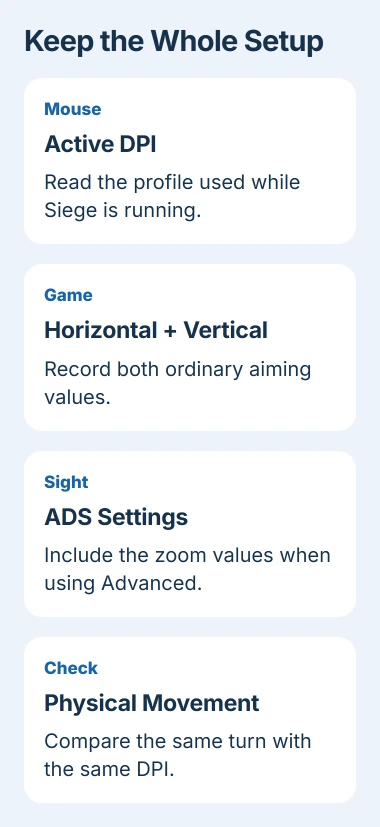
Note whether you're using standard or advanced ADS controls. Advanced settings let you set sensitivity for each zoom level. When sharing your setup, include those zoom values along with the ordinary turning values.
Ubisoft's ADS system explanation explains why each zoom level has its own sensitivity. The old-to-new conversion section covers the 2020 Shadow Legacy change.
That conversion was for the older system. Start with the numbers your game shows now; you don't need to convert them again just because an old calculator asks for an old ADS value.
If turning feels comfortable until you look through a sight, compare that sight's ADS setting first. Changing the main horizontal and vertical sensitivity would also change movement that already felt right.
Find the mouse DPI used by the game
Open your mouse manufacturer's utility and check the active DPI setting. DPI measures how much movement the mouse reports as you move it across your desk. It works alongside the game's sensitivity.
Check the Siege profile in your mouse software if it has one. The desktop profile may show one DPI while launching Siege switches to another. Use the active game profile when recording your setup.
Some mice have a button that cycles between DPI levels. Identify that button in your model's instructions. Accidentally pressing it can change your aim without changing either number you just read in Siege.
If your aiming speed changes when a game launches or the PC wakes, follow the mouse profile and DPI checks. Fix those changes before settling on a sensitivity.
Windows also has its own mouse pointer controls for the desktop cursor. The Windows pointer-speed slider doesn't show your Siege horizontal or ADS values.
When asking someone to compare setups, send your mouse model, active DPI, horizontal and vertical values, and ADS settings together. They'll have the settings they need to compare how each setup feels.
Include field of view and any custom multiplier
Check Field of View in the game's display settings. This controls how much of the scene you can see. Keep it consistent while comparing aim, since a different view can change how movement appears on screen.
The PC input explanation also covers MouseSensitivityMultiplierUnit in GameSettings.ini. This number scales your sensitivity alongside the in-game sliders.
If you've edited that file, write down the multiplier too. Two setups with matching sliders and DPI can feel different when their multipliers differ. You can read your in-game settings without editing the file.
That page dates from 2019, so use it to understand the multiplier. Its old table of sights isn't a current list of every sight in Siege. The later ADS system changed how zoom sensitivity works.
Choose a comfortable value with a repeatable movement
To find a setting that suits you, enter a practice area and face a recognizable point. Put your mouse somewhere comfortable, then turn toward a second point. Notice whether you repeatedly move past it or stop short.
Adjust one value, then repeat that same movement with the same mouse DPI. I'd keep the other values as they were while you judge that change.
To compare mouse travel, measure how far you move it to make one complete turn back to your starting point. Write that distance alongside your settings. Use the same surface, with enough room to finish the movement.
Try both ordinary turning and aiming through your usual sight. A comfortable turn with the weapon held normally can still feel wrong through a magnified sight. Test the movement you're trying to improve before changing another setting.
Screen performance is a separate part of that experience. The gaming-monitor checks explain refresh rate and motion behavior; raising mouse sensitivity won't fix a display that smears moving objects.
Keep a copy and get help when settings won't stay saved
Return to Controls after comparing settings and check that your chosen values are still there. Keep your notes somewhere you can find them after reinstalling the game or switching computers.
If a value changes after you reopen Siege, report which value moved and when it happened. If the number stays put but aiming speed changes, include the mouse utility's active profile and DPI in your report to Ubisoft Support.
The Short Version
Read horizontal, vertical and Mouse ADS Sensitivity in Options > Controls. Record DPI, zoom values and any custom multiplier too. Compare small changes in practice with the rest of your setup held steady.
Checked November 5, 2026.

Isaac Smith is the founder and editor of PC Glance, a website that covers computers, laptops, and technology. He is a tech enthusiast and a computer geek who loves to share his insights and help his readers make smart choices when buying tech gadgets or laptops. He is always curious and updated about the latest tech trends.