Damaged files can make Rainbow Six Siege keep crashing on PC. Use your game launcher to verify the installation, then restart and test. An anti-cheat error or the whole PC rebooting needs different checks.
Note whether Siege closes before the menu, crashes while loading a match, or quits during play. Keep the exact error text. That helps you choose between repairing game files, checking the part named in the error, and checking Windows.
In this guide
1. Verify Siege in the launcher you use
Close the game before verifying it. In Ubisoft Connect PC, open Library, select Siege, and use the cog icon beside Play > Verify files. Let the check finish and accept any offered file repair.
For a Steam copy, open Library, right-click Siege and choose Properties > Installed Files > Verify integrity of game files. Use Steam's verification route for the files it installed rather than hunting for an unrelated folder.
Ubisoft's file-verification instructions recommend this for games that crash or won't start. Missing or damaged installation files can be restored without immediately reinstalling the entire game.
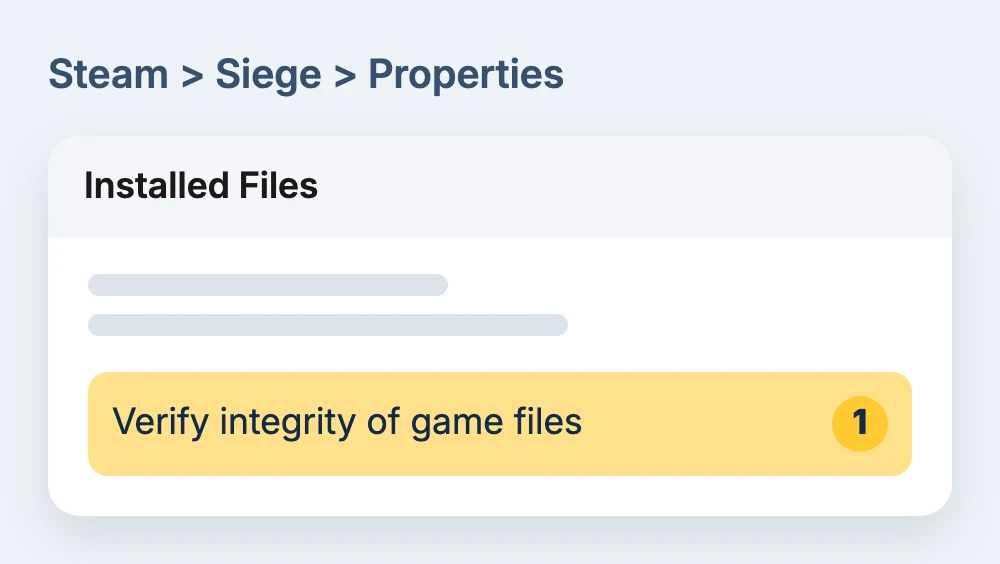
In the legacy Epic Games Launcher, use Library > three dots beside Siege > Manage > Verify. In Launcher Preview, open Library, select Siege, then choose three dots beside Play > Manage > Verify.
Retry the action that failed: reaching the menu, loading a mode or playing a match. If repaired files stop the crash, keep the working setup. If the crash returns, continue with updates and the error-specific checks.
2. Finish Windows, launcher and graphics updates
Exit Siege and let its launcher finish pending game updates. Restart the launcher if it asks. Finish those updates before checking the graphics driver, so an incomplete download or a launcher left open doesn't confuse the result.
On Windows 11, open Settings > Windows Update > Check for updates. On Windows 10, use Settings > Update & Security > Windows Update. Complete updates offered for your supported Windows setup, including any requested restart.
Get your graphics driver from the computer maker or NVIDIA, AMD or Intel's official support site. Choose the driver for your graphics card and Windows version. A generic driver-updater app makes it harder to track what's changed.
Include the exact gaming-laptop model when checking drivers. A system with integrated graphics and a dedicated GPU can need manufacturer-specific software. A download for the GPU family alone might not suit that laptop.
After restarting, retry Siege before changing more settings. If the crash began immediately after one driver update, record the previous and current versions and ask the maker how to return to the previous supported driver.
3. Match an anti-cheat error to its own repair
A message naming anti-cheat isn't the same as an ordinary return to desktop. Copy the complete message or take a screenshot, including any code. Then use the Siege help entry for the part named in the message.
Siege's installed components and support procedures can change. Don't install an old anti-cheat package from a forum link simply because an older season used it. Let the launcher finish its updates and verification first.
Open the Siege technical-support page, then follow the linked PC troubleshooting and relevant anti-cheat guidance. If no matching repair is listed, send the exact message to support.
Check account-access errors separately too. A rejected login or server-connection message needs account or connection checks; it doesn't identify a graphics-driver crash.
If starting anti-cheat triggers a reboot or Windows stop error, preserve both messages. The anti-cheat message and Windows error together give support more useful information than a report saying only that Siege won't open.
4. Compare with optional background programs closed
Close optional recording software, performance monitors, overlays and other nonessential apps, then test Siege again. Keep the game launcher running. This lets you check whether another program is involved in the crash.
For Steam, open Library > Siege > Properties > General and temporarily switch off Enable the Steam Overlay while in-game when the checkbox appears. Reopen the game and try again.
The overlay troubleshooting guidance covers updating the system and reducing background load. Some games use overlay functions for purchases or invitations, so restore the overlay if disabling it doesn't stop the crashes.
If closing one optional program stops the crash, reopen the others separately to check that result. Update the program that brings the crash back. Keep the background features that work without crashing the game.
I'd do this before deleting the game's settings. Trying this keeps your settings intact and can reveal a conflict with recording or monitoring software. You won't have to rebuild your aim and display preferences.
5. Treat a whole-PC restart as a Windows crash
A game closing leaves the desktop available. A system crash can show a stop code, restart Windows or return you to the login screen. Record which one happens rather than assuming every black screen is the same event.
Use the Windows unexpected-restart checks for repeated system failures. Add the stop code plus the driver filename, if shown, to your support report.
Crashes across multiple games following a Windows update call for the Windows update and game-crash guide. Use the advice for a particular driver or part only when your setup matches that issue.
Don't remove a particular Windows update just because another player named it. An unrelated build, driver or error can need a different repair, and deleting updates doesn't replace checking the actual crash on your PC.
Send the error and system reports to support
If the same crash continues after file repair and updates, contact Ubisoft Support through the Siege help page. State the launcher, game version, Windows version, graphics hardware and exact error, plus when Siege crashes.
The Siege help page asks PC users to attach DxDiag and MSInfo reports if the crashes continue. Open Win-R, enter dxdiag, and use Save All Information to save the graphics and system report.
For MSInfo, open Win-R, enter msinfo32, then use File > Save. Attach those reports to the private support case along with the results of verification and the test with background apps closed.
If support requests a settings reset, keep a record of your controls first. The Siege sensitivity guide shows which mouse and ADS values to preserve before rebuilding your preferences.
The Short Version
Verify Siege through the launcher that installed it, finish Windows and GPU updates, then check anti-cheat errors and optional overlays. A PC reboot needs Windows crash checks. Send support the error plus DxDiag and MSInfo if it continues.
Checked November 27, 2026.
 If you have any business, I can build it online