Hold Left Alt while pressing W, A, S or D to slow walk in Siege on PC with the default binding. If pressing Alt once leaves you moving slowly after you release it, check the walk behavior setting: your controls may use a toggle instead.
Slow walking is separate from crouching and mouse sensitivity. Use the action named Walk in the game's controls, rather than lowering the speed of your mouse or changing how far the camera turns.
In this guide
Find the Walk binding before changing other controls
From the main menu, open the gear icon > Options > Controls. Go to Customise Controls and find Walk. The key displayed there is the one your current setup uses, even if it isn't Left Alt anymore.
Ubisoft explains in the walking-control discussion that this route shows the assigned key, with Alt as the default. Read your own binding before trying someone else's key choice.
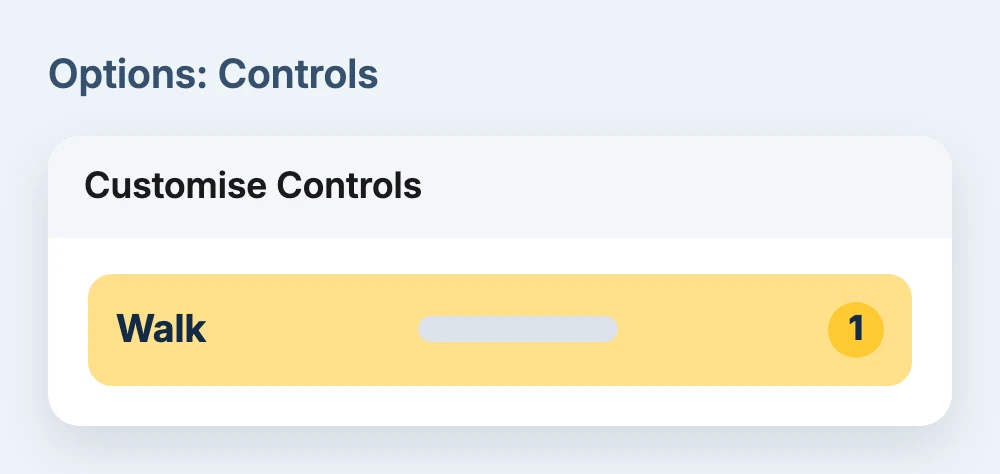
A custom keyboard layout or an old control profile can change the key. If the Walk row shows a different binding, test that key first. This avoids replacing a working control simply because a default-key list says something different.
For camera speed, read the separate Siege sensitivity settings. Horizontal, vertical and ADS sensitivity affect aiming, while Walk changes the operator's movement.
Practice normal movement and slow walking side by side
Enter a practice area so you can test movement without affecting a live round. Stand somewhere with a clear path and press W briefly to see your normal movement speed.
Return to the same place. Hold Left Alt and press W again, or use the key your Walk row actually shows. The operator should move forward more slowly while remaining upright.
Keep the comparison simple. Use the same character, direction and location, and don't hold the sprint key during the walking test. Adding crouch or sprint makes the speed change less clear.
Next try the same Walk key with A, S and D. This checks left, backward and right movement. A fault affecting just one direction is different from a Walk key that does nothing whichever way you move.
If the speed changes as expected, the binding works. Practice releasing the Walk key and returning to ordinary movement before using it in a match. A working slow-walk control doesn't require a Windows setting or extra software.
If the character stops completely, move to the troubleshooting section. Standing still isn't the intended result of slow walking and isn't something to fix by changing mouse sensitivity.
Choose whether walking lasts for a hold or a press
Return to Options > Controls and check the walk behavior setting. The support reply notes that Controls lets you choose hold behavior. That setting controls how walking turns on and off; the binding chooses which key you press.
With hold behavior, keep the Walk key down while moving slowly. Release it to return to normal movement. This suits a key you can comfortably hold alongside the movement keys.
With toggle behavior, press the Walk key to start slow walking, then press it again to switch back. Releasing the key after the first press won't stop slow walking.
Try the behavior in practice and watch the change in movement speed. If the operator stays slow after you let go, press the key once more. A toggle that is still on can look like a movement fault when you've forgotten it's on.
I'd choose the behavior that makes returning to normal movement easiest for your hand. The useful test is whether you can turn walking on and off reliably without looking at the keyboard.
Remap Walk when Alt is awkward to reach
Open Customise Controls, select the binding beside Walk, and press the replacement key you want to use. Follow the menu's confirmation or apply prompt, then return to practice.
Choose a key that you can reach while holding W, A, S or D. Check whether that key already performs another action before keeping the change. Moving Walk onto a frequently used control can solve one awkward reach and create another.
Write down the previous binding before replacing it. That makes it easy to return to the old layout if the new key interferes with leaning, crouching or a gadget during practice.
Test the new binding in each movement direction, then test the actions you often use alongside it. The key needs to work in the combinations you actually press, rather than only when tapped by itself.
A short practice comparison is more useful than copying a full control layout. Keep familiar bindings that work for you and change only the action that is hard to use.
When Walk does nothing or stops movement completely
First, compare holding the key with pressing it once. If one method changes your speed, adjust the hold or toggle behavior to match how you intended to use it.
If both methods fail, assign an unused key to Walk, then repeat your movement comparison. If the new key works, check the original key and whether it's assigned to another action.
Disconnect an unused controller for a keyboard-only comparison.
One owner in the older stuck-walk thread reported that changing the controller dead zone, how far the stick moves before input registers, restored walking even with a keyboard and mouse.
That report is old, so don't copy its controller number as a fix for every current setup. Removing the unused controller is the simpler comparison before changing controller settings you don't otherwise need.
If one combination fails, such as Walk plus left movement, test another keyboard if available. Some keyboards fail to register particular simultaneous key combinations even though each key works alone.
For a key that fails outside Siege too, follow the Windows keyboard checks. Those cover the connection and the keyboard itself rather than the game's movement settings.
Problems across different games also deserve a separate input check. Keyboard input lag in a PC game can help distinguish delayed input from a key press the game doesn't detect.
Get help with a repeatable stuck-walk result
If Walk still freezes movement with a different key and just the keyboard connected, send Ubisoft Support a recording from practice. Include the game version, keyboard model, assigned key and whether hold and toggle behave differently.
Say whether all movement stops or just one direction fails. Include whether a controller was connected and whether the key works in another application. Those details give support a specific input problem to reproduce.
The Short Version
Use Left Alt with a movement key unless your Walk binding differs. Check hold versus toggle when walking stays active, remap an awkward key, and compare without an unused controller if Walk stops movement instead of slowing it.
Checked November 27, 2026.
 If you have any business, I can build it online