
Paragraph marks in Word disappear when you switch off Home > Show/Hide. That hides the editing symbols and keeps your paragraphs intact. If the marks stay visible, clear the paragraph-mark option in Word's display settings too.
Hiding the marks gives you a cleaner editing screen. Deleting them changes the document: removing a paragraph break can join two pieces of text and change their formatting.
Switch off Show/Hide in the document
Click inside your document, open Home, and find Show/Hide in the Paragraph group. Look for the button with the paragraph symbol. Select it once, then check the end of a paragraph.
The symbol should disappear without moving your text. Dots that show spaces and other editing marks can disappear too. You don't need to select the document to change this view.
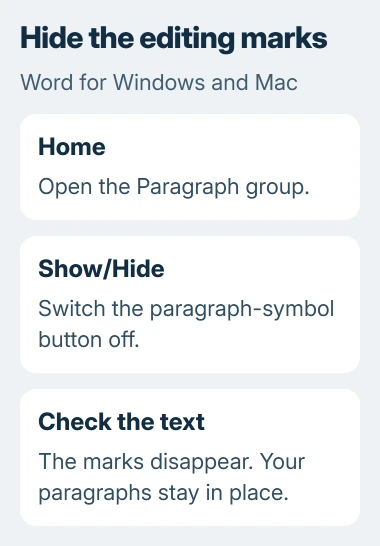
Microsoft's formatting-mark instructions explain that this button controls hidden characters, including paragraph markers, spaces and tabs.
On a Windows keyboard with a US layout, press Ctrl+Shift+8 to switch the marks off or on. On a Mac, use Command+8. Press the shortcut again when you need to see the marks while fixing a layout problem.
If the shortcut doesn't respond, try the ribbon button first. Keyboard layouts and shortcuts can differ, so clicking Show/Hide lets you check the command without changing other settings.
If the dots disappear but the paragraph symbols stay, the button has worked. Word has separate options that can keep some marks visible. Check those next instead of pressing the shortcut again.
Clear the Windows preference that keeps marks visible
In desktop Word for Windows, choose File > Options > Display. Find Always show these formatting marks on the screen. It has separate choices for spaces, tabs, paragraph marks and other characters.
Clear Paragraph marks if it's checked. To hide all editing symbols, also clear Show all formatting marks. Select OK, return to your document, and leave Show/Hide switched off.
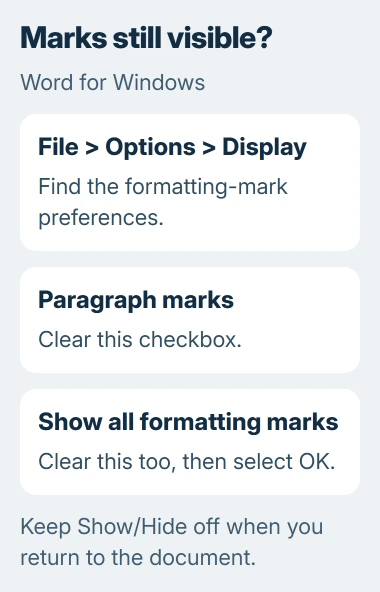
The Display options reference explains how these choices work together. A checked box can keep that type of mark visible even when Show/Hide is off.
Keep any other marks you find useful. For example, you can show spaces while hiding paragraph marks. You don't need to copy every display setting from another computer.
Close the dialog and check a paragraph that had a visible mark. If it's gone, you're ready to keep writing. Compare another document if you're unsure whether the remaining symbol is a display mark or text someone typed.
This setting doesn't remove blank lines or make your document shorter. If an unwanted final page remains, use the Word blank-page checks to see what's keeping that page open.
Use View preferences on a Mac
In Word for Mac, open Word > Preferences > View. Under Show Non-Printing Characters, clear the choices for marks you don't want kept on screen. Return to your document and check that Show/Hide is off too.
File > Options is the Windows route. On a Mac, use the menu named Word to find the app's preferences rather than its document commands.
Start with paragraph marks and leave unrelated view options alone. Then check a paragraph: the following text should still start in a new paragraph, even though you can't see the marker.
If you're using Word in a browser, you won't have these desktop preference dialogs. Check the editing controls in that version, or open installed Word to use the display preferences described here.
The Word keyboard reference lists Windows, Mac and browser shortcuts separately. Check the list for the version you're using before trying another key combination.
Decide whether an actual paragraph needs removing
I'd hide the symbols first if your page already looks right. Deleting paragraph endings changes the document, and putting the paragraphs back can take more work than switching the view back on.
For an unwanted empty paragraph, temporarily show the marks. Click in that empty paragraph and carefully remove its break. Check the text on either side before continuing.
Removing the break between two paragraphs that contain text joins them and can change their paragraph formatting. Check the result before continuing. Deleting every marker would change the structure of the whole document.
Use Undo straight away if separate paragraphs run together. If you still have an extra gap between correctly separated paragraphs, check Word's line and paragraph spacing. That gap doesn't need an empty paragraph.
A document-wide replacement of paragraph endings would edit real content throughout the file. For a cleaner editing screen, changing the display is all you need.
Check a symbol that behaves like ordinary text
A paragraph symbol inserted as text is different from Word's editing marker. Show/Hide won't hide a typed character. Check for this if just one symbol remains after the other marks disappear.
Look at where it sits. An editing marker sits at the paragraph ending; a typed symbol can sit among words. If it's an unwanted text character, select only that character, delete it, and check the surrounding sentence.
If marks remain across documents after you clear those preferences, give support your Word edition, operating system and enabled display options. Include a small example file so they can check it without changing unrelated Office settings.
The Short Version
Switch off Home > Show/Hide. If marks stay visible, clear Paragraph marks and Show all formatting marks in Windows Display options, or check Mac View preferences. Delete breaks only when you want to change the document's structure.
Checked November 4, 2026.

Isaac Smith is the founder and editor of PC Glance, a website that covers computers, laptops, and technology. He is a tech enthusiast and a computer geek who loves to share his insights and help his readers make smart choices when buying tech gadgets or laptops. He is always curious and updated about the latest tech trends.