To indent a paragraph in Microsoft Word, select its text and set the Left or Right indent. These controls move every wrapped line inward. Enter a number in the paragraph settings when the distance needs to be exact.
For a first-line or hanging indent, the opening line sits apart from the rest. Choose the type your document needs, then use the instructions for your desktop app or browser edition.
In this guide
Pick the indent that matches the text
A left indent moves the paragraph's left edge inward. A right indent moves its right edge inward. Using both makes a narrower block of text without altering other paragraphs' page margins.
A first-line indent moves only the opening line. With a hanging indent, every line after the first starts farther to the right. Those patterns are common in essays and reference lists, respectively.
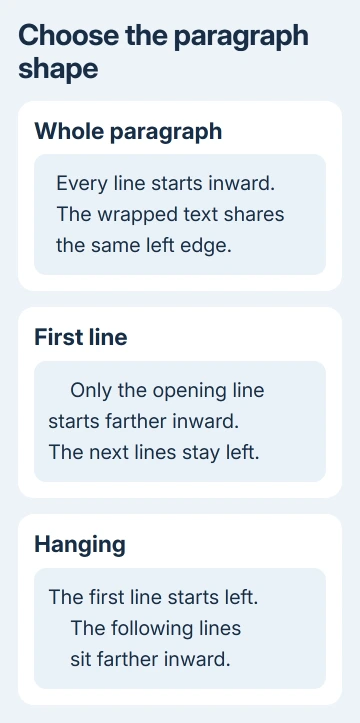
For a bibliography, use the dedicated hanging-indent steps. That format needs a special indent, rather than moving every line with the Left setting.
For an essay that specifically requires MLA formatting, the first-line paragraph instructions cover that requirement with the paper's other settings. Don't apply a block indent to imitate it.
The steps that follow change the whole paragraph. They're useful for an inset quotation, a short note, or another passage that should sit inside the surrounding text's margins.
I'd set an exact value when several passages need to match. Dragging a control by eye is quick for one adjustment, but a number makes it easier to give separate blocks the same width.
Set a whole-paragraph indent in Word for Windows
Click inside one paragraph to format that paragraph, or select the paragraphs that should share the indent. Leave the heading and surrounding text out of the selection unless they need the same change.
Open the Home tab. In its Paragraph group, click the small dialog box launcher in the corner. Select the Indents and Spacing tab if the dialog opens on another tab.
Under Indentation, enter the distance you need in Left, Right, or both. For a paragraph that moves inward evenly on both sides, give the two fields the same distance.
Microsoft's indent settings explain what each value changes. The dialog's preview shows how the paragraph will look before selecting OK.
For a plain block with every line aligned, use Special: None. If First line or Hanging is already selected, the first line can still sit apart from the rest after you change the whole paragraph.
As a practical example, set Left and Right to 0.5 inches if that's the inset your document needs. Use that value only if it suits your document; quotations and other passages don't all need the same inset.
Select OK and inspect a multi-line paragraph. All of its lines should follow the new left edge, and its text should wrap before the new right edge.
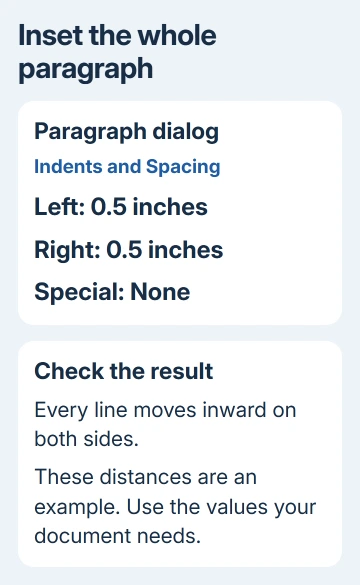
If only part of the text moved, check which paragraphs were selected. If only the opening line differs, reopen the dialog and inspect Special before adjusting the Left value again.
Make the same adjustment in Word for Mac
Select the paragraph or paragraphs on the Mac. On Home, open Line and Paragraph Spacing, then choose Line Spacing Options. This opens the Paragraph dialog with the indentation controls too.
Select Indents and Spacing. Enter the Left and Right values you need, check the special-indent choice, and select OK. Use the dialog's preview to check which lines will move.
The name Line Spacing Options can sound unrelated to indentation, but it opens the Paragraph dialog, which includes both kinds of controls. You don't have to change the document's line spacing to use its indent fields.
Leave the line spacing as it is when you only want to move text inward. Compare the passage with nearby paragraphs: the text should move sideways without adding gaps between lines or paragraphs.
If your installation displays measurements in centimeters, enter the distance in the units shown. Use the measurement your document calls for; the example's number isn't a default for every document.
Change browser paragraphs with Layout
In the browser edition, load the file and choose Editing when the file is in Viewing mode. The view menu is near Share. A document that you can only view won't offer the same editing controls.
Select the relevant paragraphs, then open Layout. In the Paragraph group, change Left or Right to the distance you want. These fields adjust the selected paragraphs rather than the whole page.
Leave Before and After as they are for this task. Those values control vertical paragraph spacing. Changing them won't create the horizontal inset you're trying to set.
After the change, check a wrapped passage and the neighboring text. If the whole page has moved, check whether margins were changed instead of paragraph indentation, then undo that change if necessary.
The browser's signed-in document editor differs from desktop Word's Paragraph dialog. Make the adjustment in that browser toolbar.
Remove an indent or correct uneven lines
Select the affected paragraphs and return Left and Right to 0 to move all their lines back to the page margins. To remove a first-line or hanging pattern as well, choose Special: None in desktop Word.
Zero indent returns text to the existing page margins. It doesn't remove the margins themselves, so the passage should still line up with ordinary body paragraphs on that page.
If some lines still look uneven, check for typed spaces or tabs at their starts. Paragraph indentation and characters typed into the text can both affect where a line begins.
Turn on Home > Show/Hide in desktop Word to examine paragraph marks and tabs. A separate paragraph mark after every short line means you're formatting several paragraphs, rather than one paragraph whose text wraps onto several lines.
For formatting that still won't stay, send Word support a short example without private information. Include the affected paragraphs and their Left/Right values, plus whether the change fails on the desktop or in the browser.
The Short Version
Use Left and Right indentation to move a whole paragraph. On Windows or Mac, open the Paragraph dialog; in Word for the web, use Layout's paragraph fields. Choose a special indent only when the first line should differ from the rest.
Checked November 16, 2026.