Claude's Microsoft 365 add-in puts its sidebar inside Excel, PowerPoint, and Word. Install the official Claude for Microsoft 365 listing and sign in with a paid Claude account.
Use the sidebar for the document open in Office. The separate Microsoft 365 connector is set up inside Claude for cloud files and messages. Installing the sidebar doesn't connect those services automatically.
In this guide
Choose the sidebar for the job in front of you
The current Microsoft 365 add-in covers Excel, PowerPoint, and Word. Outlook has its own listing and is in beta. The Outlook add-in is separate from the combined add-in for your workbook, document, or presentation.
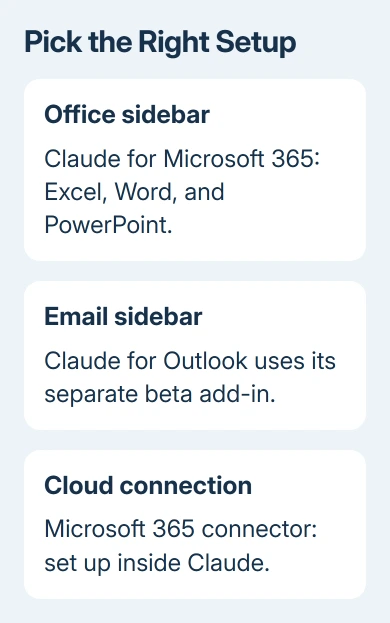
In Excel, the sidebar can work with workbook data and formulas. In PowerPoint, it can edit a presentation using its template. Word support includes edits through tracked changes. Pick a small, understandable file for your first session.
The official product page lists these three Office add-ins as available on paid Claude plans. A Microsoft 365 subscription provides Office access, but it doesn't by itself provide the required Claude subscription.
If your goal is email assistance, use the Claude for Outlook installation guide. Its email and calendar workflow has separate controls from the Word, Excel, and PowerPoint sidebar.
Install the official Office listing
Open a desktop Office app while signed in to the Microsoft account associated with that app. A workplace account may restrict which add-ins can be installed, even when you can edit the document normally.
In supported Windows Excel editions, open Home > Add-ins > More Add-ins. The Office Add-ins window has a Store tab for searching and a My Add-ins tab for installed items. Search for Claude for Microsoft 365.
Check the listing name and publisher before adding it. The current official listing shows Claude by Anthropic for Office as the publisher.
Its description covers Excel, PowerPoint, and Word, rather than only one unrelated Office utility.
Select Add on the listing and follow the Office sign-in and permission prompts.
Microsoft's Office add-in instructions explain the store and installed-add-in controls used by Excel.
On Windows or Mac, the official Microsoft 365 installation listing offers Get it now.
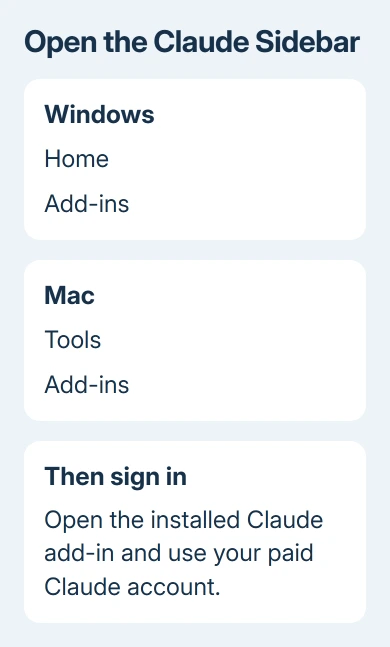
Complete that flow, then activate Claude from Home > Add-ins on Windows or Tools > Add-ins on Mac.
Excel requires a supported Microsoft 365 Windows build or Mac version 16.46 or later; Word on Mac needs 16.61 or later. Check the app requirements for your installation.
If your app's store or organization doesn't offer the listing, ask IT about client compatibility and add-in deployment. Don't install a Windows-only file on a Mac to work around it.
If your administrator has already installed the add-in for you, check your available Office add-ins before trying another install. Once it's installed, you should have a Claude sidebar in the app, ready for you to sign in.
Sign in and try a small request first
Open Claude from the app's installed add-ins or its available ribbon control. Use your paid Claude account to complete that sign-in. This is separate from the Microsoft sign-in that opened your Office file.
Keep the first request narrow. In Excel, ask for an explanation of a formula you can already inspect. In Word, ask for a revision to one selected paragraph. In PowerPoint, ask for a change to a particular slide.
I'd start with an explanation before asking it to edit. Check that the answer matches the cells or text you selected. A reply about the wrong file tells you to check what the sidebar has open.
Review the proposed result in the Office file itself. Check formulas against their original inputs, inspect tracked changes in Word, and read slide text at presentation size.
Even a clear answer can get your intended calculation or wording wrong.
Save a separate copy before a large edit. You'll then have an original to compare against the revision, particularly when the task changes several sheets or sections at once.
The add-in supports a conversation across the Office apps it works in. Start with one file, then expand the task after the first result makes sense.
A clear request about a named range or section is easier to review than a whole-file rewrite.
Use the connector when the work starts in Claude
Connecting Microsoft 365 inside Claude lets you use supported Microsoft services from a Claude conversation. It doesn't add a sidebar to the Office file in front of you.
Open Customize > Connectors in Claude and find Microsoft 365. Follow the connection steps for your account type. The current help separates the personal account steps from those for a workplace or school login.
A work or school connection can cover SharePoint, OneDrive, Outlook, and Teams, subject to your permissions and your organization's setup. It may require administrator approval before a member can complete the connection.
For supported individual Claude plans, the current instructions also offer a personal Microsoft account connection. Personal Outlook.com or Hotmail accounts don't belong in the work-or-school sign-in flow.
Team and Enterprise don't show the personal option.
This changed from older descriptions that limited the connector to workplace accounts.
Use the current Microsoft 365 connection instructions, rather than treating that older limitation as permanent.
Some connections can include tools that change files or send messages. Read the permissions presented for your account and organization.
Giving Claude access to reference material is separate from approving a change to that service.
Resolve a missing add-in or an approval request
If the installation completed but Claude isn't visible, return to the app's installed-add-in list. In Windows Excel, use Home > Add-ins > More Add-ins > My Add-ins, then select the installed item to open it.
If the store is blocked or approval is required, give IT the exact official listing and the Office app you're using. Ask whether user installation is allowed or whether they need to deploy it through the Microsoft admin center.
An organization using a supported cloud platform can provide access without individual Claude accounts. Follow IT's assigned sign-in route in that case, rather than buying a separate plan to clear an unfamiliar prompt.
For an account or subscription error, check which account the message names. Check whether Office is asking for Microsoft sign-in or the Claude sidebar is asking for Claude sign-in before changing passwords or subscriptions.
For wider Office installation trouble, the Microsoft 365 setup guide covers getting the apps installed with the right account.
One blocked add-in rarely calls for replacing the whole Office installation.
If the sidebar still fails, send Claude support the app name, Windows or macOS version, Office version, and exact error. For an organization block, include IT in that request so the permission issue can be checked alongside the app.
The Short Version
Install Claude for Microsoft 365 for a sidebar in Excel, PowerPoint, or Word, then sign in with a paid Claude account. Outlook uses a separate beta add-in. Set up the Microsoft 365 connector inside Claude for access to those services.
Checked November 16, 2026.