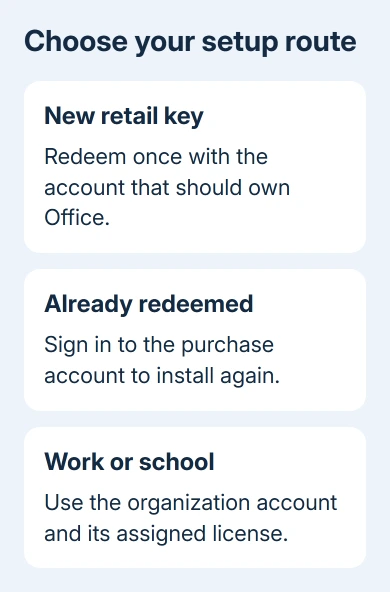
Microsoft365.com/setup is the place to redeem a new Office or Microsoft 365 product key. Use the Microsoft account that should own your purchase, enter the key, then download the apps using that same account.
If you've already redeemed your purchase, you usually just need to sign in to its account. A work or school license takes a different route, so check which kind of purchase you have before entering anything.
In this guide
Start with the account that will own Office
A retail key links your purchase to a Microsoft account. That account becomes the way to reinstall later, so use an address you recognize and can recover. A computer's Windows account and its Office purchase account can be different.
For a renewal key, use the account that already holds your subscription. Creating another account can leave your old subscription and the new purchase in separate places, making it harder to tell which one Word needs.
I'd settle the account first, especially on a shared computer. Read the account address in your browser before confirming redemption. Signing out of an unrelated account takes less work than sorting out a purchase afterward.
The Office plan comparison helps when the product name is unclear. Microsoft 365 Basic doesn't include the installed Word and Excel apps, while desktop-app licenses include them.
Redeem a new retail product key
Type https://microsoft365.com/setup into the browser's address bar. It can redirect to the Office setup service. Microsoft lists this address in its product-key instructions.
- Sign in with your personal Microsoft account, or create one if you don't have one.
- Check the displayed address before linking this product to that account.
- Enter the product key without its hyphens when the page asks for it.
- Follow the remaining prompts to finish redemption and link the product to the account.
If no key-entry box appears, the key may already have been filled in automatically. Follow the product information on the page instead of hunting for another key box.
Keep the key and receipt private. A setup page doesn't need a phone call to a number in a search advertisement. Use the address you typed and the support options reached through your Microsoft account.
Redeeming the key links the product to your account; installing it puts the programs on your computer. Finishing the first job doesn't automatically mean Word has been installed or activated on this device.
Install the apps on a Windows computer
After redemption, open m365.cloud.microsoft/apps and use the account holding your license to sign in. Choose Install apps, then the installer offered for that purchase. Downloading through another account can hide your purchase.
Find the setup program in your Downloads folder, or open it through the browser's download history. Allow that setup program through the Windows permission prompt, then leave it running while it installs the apps.
Wait for the completion screen saying Office is installed. Close the installer, open Start, type Word, and open the Word app. A Word page already open in a browser isn't the installed Windows program.
Accept its license terms, then follow any activation prompts. If Word requests an account, use the one you linked during setup. In Word, File > Account shows product information and any activation problem that still needs attention.
Try creating a small document and saving it to check that the app is ready for your work. Even with a finished installation and a new shortcut, check Word's product information for activation problems.
If this replaces an old computer, follow the Office transfer steps too. A one-time purchase and a subscription have different rules for using the old and new installations.
Install Office on a Mac
Use the same m365.cloud.microsoft/apps account route on your Mac and select Install apps. Open Finder > Downloads, then double-click the Microsoft Office installer package. The package's exact filename can vary.
Choose Continue, read the license, and accept its terms to proceed. Continue through the installation choices, then select Install. Enter your Mac administrator password or use the other sign-in option the installer offers.
When installation finishes, open Word from Applications or Launchpad. Choose Get Started if shown, then activate using the purchase account. The Mac login password and Microsoft account password serve different purposes.
The account and installer steps are the same on Intel models and on Apple silicon Macs. Check the offered Office version's requirements. A Windows setup file won't install Office on macOS.
Handle a used key or a missing install button
An already used key message means that key has been redeemed. Sign in to account.microsoft.com, check Services & subscriptions, and install the product associated with that account. Redeeming the same key again isn't required.
If the product is absent, check whether another personal email address was used for the original purchase. An empty product list doesn't mean your purchase was canceled. Check your other accounts to find it.
For a brand-new purchase that was sold as unused, save the receipt and the exact message. Contact the seller or Microsoft support about the key's redemption status. Buying another license before checking can leave you paying twice.
A work or school license usually doesn't use the retail redemption page. Sign in to m365.cloud.microsoft/apps with the organization's account. Select Apps > Install apps if the installation button isn't on the opening page.
If that account has no desktop installation option, ask IT to check whether a desktop-app license is assigned and whether installation is managed. An organization can provide browser access without granting desktop Office installation.
If a listed personal license won't activate, use Contact Support on the product-key help page. Give support the product name, your purchase account and the activation error. Share the key privately only when support needs it.
The Short Version
Redeem a new retail key at Microsoft365.com/setup with its intended account. Install through that account and activate Word. For a used key, recover the original account; for work licenses, use the organization's sign-in.
Checked November 13, 2026.