Merge PDF files on a Mac with Preview, or use the free PDFsam Basic app on Windows to combine them without uploading your documents.
Arrange the files, save the combined PDF with a different filename, and review its pages before sending it.
An ordinary PDF reader isn't always a PDF merger. Opening several documents in browser tabs leaves them as separate files, even though they appear together on your screen.
In this guide
Choose an offline route for your documents
On a Mac, Preview is already included with macOS and can combine complete PDFs or selected pages. On Windows, PDFsam Basic provides a free merge tool that processes files on the computer. It also supports macOS and Linux.
I'd use one of those apps for bank statements, identity documents, or work files. That keeps you from having to send a copy of those documents to an online service.
For Windows, get PDFsam Basic from its official download page. Check the product name: Basic is the free split-and-merge app, while Enhanced and Visual are different products.
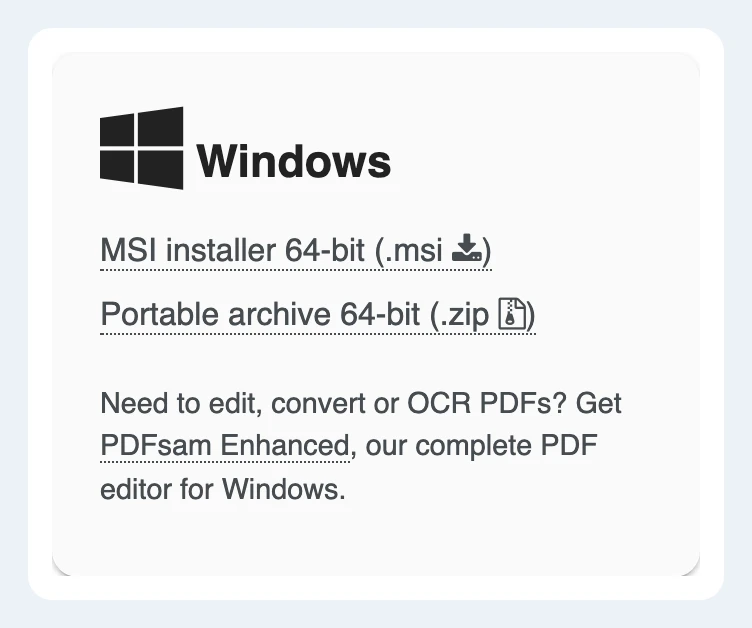
Choose the Windows download for a Windows PC. For PDFsam on a Mac, match its installer to the processor: Apple silicon or Intel. Check that you've picked the installer for your computer, even if a different one appears first.
This guide uses the desktop tools. On a phone or Chromebook, these installers aren't the right route. Use a Windows or Mac computer for these steps, or use an approved online merger if uploading the files is acceptable.
Combine complete PDFs with PDFsam Basic
Install the Basic app, open it, and choose Merge. Gather your source PDFs in one clearly named folder, especially when downloads have similar filenames. Opening each file once helps you recognize what belongs in the finished document.
- Drag the PDFs into the merge list.
- Arrange the files in the order they should appear.
- Choose the resulting PDF's filename and location.
- Click Run to combine the files.
- Open the output PDF from the location you chose.
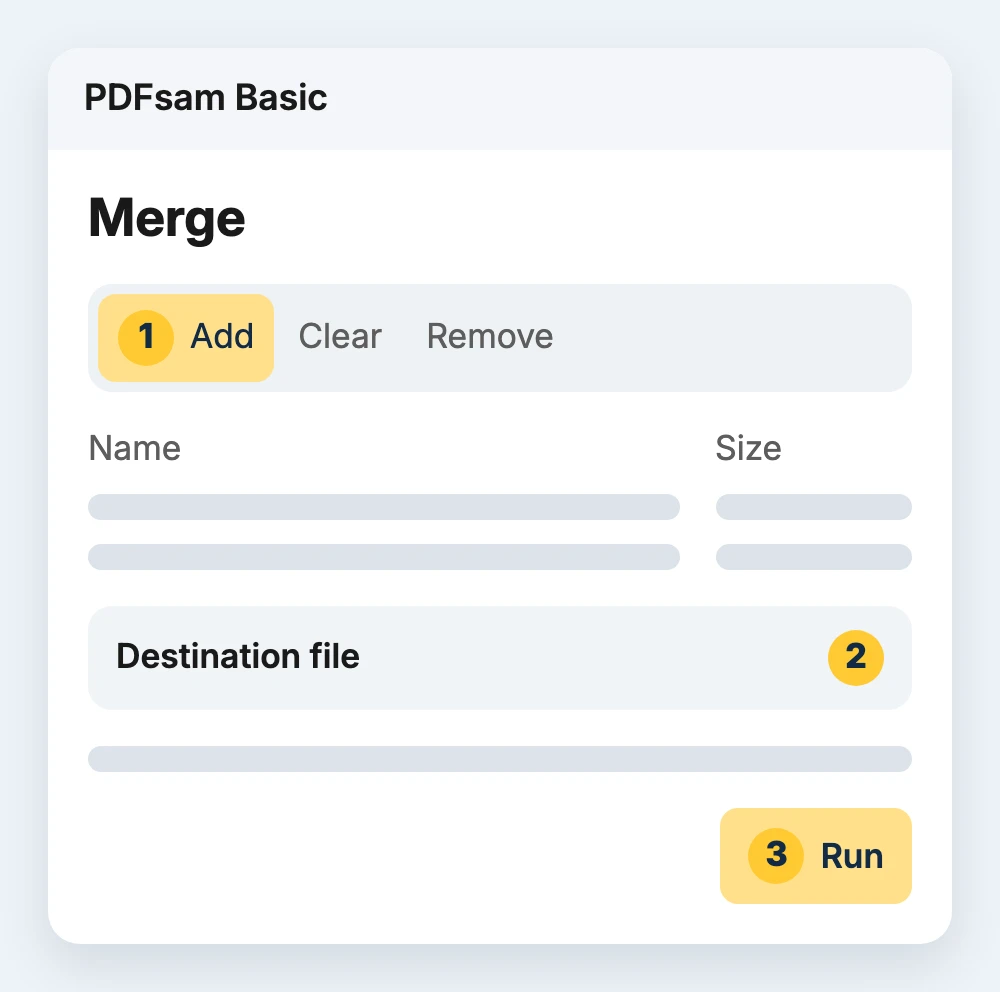
The order applies to the contents of the files. If the first PDF has three pages, the next file starts after those three pages. Even if the filenames sort correctly in your folder, check their order in the app.
Choose an output name that differs from each source, such as Combined Documents.pdf. That makes the finished file easier to identify and helps you keep the original files when you run the merge.
For a simple merge, leave Add a blank page if page number is odd off. Added blank pages change the output count, even when the source order is correct.
Adding a footer, normalizing page sizes, or flattening a form changes more than joining documents. Use those options only when the finished document needs that change.
The PDFsam merge instructions describe the same sequence: add files, arrange them, name the result, and run. No account or web upload is part of this local merge procedure.
Join whole documents in Preview on a Mac
Edits in Preview save automatically. Before combining files, choose File > Duplicate for the PDFs you want to preserve. Work with the copies rather than relying on a later save prompt to protect the originals.
- Open the PDF that should begin the finished document in Preview.
- Choose View > Thumbnails to show its page list.
- Find the other PDF in Finder.
- Drag that PDF's file icon into the open document's thumbnail sidebar.
- Place it at the end or between the pages where its contents belong.
Apple explains how to add individual page thumbnails as well. To combine complete files, dragging the PDF from Finder is the simpler choice.
Check the sidebar after dropping the file. The incoming pages should become part of that document's page list. If the other PDF opens in a second window, it's still separate. Its pages haven't been added to the first document.
If double-clicking a PDF opens a browser or another reader, open it through Preview instead. The instructions depend on Preview's thumbnail sidebar, so a different viewer's page panel won't necessarily have the same editing behavior.
Add selected pages instead of an entire PDF
Open both documents in Preview, then choose View > Thumbnails in each. Select the pages you need in the source sidebar and drag them into the destination sidebar at the required position.
For nonadjacent pages, hold Command while clicking their thumbnails. This lets you bring over the pages needed for an application or report without adding the source document's cover sheets and unrelated material.
Drag thumbnails within the destination sidebar to fix their order. Work from the sidebar rather than trying to rearrange the document by dragging the full-size page shown in the main reading area.
Check where one source ends and the next begins. Those joins are the easiest places to miss a page, add a duplicate, or put an attachment before the document that refers to it.
Save the result and reopen it
Give the combined file a clear name and keep it in a known folder. With Preview, save the working copy you've assembled. With PDFsam, open the resulting PDF named in the merge task rather than reopening one of the inputs.
Compare the expected page total with the finished document. For complete PDFs, add the source page counts. For selected pages, count only the pages you chose, not every page in each source.
Then inspect the first page, last page, and each join between documents. Check orientation, readable text, and any forms that still need to be completed. The merge can finish without catching a missing attachment or unfinished form.
If the result opens in the wrong app, opening PDFs in Adobe instead of Chrome changes the viewing app. It doesn't change which pages were merged.
Handle a file that won't merge
First, open each source separately. A file that won't open needs attention before it's added to the combined document. Download the source again, or request a fresh PDF from its sender when that original is damaged.
For a password-protected file, use the password or request an unrestricted copy from its owner.
The Preview owner-password guide explains why reading a PDF and having permission to edit it are different.
If the sources open but the merge fails, try merging two small PDFs and select an output folder with write access. If that works, look at the original files and their settings for the cause.
Check the app's error text before repeating the large job.
If PDFsam keeps showing an error, use its official help or report the issue. Include the app version and error message.
For restricted work documents, ask the sender or IT team for a permitted combined copy rather than changing document protections.
The Short Version
Use PDFsam Basic's Merge tool on Windows, or Preview's thumbnail sidebar on a Mac. Order the files or selected pages, keep the originals, and open the combined PDF to check the page total and document joins.
Checked November 29, 2026.
 If you have any business, I can build it online