

A Word document can open in your browser through OneDrive and Word for the web, without the desktop Word app. Upload a file from your computer to OneDrive, then select it there to open the browser editor.
A sharing link takes a shorter route because the file is already online. A file in Downloads still needs uploading. That explains why one Word file opens a web page while another asks for a desktop app.
In this guide
Start with the file's current location
To upload from your computer, sign in to onedrive.com with the Microsoft account you want to use. Choose the folder where the document should live before uploading it. The folder then gives you a familiar place to look from another device.
For a work or school document, use the account the owner gave access to. Personal and company accounts can have similar-looking names. Check the account picture or initials before deciding the document has disappeared.
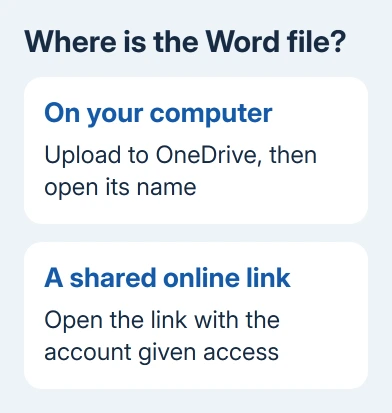
For a sharing link, open the link in your browser and follow its sign-in request if one appears. Some links allow viewing without signing in; others are limited to named people or an organization. The owner controls that access.
Don't bypass a work restriction by uploading a private company file to personal storage. Ask the owner to grant access to your work account or provide an approved copy. That keeps access to the document under the owner's control.
Upload the document, then open its name
On the OneDrive website, select Upload, choose your Word file, then select Open in the computer's file picker. Some OneDrive layouts put the upload choices inside Add new. Choose the file-upload option in that menu.
Once uploading finishes, look for the document's name in that folder. Select the name of the uploaded .docx file. OneDrive opens supported Word files in its browser editor.
Microsoft describes this route in its OneDrive opening instructions. Dragging a document from File Explorer or Finder into the OneDrive file area is another upload method, but selecting Upload is easier to follow the first time.
The file-picker button Open sends the selected file to OneDrive. It doesn't mean the document has already opened in Word. Wait until the upload has completed, then open the file from its online folder.
Double-clicking a file in Downloads uses your computer's usual app for that file type. It hasn't opened through OneDrive. Return to the browser and upload it rather than repeatedly opening the local copy.
Opening the browser editor doesn't convert the document into a Google file. For that separate workflow, use the guide to opening a Word document in Google Docs, which explains the difference between editing Word format and converting it.
Switch from viewing to editing when allowed
Once the document appears, try clicking inside a paragraph to place the cursor. A file can open for viewing even when you don't have permission to change it. Look for the editor's mode control at the top.
Choose Editing when that option is available. Some layouts show Edit Document > Edit in Browser. If the only available choice is viewing, use Request access if offered, or ask the owner to give your account editing permission.
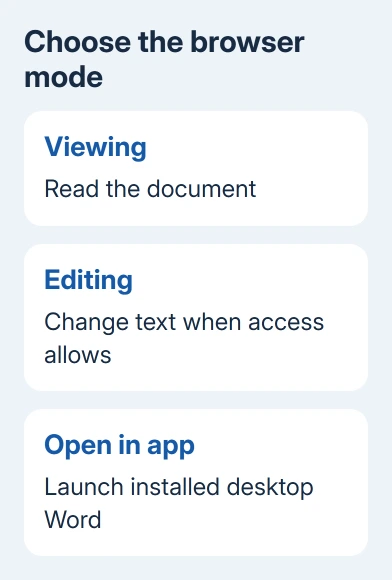
An Open in app command is a different choice. It launches installed Word when available. Choose the browser editing command to keep working in your browser.
For beginner practice beyond opening a file, learn Office through a small project that pairs document editing with a budget and slides.
Shared documents can be edited by more than one person. Changes belong to that shared file, so check whether you should edit it directly or work on a separate copy. For a form or template, I'd make a copy of the Word document first.
Keep the online version and the downloaded copy straight
Word for the web saves edits automatically to the online document. Keep the tab open while changes are being saved, and check the saving status near the document title before closing it or sending someone a link.
The original file on your computer doesn't become the same file just because you uploaded it. Uploading creates the online copy. If you later reopen the old file in Downloads, it can still contain the text from before your browser edits.
For a new file rather than an upload, practice Word with one short document and keep track of where it saves.
To download the edited Word file, select File > Create a Copy > Download a copy. Older layouts use File > Save As > Download a Copy. Check the downloaded name and location before sending it, so you choose the updated file.
Send the existing sharing link for continued work on the online file. A downloaded attachment gives the recipient a separate copy. Use the link to keep working together, or send an attachment when the document is finished.
Handle older formats and files the browser can't edit
Use .docx when you can. Older .doc documents can be viewed, but browser editing requires a new .docx copy. Keep the older original until you've checked that the converted copy has the content and layout you need.
Macro-enabled .docm files can open, but their macros don't run in Word for the web. A macro is a small program inside the document. A form that relies on one may need desktop Word even though its text appears in the browser.
Word for the web can't open password-encrypted documents. Ask the sender for a copy they can share without a password, or use the password in desktop Word. Renaming the extension doesn't remove encryption or repair the file.
Some page-layout and advanced editing features differ from desktop Word. If a document opens but you can't change a particular object, check its browser feature support rather than assuming the upload failed.
If the file won't open, note the error message, file extension and whether another simple .docx opens. Send that information to your Microsoft 365 administrator or Microsoft support. Leave confidential document contents out of the request.
The Short Version
Upload the document to OneDrive, then select its name. A sharing link already points to the online file. Check permission before editing, watch for saving to finish, and download a fresh copy for use on your computer.
Checked November 15, 2026.
 If you have any business, I can build it online






