

The fastest useful start with Microsoft Office is to make one small project in Word, Excel, and PowerPoint. Write a short plan, calculate its costs, and turn the result into a few slides instead of trying to memorize every ribbon button.
Start with the app your work actually needs. The exercises here use Microsoft 365 desktop apps or Office 2024 on Windows; browser editions have different saving controls and fewer features.
In this guide
Choose a project and the app you need first
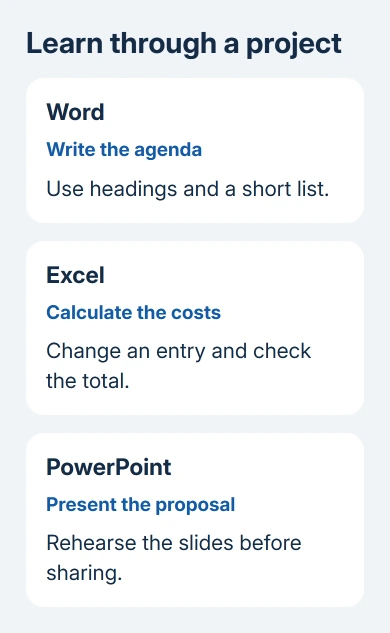
Use a simple practice project, such as planning a small meeting. Word holds the agenda, Excel calculates the costs, and PowerPoint presents the proposal. Keep the project small enough that you can finish and reopen each file.
For a job centered on documents, begin in Word. For lists, totals, and budgets, begin in Excel. For presenting ideas to a group, start in PowerPoint. Learning all three at once isn't a requirement for doing one job well.
Open an installed app and choose a blank file. The ribbon is the strip of command tabs across the window. Home contains common editing tools; Insert adds objects such as pictures, tables, and charts.
Practice on files made for this exercise rather than an important work document. Try a command, undo the change, and see the difference while the original work stays safe.
I'd finish a small file before starting a long course. A completed agenda or budget gives you a clear way to judge which commands you understand and which still need practice.
Build a readable one-page document in Word
In Word, choose File > New > Blank document. Type a project title, a short introduction, and a few agenda items. Click within your text and notice where new typing will appear before changing anything.
Select the title and apply Home > Styles > Title. Use Heading 1 for section names, then leave normal paragraphs in the regular text style. Styles give titles, headings, and paragraphs a consistent look and mark their roles in the document.
Select the agenda items and choose Home > Bullets. Press Enter to add another item; press it again on an empty bullet when the list is finished. Use the list tool rather than typing a symbol before every line.
Try Ctrl + Z after a harmless formatting change, then make the change again. Undo belongs in everyday editing. Learn how it behaves on your practice text before using it in a document with important revisions.
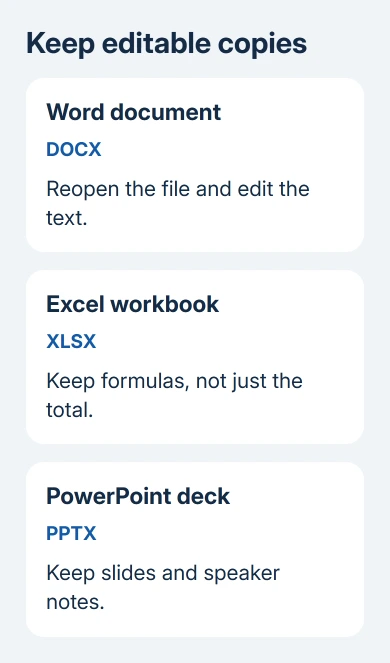
Save through File > Save As or the first Save prompt. Choose a folder and a clear name for your practice document. Keep it in Word format so you can edit it again. Close the file, reopen it from that folder, and check your edits.
Microsoft describes document creation and formatting in its basic Word tasks. Use the section matching the action you're practicing instead of trying to learn every tab before writing a page.
Make an Excel budget that recalculates
Create a Blank workbook in Excel. A workbook is the file; a worksheet is one tabbed grid inside it. Columns use letters and rows use numbers, so A1 identifies column A, row 1.
Enter Item in A1 and Cost in B1. Add three example items in A2 through A4, with practice costs of 12, 8, and 5 in B2 through B4. These are exercise numbers, not a price estimate.
Select B5, type =SUM(B2:B4), and press Enter. The result should be 25. The equals sign starts a formula; the colon tells SUM to include the cells from B2 through B4.
Change B2 from 12 to 15. The total should become 28 without retyping the formula. That's why a spreadsheet formula is useful: it updates the total when your numbers change, unlike a total you type into a document.
Select B5 again and choose Home > AutoSum to practice the button for the same total. Check the selected cells before accepting the proposed calculation. A total is only useful when it includes the intended entries.
Save the workbook in Excel format and reopen it. Select the total to inspect its calculation in the formula bar. Practice entering numbers, correcting them, and checking the new total before trying a larger budget or a complicated function.
Explain the project in a short PowerPoint deck
Open PowerPoint and choose a blank presentation or a simple theme. Put the project's name on the first slide. Select Home > New Slide and choose a layout with a title and a content area for the plan.
Create another slide for the budget summary. Use only the information your audience needs to understand the proposal. A slide crowded with every practice detail is harder to present than a clear heading and a few useful points.
Use the Notes control to open the speaker-notes pane. Type reminders about what you'll say during that slide. Notes are for the speaker; they let the slide stay readable without forcing you to remember every supporting detail.
Select Slide Show > From Beginning to rehearse. Read the slides as the audience will see them, speak through your notes, and press Esc when finished. Correct a confusing slide before adding decorative effects.
Save the presentation as a PowerPoint file. If you're using the browser edition instead, it saves to OneDrive automatically. Check the filename and account so you can find that copy again.
Practice retrieval and choose the next skill
Find and open each finished file from its folder, without relying on the app's recent list. Knowing its folder and filename matters when you need to email a copy, move computers, or recover work after the recent list changes.
For browser-based Word practice, the Word Online setup guide covers its OneDrive workflow. Stay with one edition while learning a new task so different saving menus don't interrupt the exercise.
Repeat the project with different text and numbers. Then pick the next skill from the work you couldn't complete: Word page layout, an Excel formula, or PowerPoint slide organization. Learn that specific action and use it immediately.
For a job application, describe Office skills through completed work rather than listing buttons you've watched in a lesson. A small finished project helps you see what you can do without instructions.
If you can't use a command, note the app, edition, and exact menu before asking your workplace trainer or IT team. Ask which edition supports the command and whether your account has access to it.
The Short Version
Complete a small document, a budget that recalculates, and a presentation you can deliver. Save and reopen each file, then learn the next command needed for your real work. Use the same app edition while practicing a new task.
Checked November 16, 2026.
 If you have any business, I can build it online






