

List Microsoft Office skills by naming the apps and the work you can do in them. Microsoft Excel: tables, sorting, and formulas tells an employer more than proficient in Office.
Put a stronger example in your work history when the skill helped finish a real task.
Choose skills the job asks for and keep the level honest. Knowing how to open Word doesn't make you advanced in Excel, and using Microsoft 365 doesn't mean you've used every app in the subscription.
In this guide
Match the job's Office requirements to work you've done
Read the job description and mark the apps or tasks it names. A role asking for Excel reporting needs different examples from one asking for Outlook calendar management.
Build the skills list around that work rather than the whole Office suite.
For each required task, write down one occasion when you completed it. Paid work, a class project, volunteering, or running a club can provide a useful example.
Keep the context accurate so the wording doesn't imply employment you didn't have.
Use the product names the employer uses when they describe your experience accurately. Microsoft Office and Microsoft 365 can share a heading. Name the individual apps when describing what you can do.
For example, a heading can read Microsoft Office / Microsoft 365, followed by Word, Excel, PowerPoint, and Outlook skills. Don't add Access, Publisher, or another app just to make the heading look more complete.
I'd choose two Excel tasks you can explain clearly over a long row of app logos. During an interview, you'll have an easier time explaining what you built than defending a broad expert label.
Write an app-specific skills line
Use this pattern: App name: tasks you can complete without being guided through every step. It turns a vague claim into something the employer can compare with the role. Keep unfamiliar features out until you've practiced them.
These are examples to adapt, not achievements to copy as your own:
- Microsoft Word: document formatting, heading styles, tables, and tracked revisions.
- Microsoft Excel: sorting and filtering tables, basic formulas, and charts.
- Microsoft PowerPoint: slide layouts, speaker notes, and presentation delivery.
- Microsoft Outlook: email organization, meeting invitations, and calendar management.
Choose only the items you actually use. If all you've done in Excel is enter information into an existing workbook, say data entry and table formatting rather than borrowing the formula or reporting examples.
A stronger analyst line might name PivotTables, lookup formulas, or data cleanup, but list only features you have used. PivotTables summarize data; knowing that name isn't the same as being able to build and refresh one correctly.
For Word, tracked revisions means reviewing another person's edits, not just changing the font. Microsoft's Track Changes instructions show the difference between recording changes and accepting or rejecting them.
Replace vague ability levels with a practical description
Basic, intermediate, and advanced don't tell every employer the same thing. If the application form requires one of those labels, choose the closest honest level and add task details wherever the form allows them.
For basic use, describe the routine work you can already do: enter information, format a document, organize a simple table, or edit a presentation. Avoid calling yourself advanced just because you've used the app for several years.
For more independent use, name a task you can complete from a blank file and check for mistakes.
Building a report, maintaining a structured tracker, or reviewing a document with another person tells an employer more than how many years you've used the app.
For specialist use, name the actual tools involved. A person using Power Query to prepare data should say that. A person writing VBA automation should say that instead of assuming advanced Excel communicates the same skill.
Don't use percentage bars or invented scores such as Excel 90%. That number won't mean the same thing to every employer. A short description gives the reader something they can ask about and you can demonstrate.
Put the strongest example in your work history
A skills section helps a reader find app names. A work-history bullet shows why that app mattered. Use action + task + useful result, adding a measured result if you have records to back it up.
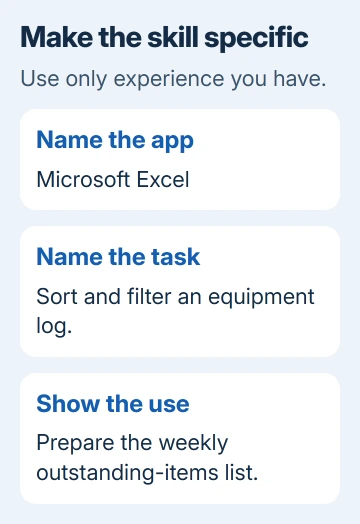
For an administrative role, an honest example could be: Maintained an Excel equipment log and used filters to prepare the weekly outstanding-items list. It names the file, the feature, and what you produced without inventing a time saving.
For document work: Formatted Word reports with consistent headings and reviewed tracked edits before sending the final copy. Use that only if you actually handled those parts of the work.
For presentations: Prepared PowerPoint slides and speaker notes for monthly project updates. If you also delivered the updates, add that fact. Preparing slides and presenting them are separate contributions.
If you're describing a class or personal project, identify it as one. Class project: summarized survey responses in Excel and presented the results in PowerPoint shows what you've done without making it sound like a job you didn't have.
Keep confidential files out of a public portfolio. Rebuild a small example with invented data when showing someone how you do the work. Label it as a sample, rather than presenting altered data as a real business result.
Check your claimed skills before submitting
Open a practice file and perform the tasks you've listed. For Excel sorting, create a small table with names, dates, and amounts. Sort the whole table, then filter it and confirm that each person's information stays together.
The Excel sorting instructions cover sorting a range or table. If you need help with basic setup first, use the Excel issue-tracker example as a practice project.
For Word, practice applying headings and handling a tracked revision. For PowerPoint, build a short deck and check the presentation view you plan to use. Presenter view can display your notes separately from what the audience sees.
If a task still requires following a tutorial step by step, practice it before claiming you can do it on your own.
For a starting project, practice Word, Excel, and PowerPoint together and check that each saved file can be reopened and edited.
When a job needs a feature you haven't used, record it as a learning goal rather than adding it to the finished skills line.
Finish by checking the resume in its final file format. The Word resume formatting guide covers the document layout and export. For a technical feature you can't complete, use that app's Help and search its exact feature name.
The Short Version
Name the Office apps, specify tasks you can perform, and support the strongest skill with a real example. Match the job description without claiming unfamiliar features.
Practice the listed work and check the final resume before submitting it.
Checked November 15, 2026.
 If you have any business, I can build it online






