The Google Docs Offline Chrome extension needs offline access turned on for the account you're using, plus files saved on that computer. Installing the extension alone won't make every document open without internet.
Start in a normal Chrome window while you're online. If the message names another user or an administrator, go to the section for that message instead of repeatedly reinstalling the extension.
In this guide
1. Enable the official extension in the right browser
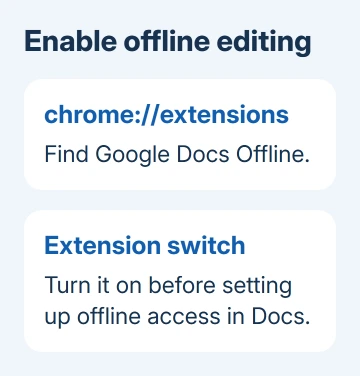
Open chrome://extensions and find Google Docs Offline. Enable it. When it isn't listed, use the extension link in Google's offline setup instructions to reach the Chrome Web Store page for Google's extension.
Select Add to Chrome, review the requested permission, and confirm Add extension. Google says the extension must be installed and enabled before offline editing is set up.
Use Chrome or Microsoft Edge on your computer for these steps. Incognito and other private browsing windows aren't supported. A phone's Chrome app doesn't use the desktop extension setup.
Chrome's clipboard menus also use this extension; Mac paste troubleshooting separates that requirement from keyboard shortcuts and file access.
In Edge, open edge://extensions to check whether the extension is enabled. Its installation link can still take you to the Chrome Web Store; you can keep working in Edge.
If the switch can't be changed, look for browser management restrictions. The disabled extension guide explains why an organization can prevent installation or activation.
2. Turn on offline access while the connection works
Open Google Drive with the account that owns or can edit your documents. Select Settings > Settings, then turn on Offline. Allow the setup to finish before disconnecting.
Another route is the Google Docs home screen: choose Menu > Settings and turn on Offline. Enabling this for Docs, Sheets, Slides, or Drive also enables offline access for the others.
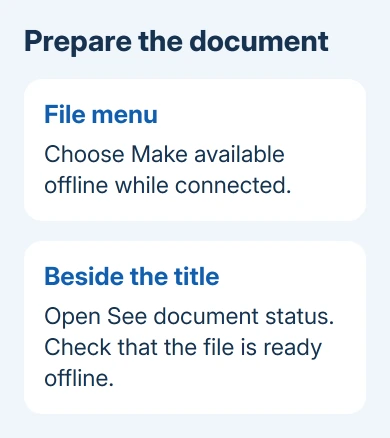
Inside an open document, click the cloud-shaped See document status control beside its title. Use Turn on if offered and finish the confirmation. That control also explains why the document isn't ready to edit offline.
Check that the document says it's ready for offline use. Turning on the extension is only part of the setup. Leave the computer online until the files you need have finished preparing.
Leave room on the computer's drive for those local copies. Google Drive account storage and space on your laptop are different things; spare room in the online account doesn't create room on the device.
3. Save the particular files you need
Open each important document while online and choose File > Make available offline. On the Docs home screen, the file's More menu also offers Available offline.
A check mark beside the file on the home screen means it's available offline. In the open document, inspect See document status as well, especially before taking a laptop away from its usual connection.
Some recent files can be saved automatically when space allows, but that doesn't cover every file you might need. I'd select the actual documents for a trip rather than relying on the recent-files list.
Once preparation finishes, disconnect briefly and open the required file in the same browser profile. Make a small edit, reconnect, and check that the document finishes syncing before switching computers.
An offline copy is saved in that browser profile on that computer. Preparing the file on a desktop doesn't prepare it on your laptop. Repeat the setup on the computer you'll actually take with you.
4. Give a second account its own Chrome profile
The message Another user has already enabled offline access on this computer means offline access is already set up for a different account in that browser profile. Only one account in each profile can have offline enabled.
Switching the account inside a Docs tab doesn't create another Chrome profile. Click Chrome's profile button, choose Add, and create a separate profile for the second account. Then enable offline access inside that profile.
Check both the Chrome profile and the account picture in Docs before preparing files. A personal browser profile can contain a tab signed into a work account, which makes it easy to set up offline access for the wrong account.
Our Chrome account guide explains how a website sign-in differs from the browser profile. Keep the profile that holds pending offline edits until those changes have synced.
If the message instead says Offline sync is disabled by your administrator, ask your school or workplace administrator to review the account's offline policy. Another extension installation won't override that restriction.
5. Repair a setup that keeps checking or won't finish
For Checking offline sync status. Please wait, reload the page first while online. Also open Chrome menu > Help > About Google Chrome, let an available update finish, and relaunch when offered.
For Offline setup failed, switch Offline off in the Docs home-screen settings, then enable it again. If setup fails again, clear the site's stored data rather than clearing the whole browser.
Before removing site data, reconnect and confirm that important edits have reached the online documents. Clearing local data can remove the offline copies you're relying on.
Open Chrome Settings and search for site data. Open the list of stored data for individual sites, find docs.google.com, and remove its data. Labels vary between releases, so use the site list rather than an old settings address.
Return to Docs, sign in if asked, and set up offline access again. Recheck offline readiness for each required file. A completed setup should stop cycling through the same checking message.
6. Handle a document that still won't sync
If only one file reports Could not sync document, check the connection and toggle File > Make available offline off and on for that document.
When the problem continues with a large file, copy smaller sections into new documents while online, then make those available offline. Keep the original until the smaller documents contain everything you need.
If even a small new document fails, use the help-community link on Google's offline support page. Include the exact message, browser version, whether the account is managed, and whether a separate profile works.
The Short Version
Enable Google Docs Offline, turn on Offline for the correct account, and prepare the specific files before disconnecting. Separate Chrome profiles solve the one-account conflict; an administrator must handle an account policy block.
Checked November 12, 2026.