
To remove Microsoft Office from your Windows PC, open Control Panel > Programs > Programs and Features. Choose your installed suite, then Uninstall. This removes the apps and keeps the documents you created.
If that doesn't work, check how Office was installed before trying another method. The Microsoft Store version has a different removal route, and the current Get Help uninstall tool doesn't support Office 2024.
1. Decide whether to remove the suite or repair it
If an app crashes or won't open, I'd try the Office repair controls before uninstalling Office. Repair can fix the installation without making you set the apps up again.
If you want to remove Office, save your open documents and close its apps. Before closing Word or Excel, check which account holds the license if you plan to reinstall; you'll need that account information later.
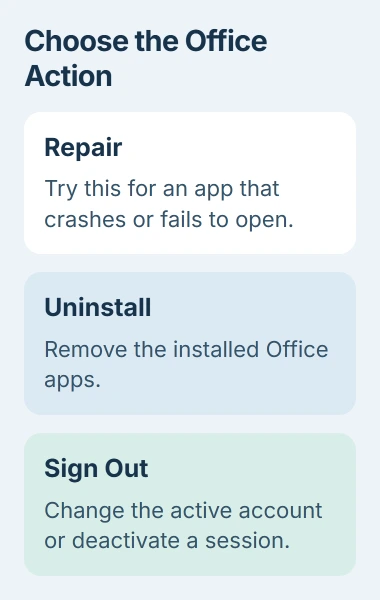
Open Word or Excel and choose File > Account, sometimes labeled Office Account. Note the product name and account shown. For a work or school copy, you may need your organization's installer or help from IT to reinstall.
Microsoft says uninstalling Office preserves documents and workbooks. Keep your normal backups, especially for files or Outlook archives stored only on this PC.
Deleting a shortcut from Start or the desktop doesn't uninstall Office. Use the product's uninstall entry so Windows removes the apps and updates its list of installed programs.
2. Remove the Office entry in Control Panel
Open Start, type Control Panel, and open it. Choose Programs > Programs and Features. If Control Panel displays icons instead of categories, open Programs and Features directly.
Find your installed product. Its name may start with Microsoft 365, Microsoft Office or an Office edition such as Home and Student. Select that entry and choose Uninstall, then follow the removal prompts.
If you installed Office as a suite, look for the suite name rather than expecting a separate Word entry. In most cases, individual apps included with a suite can't be removed separately through this method.
A separately purchased app, such as Project or Visio, can have its own entry. Choose the product you want to remove, especially if your PC lists several Microsoft apps.
Let the uninstaller finish and follow any restart prompt. Then reopen the program list and check whether the suite entry is gone. Check that list rather than judging by a pinned shortcut that remains.
If removal fails, save the exact error code and product name. Those details help you choose the next tool and give support a clearer picture of what went wrong.
3. Check the installation type when the entry is missing
Office may be missing from Control Panel's program list if you installed it from the Microsoft Store. On Windows 11, check Settings > Apps > Installed apps. On Windows 10, open Settings > Apps > Apps & features.
Find your Office product there and choose Uninstall if it's available. Confirm the prompt, then let the removal finish. In Windows 11, use the menu button beside the entry to see its available actions.
If an Office app still opens, check File > Account > About for information about whether your copy came from the Store. If you're unsure, use the installation-type instructions on the linked removal page.
If you've confirmed that Office came from the Microsoft Store and it won't uninstall normally, use the PowerShell method for Microsoft.Office.Desktop. Open Windows PowerShell as administrator and run:
Get-AppxPackage -Name Microsoft.Office.Desktop | Remove-AppxPackageWhen the command finishes, check that same package with:
Get-AppxPackage -Name Microsoft.Office.DesktopIf that query returns no package information, the Store package was removed. The command only removes that installation type; don't use it as a cleanup command for other Office editions.
4. Use the uninstall troubleshooter for supported versions
For Microsoft 365, Office 2021, Office 2019 or Office 2016, the uninstall troubleshooter can handle a failed normal removal. Use its Uninstall button on the affected PC and allow it to open Get Help.
Answer the questions in Get Help and restart when prompted. The tool needs Windows 10 or later, and you must run it on the PC where you want to remove Office.
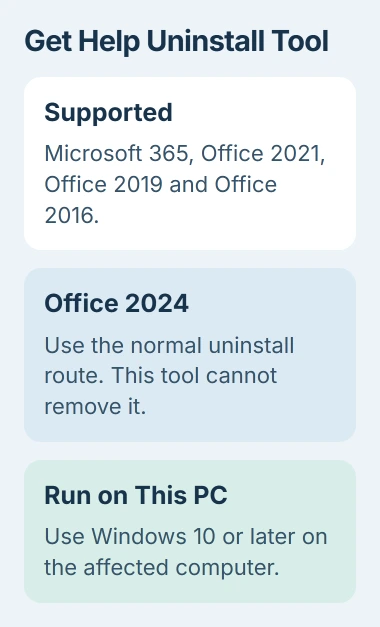
The current tool can't uninstall Office 2024. For that edition, use the normal uninstall route or give support the removal error. Opening Get Help again won't make it support that version.
If Get Help stops with an error, note the message and whether it found Office. On a work PC managed by IT, send those details to your IT team before trying another organization's cleanup script.
Check what remains after removal
After the restart, check the installed-app list for the Office suite and any separately installed apps you wanted to remove. Other products, including a separate Outlook app, can have their own entries.
Your saved Word documents and spreadsheets can remain even when their desktop apps are gone. Choose another compatible app or reinstall the licensed Office product when you need to edit them again.
Uninstalling doesn't cancel your Microsoft 365 subscription. Signing out of an Office installation doesn't remove its files either. Manage subscription billing separately from both.
If a reinstall opens with an activation warning, use the Office license checks to match the signed-in account to the purchased product. Removing the apps doesn't transfer a license to a different account.
If Office still won't uninstall, give IT or Microsoft Support the edition, installation type, Windows version and exact error. They need those details to choose the right manual cleanup steps.
The Short Version
Remove the suite through Control Panel or its Settings entry. Get Help handles supported editions, with Office 2024 requiring a separate route. Documents remain, and subscription cancellation is a different task.
Checked November 4, 2026.

Isaac Smith is the founder and editor of PC Glance, a website that covers computers, laptops, and technology. He is a tech enthusiast and a computer geek who loves to share his insights and help his readers make smart choices when buying tech gadgets or laptops. He is always curious and updated about the latest tech trends.