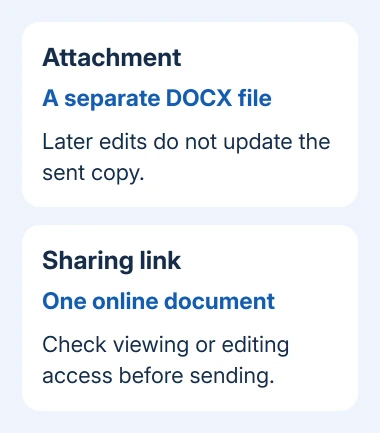
An email attachment sends someone a separate copy of your Word document that they can download and open. Save the document first, start a message in your email app, then use its attachment button to select the .docx file.
Word's Share button can send a link instead. Choose an attachment when someone asks for a file, and a sharing link when you want both people working in the same online document.
In this guide
1. Save the document you actually want to send
Finish the changes in Word and save the file. On Windows, press Ctrl+S; on a Mac, press Command+S. For a new document, choose a filename and folder when Word asks for them.
Use a filename that makes sense to the recipient, such as Application-Smith.docx. A clear name also helps you pick the final file when several drafts appear in the attachment window.
Check the document's title and location before closing it. A file saved in OneDrive can have the same name as an older version in Downloads, so knowing the folder matters as much as knowing the name.
If the document exists only in the browser, download a Word copy before attaching it through your email app. Saving online edits and downloading a local attachment are separate actions.
I'd attach the saved file from the mail app for a one-off submission. That way, Word doesn't have to find the right default email program, and you can see the attachment before sending the message.
2. Attach the file in your email app
Open your usual email app and create a new message. Enter the recipient's address, a useful subject and a short message explaining what you're sending. Then select the paperclip or Attach file control.
If the app offers several places to attach files from, choose the option to browse your computer. Open the folder from the previous step, select the Word document and confirm with Open or the attachment window's equivalent button.
Wait until the attachment appears in the draft. Some apps show a filename chip; others show a small file card with its size. An upload progress indicator means the file isn't ready to send yet.
For example, Gmail in a browser uses a paperclip at the bottom of the compose window. Outlook versions put Attach or Attach file in the message controls. The location changes, but the aim is the same: select the saved file.
If Outlook asks whether to share a OneDrive link or attach a copy, choose Attach as copy when the recipient needs the document itself. A OneDrive card with access permissions delivers an online link rather than the document itself.
Inspect the filename in the draft. If it's the wrong version, remove that attachment and select the correct one. Changing the words in the email won't change which document is attached.
3. Use Word's email command when it is available
Desktop Word can also start an email with the document attached. In current Windows versions, open File > Share and look for Attach a copy instead. Choose a Word document rather than a PDF when an editable copy is needed.
Microsoft's Office email instructions explain that this route needs Outlook installed and configured as the default email app. It opens a mail draft; it doesn't send the file immediately.
Fill in the recipient, subject and message in that draft. Check the attachment, then select Send in Outlook. The mail window gives you a chance to finish the message before it goes to the other person.
If that sharing option is absent or launches an unwanted program, return to your usual mail app and attach the saved file there. Changing Windows defaults isn't necessary for a single attachment.
On a Mac, Word's sharing controls can offer Send a Copy, followed by a document format and an email choice. If your version uses different labels, you can attach the saved file through Mail or Outlook instead.
4. Send a copy from Word on a phone or tablet
Open the document in Word. On an iPhone or iPad, tap Share, open the three-dot options if needed, then choose Send a Copy. Select Word document or PDF if offered, then pick your email app.
On Android, open Word's three-dot menu and choose Send a copy, then the Word or PDF format. Choose the email app that should receive the copy and complete the message there.
Those mobile choices are described in the Word file-sharing instructions. Choose Word if the recipient needs to edit the document, or PDF to keep the page layout for reading.
If your mail app isn't offered, save a copy to a location it can browse, then start the attachment from that app. Check that the file is downloaded rather than only visible as a cloud placeholder.
Don't select Copy Link when the request specifically asks for an attachment. That copies an address to the online file rather than placing a document copy into the email.
5. Choose Word, PDF or a shared link
Send .docx when the recipient intends to edit the document in Word. If they only need to read or print the finished pages, save a PDF version and attach that instead.
A sharing link is useful for ongoing edits because changes stay in one online document. Check whether the link allows viewing or editing and whether it is limited to the intended recipient before sending it.
An attachment is a snapshot of the saved file. Later changes to your original won't update the copy already in someone's inbox. To send a revision, save your changes and attach the new version to a new message.
Check a failed send before trying again
If the attachment won't upload, read the mail app's size-limit message and check your connection. For a file too large for that service, ask whether the recipient accepts a OneDrive link, then check that they have permission to open it.
If mail stays in Outbox, fix the sending problem in the email app rather than repeatedly exporting the document. Give the provider's support team the error, attachment size and whether a message without the attachment sends.
The Short Version
Save the document, compose an email and attach the .docx file with the paperclip. Wait for the upload, check the filename and send. Use PDF for finished reading copies or a sharing link for a document people will edit together.
Checked November 13, 2026.