
Inverting colors on a Chromebook uses Color inversion in Settings > Accessibility > Display and magnification. Switch it on for reversed light and dark colors, or off to undo an accidental change. Ctrl + Search + H is the keyboard shortcut.
Google's shortcut list calls this high contrast mode. The accessibility settings use the name Color inversion, which explains why the two instructions can look different.
Change Color inversion in Accessibility
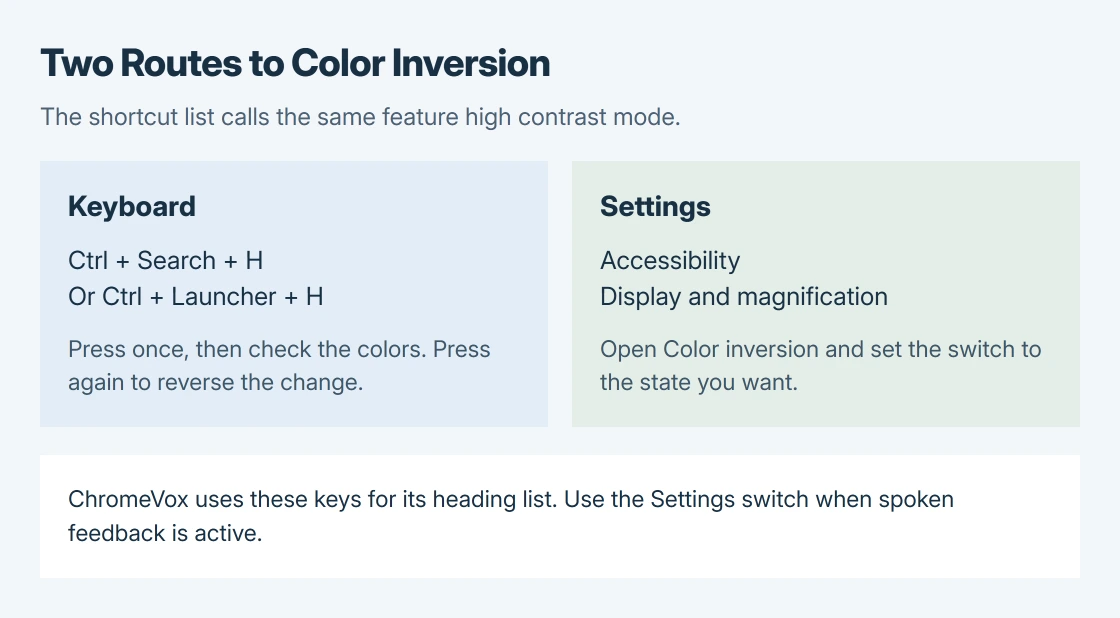
Click the bottom-right clock to open Quick Settings. Open Settings, then choose Accessibility > Display and magnification. Turn Color inversion on or off according to the result wanted.
Google states in its accessibility instructions that the control is in that category. Check Settings after changing it; the light and dark appearance should reverse.
Status: Google's Color inversion control, high-contrast shortcut and ChromeVox shortcut checked October 28, 2026. No Chromebook settings were changed during research.
Use the named switch when the current state is uncertain. Repeatedly pressing a toggle shortcut can leave the feature back where it started, while the settings control shows whether inversion is enabled.
If the whole picture is sideways, change the Chromebook's orientation instead. Color inversion changes the appearance of colors, not the direction of the desktop.
Use the keyboard shortcut when it suits the keyboard
Press Ctrl + Search + H together. A keyboard with a Launcher key uses Ctrl + Launcher + H. Google says both combinations select high contrast mode in its shortcut table.
Check the display after one press. A second press switches it back. If nothing changes, open Color inversion in Settings and read its state.
For an external keyboard, Google adds that Windows replaces Search or Launcher. A Mac keyboard uses Command in that role. These substitutions apply while using the keyboard with ChromeOS.
ChromeVox users have a specific reason to prefer Settings: Google's screen-reader shortcut list assigns Search + Ctrl + H to the heading list. Keep spoken feedback available and use Color inversion's switch.
Choose Dark mode or Night Light for a different effect
For a darker interface, use Dark mode. Right-click the desktop, choose Set wallpaper & style > Theme, then select Dark. Google also offers Auto for a scheduled light/dark change.
For a warmer display, open Settings > Device > Displays and check Night Light. Its controls adjust warmth and timing, separately from Color inversion.
Google documents both in its screen-color guide. A warm evening tint should be checked there; grayscale or a color-vision filter belongs under Color correction in Accessibility.
Our recommendation is to identify which effect is active before changing several controls. A darker theme, a warmer picture and reversed colors can each be intentional settings, so one switch may not remove every visible change.
When the colors remain wrong with inversion off
Check the switch's current position and compare Settings with the affected app. Google's accessibility page says preferences can sync across signed-in Chromebooks; a familiar setting on another device does not establish a new panel fault.
For a setting that returns after signing in, open Settings > Privacy and security > Sync and Google services > Manage what you sync. Review whether Settings is included before changing sync preferences.
That review is a check, not a confirmed cure for a setting that re-enables itself. Google documents synchronization but does not promise it explains every unexpected color change.
Persistent patches, lines or flicker need the Chromebook display-fault checks. Report whether the problem appears before sign-in and whether the inversion switch changes it.
For an administrator-managed Chromebook, request help when the control is unavailable. If a personal device remains discolored with the relevant effects disabled, give its manufacturer the model and ChromeOS version.
The Short Version
Use Color inversion in Accessibility > Display and magnification, or press Ctrl + Search + H (Ctrl + Launcher + H on other keyboards). ChromeVox users can use Settings. Check Dark mode and Night Light separately.

Isaac Smith is the founder and editor of PC Glance, a website that covers computers, laptops, and technology. He is a tech enthusiast and a computer geek who loves to share his insights and help his readers make smart choices when buying tech gadgets or laptops. He is always curious and updated about the latest tech trends.