
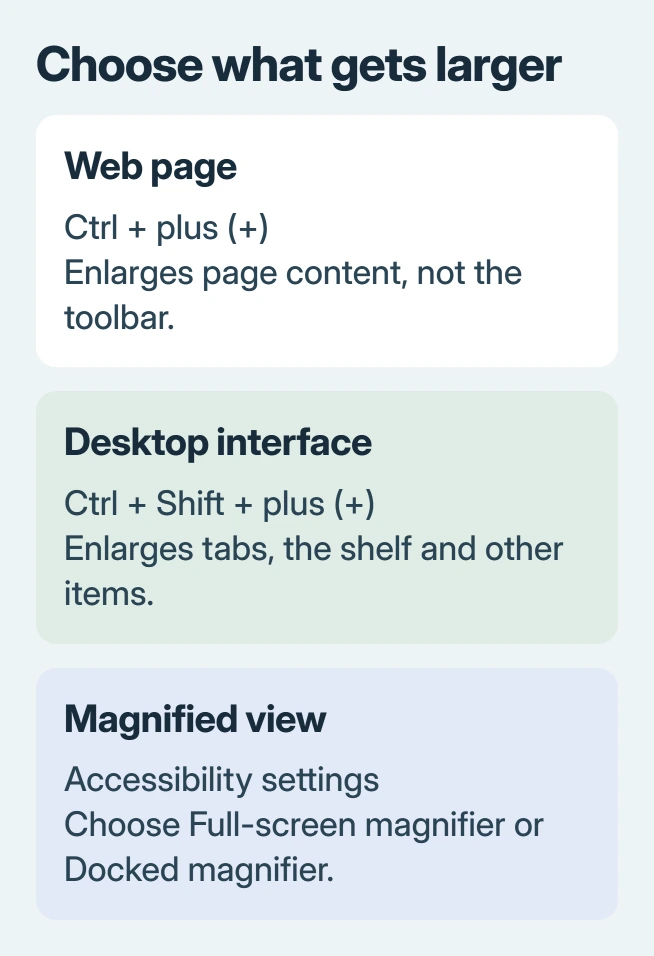
To zoom in on a Chromebook web page, press Ctrl + plus (+). That enlarges the page without enlarging the browser's tabs or the shelf. For everything on screen, use the display-size controls or ChromeOS magnifier instead.
Choose by what needs to become larger. A page, the desktop interface and a magnified view have different controls, so adding extra keys can change more than the text being read.
Enlarge the page while keeping the toolbar its usual size
Open the page and press Ctrl + plus (+) until its text is comfortable. Ctrl + minus (-) reduces page zoom; Ctrl + 0, using the digit zero, restores its normal size.
Google says these shortcuts change the page without resizing the rest of the screen in its Chromebook zoom guide. Check that the page grew while the tabs stayed the same size.
Status: Chromebook page zoom, display-size shortcuts and both magnifiers checked November 2, 2026. Settings names were compared with Google's current accessibility guide.
Without the shortcut, open Chrome's three-dot menu and use plus beside Zoom. Its percentage shows the current page enlargement. The menu offers minus for reversing the change.
For a larger default across websites, open Chrome Settings > Appearance > Page zoom. Google's browser zoom instructions distinguish that default from individual site choices.
If the text is readable but two windows need a different share of the display, adjust the Chromebook split-screen layout. Window width and text magnification solve different reading problems.
Make tabs, the shelf and other interface items larger
Press Ctrl + Shift + plus (+) to enlarge the overall display interface. Google describes this as decreasing the screen resolution, which gives larger items and less working space.
Use Ctrl + Shift + minus (-) to make the interface smaller again. Ctrl + Shift + 0 resets this display setting. It is a different reset from the page-only Ctrl + 0 shortcut.
Inspect the shelf and an app window after changing it. If both grew, the display-level control took effect. Stop when the interface is comfortable instead of repeatedly enlarging until important controls move out of view.
For temporary close inspection of a small area, the magnifiers offer another approach without making this your permanent layout choice.
Use a moving magnified view of the whole screen
Press Ctrl + Search + M, or Ctrl + Launcher + M on a keyboard with a Launcher key. This toggles the full-screen magnifier; a second press ends magnification.
To use visible settings, click the clock, open Settings > Accessibility > Display and magnification, and enable Full-screen magnifier. Google states that this category contains the magnifiers in its accessibility settings guide.
The magnified view can follow the pointer continuously, keep it centered or move when it reaches an edge. Choose the behavior that makes it easier to reach controls instead of losing track of their location.
With magnification active, use Ctrl + Alt + Brightness up to enlarge the view or Ctrl + Alt + Brightness down to reduce it. The brightness keys here adjust magnification because Ctrl and Alt are held.
Google's steps also allow holding Ctrl + Alt while scrolling with two fingers on the touchpad. Use the zoom-level control in Accessibility if the keyboard or touchpad method is awkward.
Keep a magnified strip while seeing the rest of the desktop
Enable Docked magnifier in the same accessibility category. Its shortcut is Ctrl + Search + D, or Ctrl + Launcher + D. Pressing it again switches the docked view off.
The magnified area occupies the top portion of the screen, with the normal desktop beneath it. Move the pointer or press Tab to change which area appears enlarged. Adjust Docked zoom level in Settings as needed.
Docked magnification can help when a large view of the current word is useful but the surrounding page should remain visible. Use the full-screen option when the enlarged area should fill the display.
Color contrast can be adjusted separately through the Chromebook color-inversion control. Magnification changes size; inversion changes the light and dark appearance.
Undo the control that changed the screen
Check which area is enlarged before resetting: Ctrl + 0 handles the page, Ctrl + Shift + 0 handles display size, and the magnifier's own switch ends its moving or docked view.
If a shortcut does nothing, use the named Settings control to check its current state. On a managed Chromebook, ask the administrator about unavailable controls. Google's Disability Support team can help with accessibility setup.
The Short Version
Use Ctrl + plus for a larger web page. Add Shift for overall display size, or choose Full-screen magnifier or Docked magnifier for an enlarged viewing area. Reverse the same setting when finished.

Isaac Smith is the founder and editor of PC Glance, a website that covers computers, laptops, and technology. He is a tech enthusiast and a computer geek who loves to share his insights and help his readers make smart choices when buying tech gadgets or laptops. He is always curious and updated about the latest tech trends.