
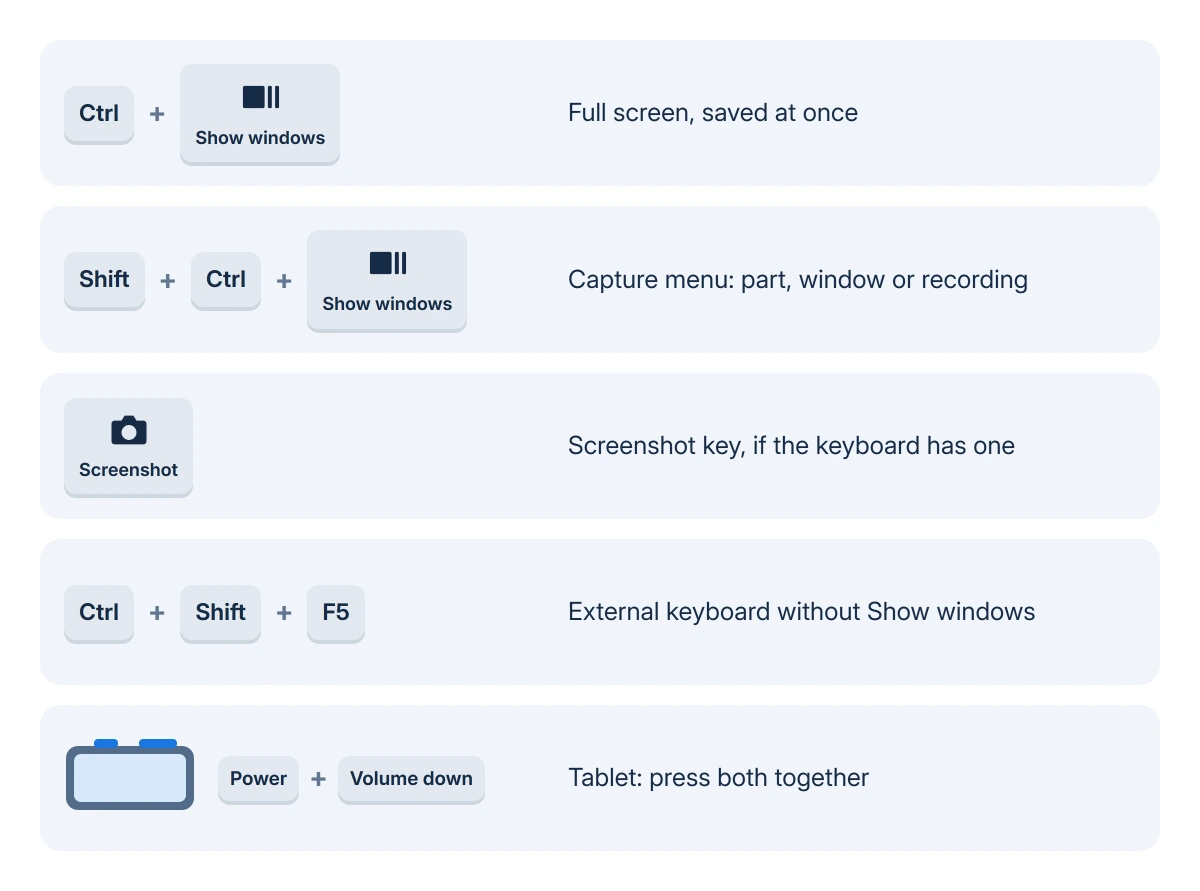
Ctrl plus the Show windows key, the top-row key with a box and two lines, saves the whole Chromebook screen in one press. Shift, Ctrl and Show windows together open Screen capture instead, for part of the screen, one window or a recording.
By default every capture lands in the Downloads folder, and a copy goes on the clipboard, ready to paste. Some Chromebooks also have a Screenshot key, and a Chromebook in tablet mode uses Power plus Volume down.
Take a full screenshot in one press
Press Ctrl and Show windows together. Google's shortcut list gives that as the plain screenshot, and a small preview appears at the bottom right once the image is saved.
A keyboard with a Screenshot key has a shortcut of its own: press it and the capture menu opens along the lower edge, where you choose what to take.
Status: Google's Chromebook screenshot, shortcut, tablet, stylus and admin pages as of 19 October 2026, plus Chromium's policy files. No Chromebook was used for this guide.
An external keyboard without a Show windows key needs Ctrl, Shift and F5, which Google gives for exactly that case. It opens the same capture menu.
Capture part of the screen or one window
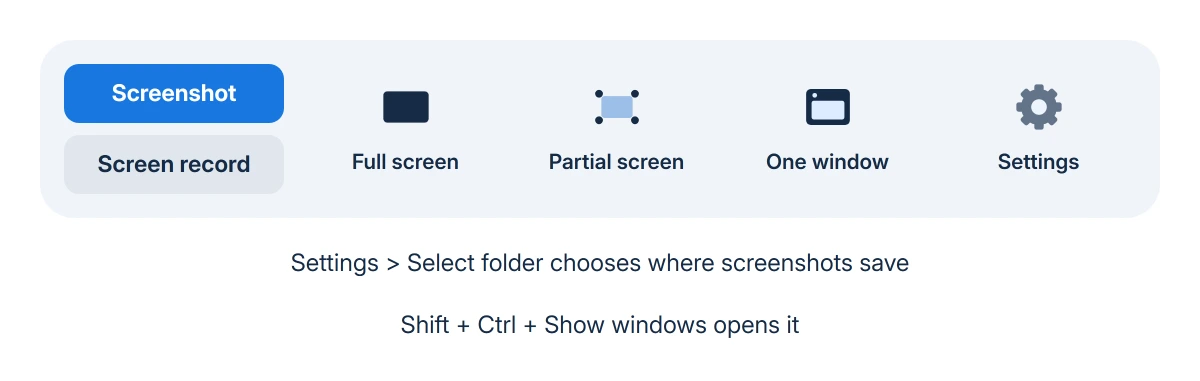
Press Shift, Ctrl and Show windows, or click the clock in the lower right corner and choose Screen capture. The capture menu opens; select Screenshot rather than Screen record.
Then pick one of its three options: the full screen, a partial screenshot or one window. For a partial screenshot, drag across the area you want; for a window, select the window.
The keyboard works too. Google says the space bar switches the section to capture, Tab moves to one of the round corner handles, and the arrow keys then change its height and width.
On a tablet, or with a stylus
A Chromebook folded into a tablet takes a screenshot with Power and Volume down pressed together. Holding Power alone opens a menu that also offers Screen capture.
On a Chromebook with a stylus, tap the Stylus icon on the shelf. Capture screen takes everything, and Capture region lets you touch, hold and drag the stylus across the part you want.
Where the screenshot goes
Google says screenshots and recordings save to your Downloads folder and are copied to the clipboard at the same time, so Ctrl+V in a chat or document pastes the picture straight away.
The Tote at the bottom right of the shelf keeps recent captures. Select it to open one, drag it into a document, or right-click it and choose Copy image.
Downloads is a temporary folder, though. Google warns that a Chromebook short of space will sometimes delete downloaded files, so move any screenshot you want to keep into Google Drive in the Files app.
To change where captures go, press Shift, Ctrl and Show windows, select Settings on the capture menu, then Select folder. Google Drive is a sensible choice on a Chromebook that is short on storage.
Record the screen instead
The same menu records video. Choose Screen record, then the full screen, part of it or one window, and open Settings first if you want Front Camera on, or sound from the device, the microphone or both.
A partial recording saves as a .webm video or, if you pick Record GIF, as a .gif without sound. Stop with the Stop recording button at the bottom right, or press Search, Shift and X.
When screenshots fail on a school or work Chromebook
A Chromebook that belongs to a school or a company follows its administrator's settings, and screenshots are one of them.
Google's Admin console has a Screenshot setting that, in Google's own words, applies to screenshots "taken by any means, including the keyboard shortcut and apps and extensions that use the Chrome API to capture screenshots".
When the administrator blocks them, no key combination or extension brings screenshots back. Chromium's policy file names the choice plainly: "Do not allow users to take screenshots or video recordings".
The admin can also force captures into Google Drive or OneDrive. Google states that users then cannot change the location.
The asker in one Google Chromebook forum thread, on a school Chromebook in 2021, was allowed to take screenshots, yet each one saved to Drive as a 0-byte image with a failed-screenshot notice.
They could not change where downloads go either, and the only reply was to talk to the school. On a managed Chromebook, that is the right place to start.
When the keys do nothing on your own Chromebook
Try the time menu's Screen capture button first. If it works while the keys do not, a key may have been remapped: Google puts key changes under Settings > Device > Keyboard and inputs.
On a Windows or Mac keyboard, Google says the Windows key or Command key stands in for the Search key. Search, Shift and X then becomes Windows key, Shift and X.
A screenshot also helps judge a misbehaving display. I would take one while the glitch shows.
If the saved picture looks normal, suspect the panel, its cable or the display driver rather than the app; our glitching Chromebook screen guide takes it from there.
Moving between computers? A Windows PC uses different keys, sorted in our Windows screenshot guide. Google's own screenshot help page is the place to check if your keyboard's labels differ.
The Short Version
- Ctrl and Show windows saves the whole screen; Shift, Ctrl and Show windows opens the capture menu for part of the screen, a window or a recording.
- No Show windows key on an external keyboard: Ctrl, Shift and F5. Tablet: Power and Volume down.
- Captures save to Downloads and copy to the clipboard; the Tote holds recent ones.
- Downloads is temporary, so move keepers to Google Drive or change the folder in the capture menu's Settings.
- On a school or work Chromebook, the administrator can block screenshots or lock where they save.
Where to Next
Does your keyboard have a Show windows key, a Screenshot key or neither? Mention the Chromebook model in a comment if none of these shortcuts fire, since keyboards on detachables and older models differ.

Isaac Smith is the founder and editor of PC Glance, a website that covers computers, laptops, and technology. He is a tech enthusiast and a computer geek who loves to share his insights and help his readers make smart choices when buying tech gadgets or laptops. He is always curious and updated about the latest tech trends.