
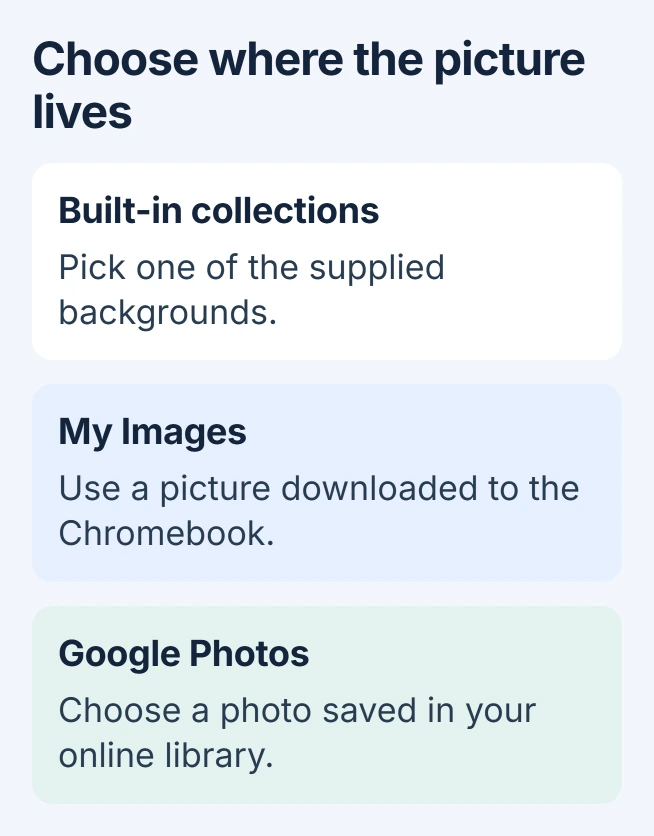
A Chromebook's background picture is changed through Set wallpaper & style in the desktop's right-click menu. Open Wallpaper, then choose a built-in picture, My Images for a local file, or Google Photos for an online photo.
These controls change the desktop wallpaper. Chrome's browser appearance and the screen saver are separate choices.
Open the desktop wallpaper controls
Minimize a window if it covers the desktop, then right-click empty desktop space. On a touchpad, use the Chromebook two-finger click to open that menu.
Choose Set wallpaper & style > Wallpaper. Google says this is the desktop route in its wallpaper instructions. Select a built-in image to apply it.
Status: Chromebook wallpaper sources, Settings access and managed-device restrictions checked November 1, 2026. No ChromeOS wallpaper was changed.
The alternative route is Settings > Wallpaper and style > Set your wallpaper & style, documented by Google in its Chromebook settings guide. It reaches the same personalization task.
Choose a downloaded picture or a Google photo
For a local file, return to Wallpaper and select My Images. Choose the downloaded picture, then inspect the desktop to confirm that the intended image has been applied.
Google states that .jpg and .png are supported examples when troubleshooting a picture that will not set. Use an actual image file; renaming another file's extension does not convert its contents.
For an image stored in Google Photos, choose Google Photos in the wallpaper selector. Keep the photo's main subject in view when judging the result, especially when a portrait picture fills a wide laptop display.
An image captured on the Chromebook can also supply a local picture. The Chromebook screenshot guide explains where those captures are saved before selecting one here.
Google's Files instructions identify Downloads as temporary storage. Back up any picture you want to keep so that clearing Downloads will not erase your only copy.
Keep the picture fixed or allow daily changes
Built-in collections can offer a daily-change or refresh option. Choose an individual picture when you want one background, and review any daily option if the wallpaper keeps changing afterward.
The Screen saver control on the personalization page is separate. Use Wallpaper for the picture behind desktop windows; changing a screen saver does not choose that desktop image.
When a school or work Chromebook blocks changes
An administrator can prevent wallpaper changes. Ask the school or workplace administrator when the option is unavailable on a managed device; another image format cannot override that restriction.
On a personal Chromebook, try a built-in picture if a custom image fails. If built-in choices work, check the local file and its format. If neither works, give the manufacturer your model number, ChromeOS release and failed steps.
The Short Version
Open the desktop's wallpaper menu, then select a built-in image, a file through My Images, or a Google Photos picture. Check daily-change settings for an unexpected replacement and administrator policy for a locked control.

Isaac Smith is the founder and editor of PC Glance, a website that covers computers, laptops, and technology. He is a tech enthusiast and a computer geek who loves to share his insights and help his readers make smart choices when buying tech gadgets or laptops. He is always curious and updated about the latest tech trends.