
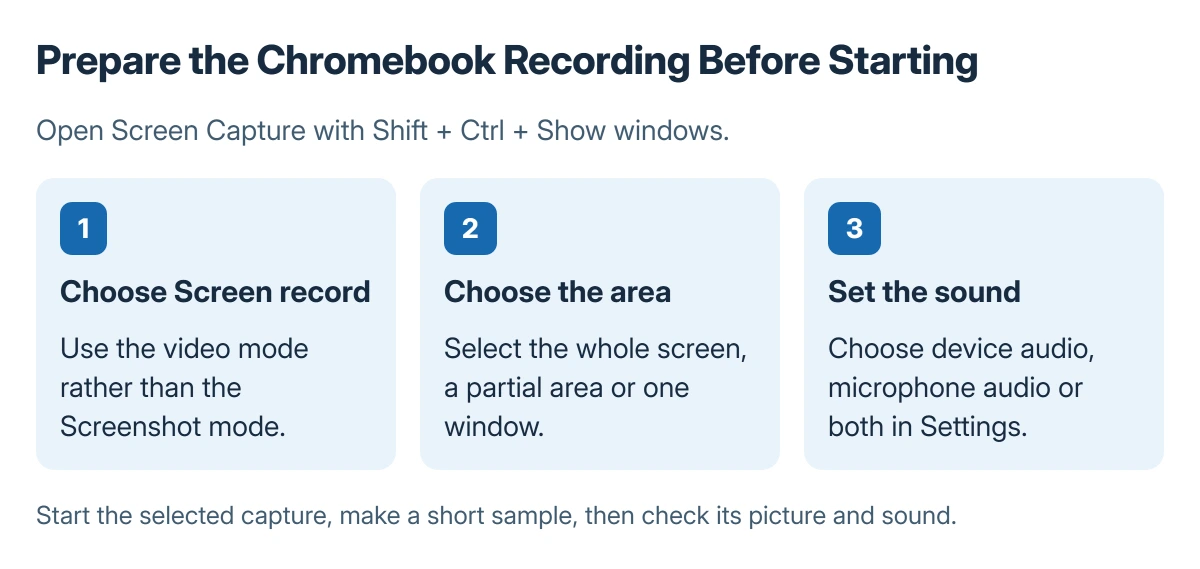
Record the screen on a Chromebook with Screen Capture. Press Shift + Ctrl + Show windows, select Screen record, and choose the full screen, a selected area or one window before starting.
Choose audio deliberately. Current controls offer device sound, microphone sound, or both; a silent GIF is a different output from a WebM video.
Open the recorder and select what it should capture
Press Shift + Ctrl + Show windows. The Show windows key is the keyboard key used for the window overview. The time menu's Screen capture command provides another way to open the tool.
At the bottom, choose Screen record. Google says the capture menu offers full-screen, partial-screen and window recording in its screen capture guide.
Status: ChromeOS recording modes and current sound controls documented by Google, checked 23 October 2026. No desktop session was recorded.
For the full screen, click the screen when ready. For a partial recording, select the area. For a window recording, select the intended window. Check that unrelated messages or documents are outside the capture.
The Chromebook screenshot procedure uses the still-image mode in the same tool. Selecting Screenshot will not start a video recording.
Choose sound and output before starting
Open the recorder's Settings. Select Device audio, Microphone, or Device audio and microphone according to the required sound. Turn on Front Camera only when the camera view belongs in the recording.
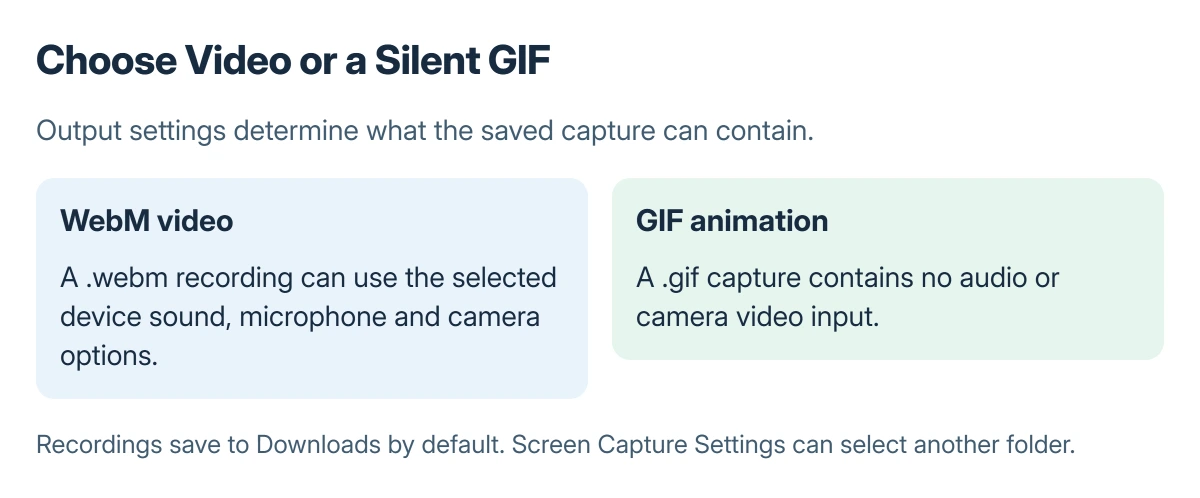
Google states that partial capture can offer Record video or Record GIF. Video uses .webm; GIF uses .gif. Google says GIF capture does not include audio or camera input.
For a spoken demonstration, choose video and the microphone option. Capture a brief sample first, then listen to its playback before beginning a long explanation. That checks the chosen sound source and visible capture area.
Stop the recording and find the saved file
Select Stop recording at the bottom right. Google's stop shortcut is Search + Shift + X. Wait for the recording to finish saving before attempting to share it.
The default destination is Downloads. To change it, open Screen Capture's Settings and choose Select folder. Inspect the saved video directly rather than assuming its presence on the clipboard proves it plays correctly.
The Chromebook copying and pasting guide covers using the clipboard. For a service that rejects WebM, check its supported upload formats before making another recording with identical settings.
The Short Version
Open Screen Capture, select the video mode and capture area, then set audio before starting. Stop through the status area or shortcut and check the saved WebM file. Choose GIF only for a silent animation.
Where to Next
If the sample is silent, note the selected audio option and whether a microphone was connected. Ask the administrator about unavailable recording controls on a managed Chromebook.

Isaac Smith is the founder and editor of PC Glance, a website that covers computers, laptops, and technology. He is a tech enthusiast and a computer geek who loves to share his insights and help his readers make smart choices when buying tech gadgets or laptops. He is always curious and updated about the latest tech trends.