
The mic on a Dell Chromebook 3100 sits in the display assembly near the camera. The 3100 2-in-1 can also have an optional palmrest microphone. Use the exact model's diagram to find the correct opening.
Check the model before treating a tiny opening as a microphone. If the problem is that people cannot hear you, also check which input ChromeOS is using. An attached headset can change the input you need to test.
Match the microphone to the model's diagram
Read the model and Service Tag from the label on the computer. Open Dell Support > Manuals, identify that device and choose its Setup and Specifications guide. Find Chassis overview, then Front and Palmrest.
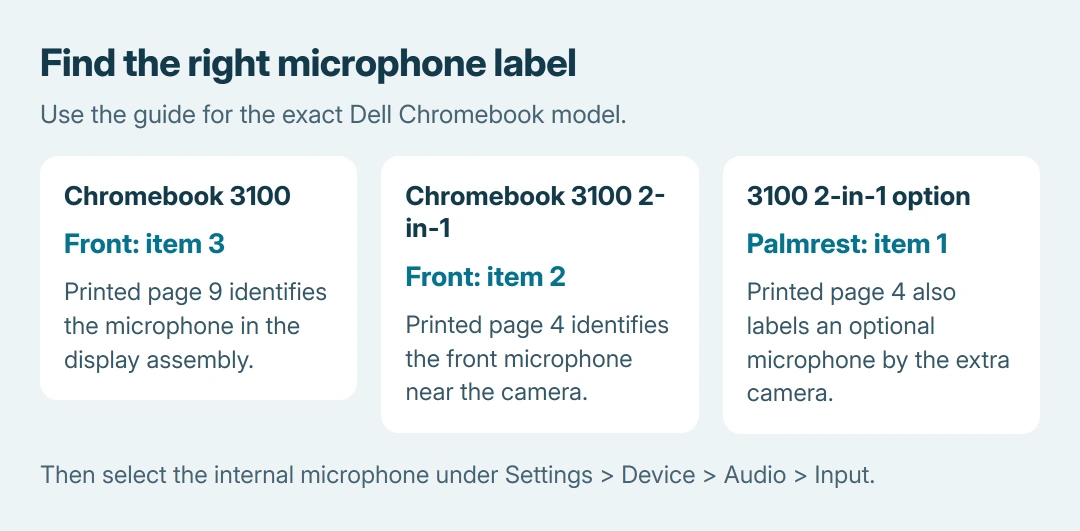
The microphone locations are documented by Dell in the two 3100 guides. Their callout numbers differ, so matching a number from a different model can point to the wrong part.
Status: Dell's 3100 and 3100 2-in-1 manuals and Google's audio controls checked October 26, 2026. Other models need their own diagrams. No Chromebook microphone was tested.
| Dell model and manual section | Microphone label |
|---|---|
| Chromebook 3100, Front, printed page 9 | Item 3, separate from camera and camera status light |
| Chromebook 3100 2-in-1, Front, printed page 4 | Item 2, beside the camera in the display assembly |
| Chromebook 3100 2-in-1, Palmrest, printed page 4 | Item 1, optional microphone near the optional camera |
Dell's 3100 manual and 3100 2-in-1 manual supply these labels. Optional hardware may be absent from a particular configuration.
For an Acer device, match its microphone to the Acer model manual; the 314 families use different labels.
Keep a case, sticker or finger from covering the identified opening. Do not push a pin into it. A camera indicator is a light, and the headset port is a connection for external audio; neither is the built-in microphone opening.
Select the internal input before testing it
Google says ChromeOS lets you choose the microphone source in Settings > Device > Audio. Under Input, inspect Device and select the internal microphone when available.
Disconnect a USB headset or Bluetooth audio device temporarily if it is unclear which input is active. Then speak at an ordinary distance from the display and use the Mic test control on that Audio page.
Google's Chromebook audio guide also gives the quick route: select the time, open Audio settings beside the volume slider and adjust the Input microphone slider.
Check that the microphone is unmuted. A speaker volume change affects what comes out of the computer; the Input control affects what other people hear from it.
For a recording, select microphone audio in the Chromebook screen recorder before capture. Finding the physical opening does not enable audio in an existing silent recording.
When the system test works but a website stays silent
Open Chrome's Settings > Privacy and security > Site settings > Microphone. Review the site's permission and the selected microphone. Grant access only to the site that needs it, then rejoin the call or retry the recording.
Google states that a site needs microphone permission in its Chrome camera and microphone instructions. A working system test with a silent meeting points toward that site's controls or its own input selection.
A screen capture can preserve a message for support. The Chromebook screenshot shortcuts work without recording a private conversation.
For a managed Chromebook, ask the administrator about blocked permissions or missing controls.
If the internal mic fails across apps with the correct input selected, give Dell the model, Service Tag and test result for service assessment.
The Short Version
Use the exact model's Front and Palmrest diagrams. The 3100 and its 2-in-1 use different labels, and the extra palmrest microphone is optional. Then verify the internal input, mute state and website permission before seeking repair.

Isaac Smith is the founder and editor of PC Glance, a website that covers computers, laptops, and technology. He is a tech enthusiast and a computer geek who loves to share his insights and help his readers make smart choices when buying tech gadgets or laptops. He is always curious and updated about the latest tech trends.