
A tilted video in Chrome can be turned without rotating the whole desktop. Video Transformer lets you adjust the angle in small steps, so you can straighten a recording that needs more than a quarter-turn.
This changes how the video looks while it plays in Chrome. To keep it rotated when you send it to another device, use a video editor and export the corrected file instead.
Install the extension that supports adjustable rotation
Open the Video Transformer listing in desktop Chrome. Check that its developer website is xifer.dev; several similarly named extensions do different jobs.
Select Add to Chrome, review the permissions and confirm installation if you're comfortable with them. The Chrome extension installation instructions explain the permission prompt and managed-browser limits.
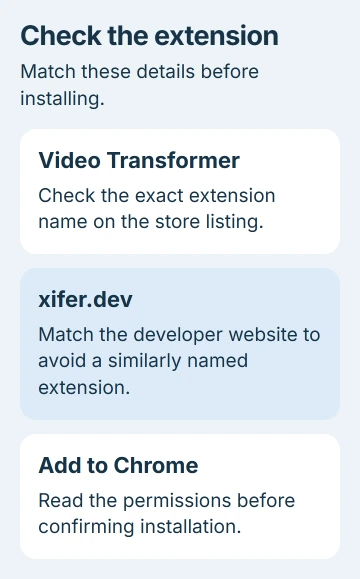
Use the linked store entry rather than a separate extension-download website. If an organization manages your browser, its administrator can block installation. Send them the listing if a management message stops you.
After installation, open Chrome's Extensions menu to find Video Transformer. Pin it to put a Video Transformer button beside Chrome's address bar. That keeps its options within reach while you adjust the video.
The developer's Video Transformer instructions describe rotation, zoom, stretching and movement as separate operations. Start with rotation alone so a stretched picture doesn't make the result harder to judge.
Start the video and give the webpage keyboard focus
Open the video page and start playback. The player may show a still preview before the video loads, so wait until it's playing before trying the rotation keys.
Click the webpage's content, away from the address bar and text boxes, then try the shortcut. If Chrome's toolbar, a search field or a browser menu is selected, it can receive the keys instead of the video page.
If only the video is tilted, leave your computer's display orientation alone. The Chromebook screen-rotation controls turn the entire desktop; use them when menus and other windows are sideways too.
Check the rest of the page while making the first turn. The video should change while normal page text stays upright. That's the result you want for a recording made at the wrong angle.
Choose a quarter-turn or a smaller adjustment
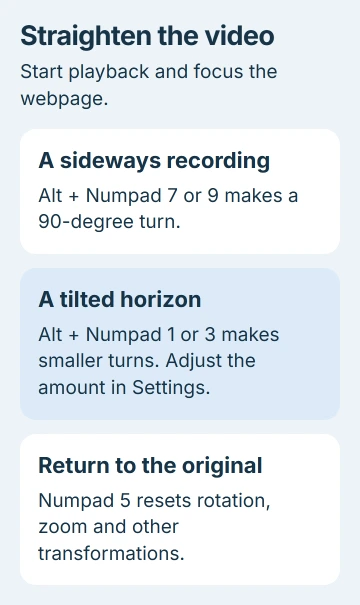
With the default keypad shortcuts, Alt + Numpad 7 and Alt + Numpad 9 turn the video by 90 degrees in opposite directions. Use those for a portrait recording displayed on its side.
For a smaller correction, use Alt + Numpad 1 or Alt + Numpad 3. These are separate from the 90-degree commands. Try a short press first and watch which direction the picture moves.
Open the extension's settings to change how far each press turns the video and which keys it uses. Choose a small turn for a slightly tilted horizon, or a larger one when you need more rotation.
You aren't limited to 90-degree turns. I'd make one small adjustment, check a straight edge in the scene, then keep adjusting until the picture looks right.
Zoom and stretching are optional. Turning the video can leave empty corners or cut off an edge of the scene. Decide whether you want the full scene or a filled player before adding zoom or stretching.
To remove the changes and compare the original picture, press Numpad 5. This resets all changes, including rotation, zoom and stretching; it doesn't just undo the last small turn.
Use the alternate keys on a laptop without a keypad
The numbers across the keyboard's top row aren't the same keys as Numpad 1, 3, 7 or 9. If your laptop lacks a number pad, open the extension popup and enable its alternative-hotkey option.
With that option enabled, Alt + Left and Alt + Right make the smaller turns. Use Shift + Alt + Left and Shift + Alt + Right for 90-degree turns.
To reset with the alternate keys, use Shift + Left or Shift + Right. You can customize these shortcuts, so check the extension's settings if your keys work differently.
Left and Right mean the keyboard's arrow keys; you don't need a keypad for these shortcuts. Close the popup and click back on the video webpage before trying the new combination.
If the site or browser uses the same shortcut, change the extension's shortcut instead of pressing it repeatedly. Alt + V turns its video hotkeys on or off, so you can return the keys to their usual jobs when you're finished.
Check site access when a playing video won't turn
Open Menu > Extensions > Manage extensions and open Video Transformer's details. Check that it's enabled and that its site access lets it run on the video page.
Google's extension-management instructions explain access for a selected site and the separate Incognito permission. An extension installed in regular browsing doesn't automatically run in an Incognito window.
After changing site access, reload the video page and start playback. Click the page content and try one rotation key again. This checks its access and whether the page receives the keys, without changing your computer's display settings.
If playback pauses only when changing tabs, the Chrome background-video workaround addresses that separate behavior. A paused stream and a rotation shortcut that never reaches the page need different checks.
If rotation scrambles the picture, reset the changes and try another available video quality. If one website keeps having the problem, send the developer the page address, your Chrome version and the shortcut that caused it.
Finish with playback or export, whichever you need
Keep the extension for an on-screen correction during viewing. If you're preparing a file to share, rotate it in a video editor and export a corrected copy.
Check that copy in another player before sending it. If the extension still fails after checking site access and where the keys go, contact the developer through its store listing instead of reinstalling Chrome.
The Short Version
Use Video Transformer for adjustable turns during Chrome playback. Start the video, focus the page and choose small or 90-degree turns. Enable alternative keys without a keypad. To keep a file rotated, export it through an editor.
Checked November 5, 2026.

Isaac Smith is the founder and editor of PC Glance, a website that covers computers, laptops, and technology. He is a tech enthusiast and a computer geek who loves to share his insights and help his readers make smart choices when buying tech gadgets or laptops. He is always curious and updated about the latest tech trends.