
Changing location on iPhone can mean its region, App Store country or Find My sharing device. For regional formats, use Settings > General > Language & Region > Region; that won't move the phone's position on a map.
Choose a setting based on your goal. Moving to another store country means changing your account; fixing the wrong position on a map means checking Location Services.
Choose what needs to change
For date formats, temperature units and similar preferences after a move, start with Language & Region. This controls how those formats appear on your phone. You can keep the language you prefer while choosing another region.
For apps and purchases offered in a different country, change the Apple Account country used for media and purchases. You'll need to sort out your payment details, account balance and subscriptions separately.
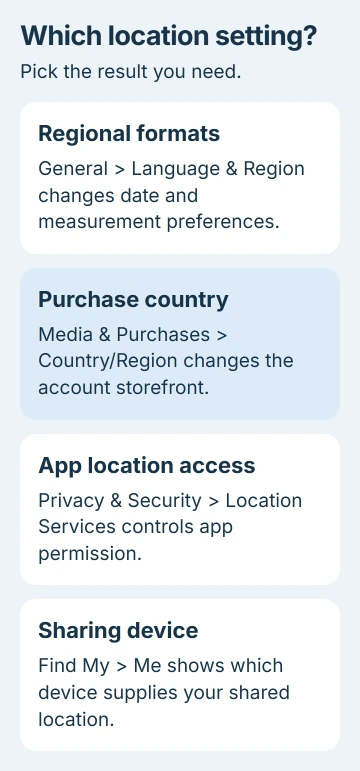
For your position in Maps or another app, check Location Services. The iPhone uses location signals to work out where it is. The Region menu doesn't let you type in a made-up GPS position for every app.
If friends see another device's position, check Find My > Me to see which device is sharing your location. The map could be right for your iPad while you expected it to follow the iPhone you're carrying.
Set the iPhone's region and regional formats
Open Settings > General > Language & Region, then choose Region and select the country or region you want. Read any confirmation before accepting the change.
Apple's regional-settings guide also lists calendar, temperature, measurement, first-day-of-week, date and number-format controls in this area.
Check the date, measurement or other format you wanted to change. The Maps marker won't move when you change Region; your phone is still in the same place.
To change the language of your menus, use the iPhone language instructions. Language and region sit together in Settings, but you can change either one on its own.
Once the formats look right, leave Region as it is. Store availability and app location permissions have their own controls.
Change the country for media and purchases
Before changing the store country, spend your account balance, wait for pending purchases and refunds, and cancel any subscriptions that block the move. Cancellation may still leave you waiting until the paid subscription period ends.
Being in Family Sharing can also block the change. Have a valid payment method and billing address for the new country ready, and redownload content you need because availability can differ between countries.
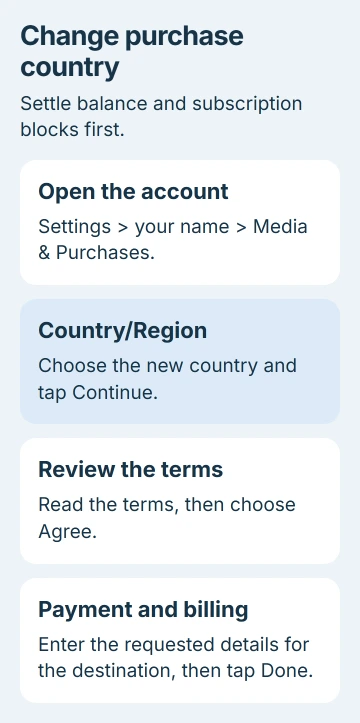
Open Settings, tap your name, then Media & Purchases. Sign in if asked and open Country/Region. Select the new country, choose Continue, review the terms and select Agree.
Enter the requested payment and billing details, then choose Done. These are the current US account-country instructions; older layouts can place View Account before Country/Region.
If a tiny balance you can't spend blocks the change, ask Apple Support to clear it. I'd sort out the balance and subscriptions first; trying again won't make a subscription's paid period end sooner.
Adjust which apps can use your actual location
Open Settings > Privacy & Security > Location Services. Turn it on when you need apps to locate your phone, then open the relevant app's entry to check its permission.
Choose the permission that fits the app's job: it may need your location only while open, or while running in the background too. The options vary with the access an app asks for.
The Location Services explanation covers how cellular, Wi-Fi, GPS and Bluetooth information helps work out your position. Changing Region doesn't replace those signals with a different location.
After allowing access, reopen the app and check where it places you. If it hasn't asked for location access yet, it may not be in the permission list. Use its location feature and respond to the prompt.
To limit location access, use the iPhone location privacy controls. Removing access can stop features that need your location, so choose the change for the app you want to limit.
Correct a map position that is inaccurate
Move somewhere with a clearer view of the sky if you can. Walls, roofs and tall buildings can block GPS signals, so your phone may rely more on Wi-Fi and cellular information until it gets a better view.
In Maps, a larger circle around the blue marker means the position is less precise. Give it time to improve, then compare the marker with your surroundings before deciding that the phone is using the wrong country.
Open Settings > General > Date & Time and use Set Automatically when available. The right date, time and time zone help location accuracy. Check the time-setting instructions if you can't change this switch.
If a Weather widget shows an old city while Maps locates you correctly, check the widget's selected city. A saved city is different from an incorrect GPS position and doesn't call for changing your purchase country.
Choose the device sharing your location in Find My
Open Find My > Me and read Sharing From. If this iPhone isn't the current source, select Use This iPhone as My Location when available. Then check the source again.
Make this change on the device you want to share your position from. It shares that device's real location; it doesn't let you type in a different place.
A Location Label such as Home or Work names the current place. Changing the label doesn't move it on the map. Check the map itself to see whether you've fixed the problem.
If the right source is selected but sharing still fails, use the iPhone sharing repair steps. For a store-country failure, contact Apple Support with the account restriction instead of troubleshooting GPS.
The Short Version
Use Language & Region for formats, Media & Purchases for the store country, Location Services for app access, and Find My's Me screen for the sharing device. None is a universal switch that puts every app in another physical location.
Checked November 5, 2026.

Isaac Smith is the founder and editor of PC Glance, a website that covers computers, laptops, and technology. He is a tech enthusiast and a computer geek who loves to share his insights and help his readers make smart choices when buying tech gadgets or laptops. He is always curious and updated about the latest tech trends.